- Introduction
- Requirements
- The inbox at a glance
- Channels and unread counts
- Finding a conversation
- Read and unread
- Blocking a contact
- Points to keep in mind
Introduction
A client who writes on WhatsApp in the morning, on Instagram at noon and on your Facebook Page in the evening expects one business to answer, not three apps. When each channel is read in its own app, messages are missed, two team members answer the same question, and nobody can tell which clients are still waiting.
The Alaaqat inbox brings every connected WhatsApp number, Facebook Page and Instagram account into one screen. Each conversation is tied to the client's contact, so whoever answers sees who the client is, who owns them, and everything that was said before.
This document explains how the inbox is laid out, how to find the conversations that need an answer, and how to keep the read and unread state useful for your team. The other pages of this section cover who sees which conversations, sending messages, the messaging window, the contact panel and canned responses.
Requirements
| Requirement | Detail |
|---|---|
| Channels | At least one connected and activated channel. See the WhatsApp, Facebook and Instagram integration documents. |
| Permissions | View Conversations to open the inbox, and Send Messages to reply. Which conversations a team member sees depends on their contact permissions; see Who sees which conversations. Blocking a contact needs Edit Contact. |
The inbox at a glance
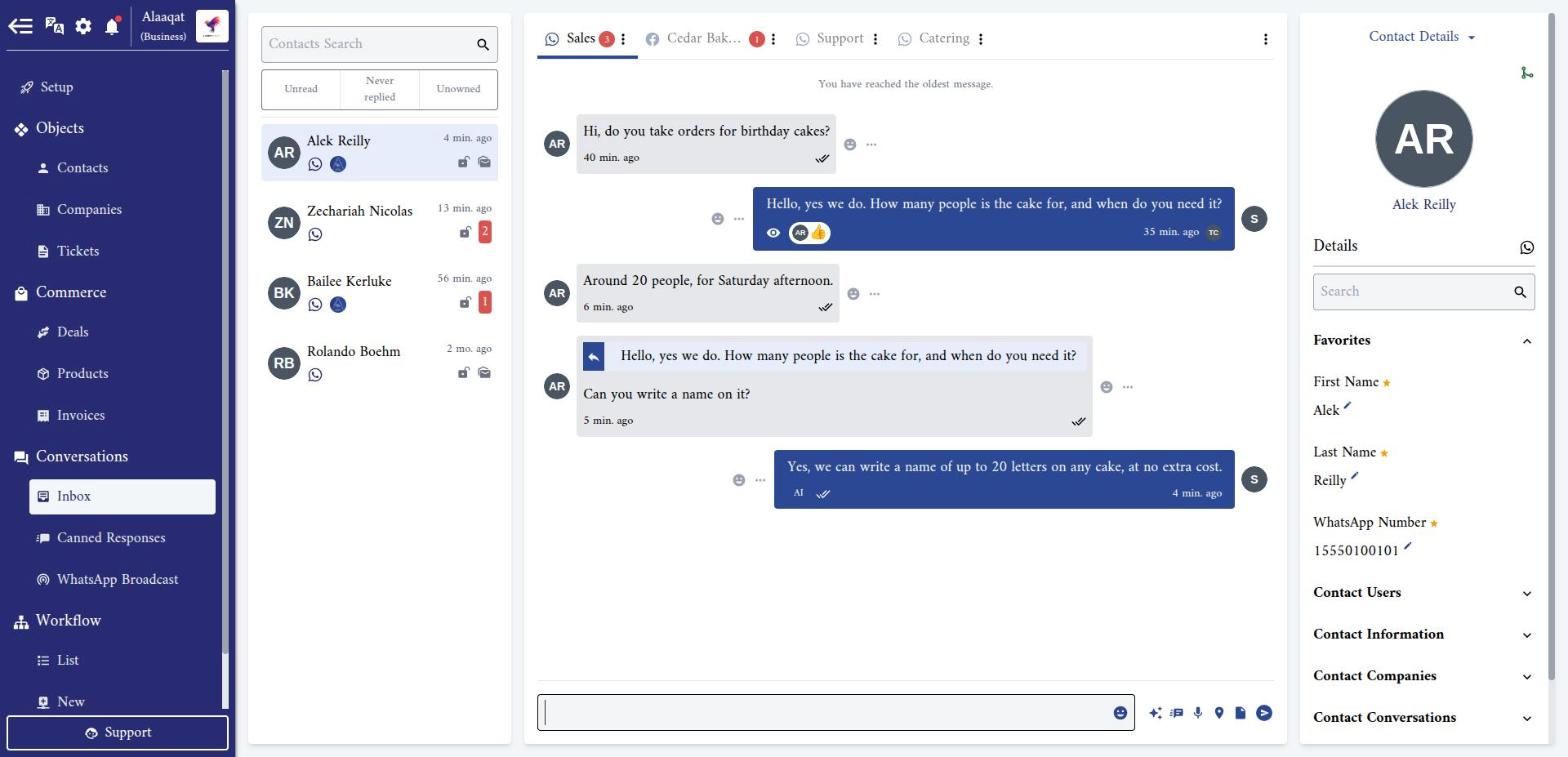
Go to Conversations > Inbox. The screen has four parts:
- The conversations list, with the search box and the filters at its top. Each row is a client who wrote to the selected channel.
- The channel tabs, above the chat. Each tab is one of your WhatsApp numbers, Facebook Pages or Instagram accounts.
- The chat, with the conversation of the selected client and the message box at the bottom.
- The contact panel, with the client's details, notes, deals and tickets. See The contact panel.
New messages appear as they arrive, without reloading the page. A client who writes in moves to the top of the list, and a new conversation plays a sound.
On a narrow screen the list, the channels and the contact panel fold away. The line above the chat reads Channels > the channel > the client: tap each part to open it.
Channels and unread counts
Click a tab to switch channel. The list then shows the clients who wrote to that channel, newest activity first. Tabs are sorted the same way, so the channel with the latest message comes first. When the tabs don't fit, the ⋮ at the end of the row lists them all under More Channels.
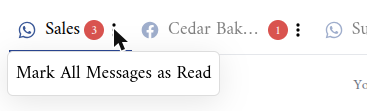
The red number on a tab is the number of unread messages in that channel. The ⋮ next to it opens Mark All Messages as Read, which marks every conversation of the channel as read at once.
Only activated channels have a tab. A channel you connected but never activated does not receive messages, and does not show here. When no channel is active, the inbox shows a link to add one instead of conversations.
{warning} When a Facebook Page loses some of the permissions Alaaqat needs, its tab shows This channel integration is missing some permissions. You should reintegrate in order for it to work properly. To reintegrate, click here. Click the message and complete the Facebook login again, or the Page may stop receiving or sending messages.
Finding a conversation
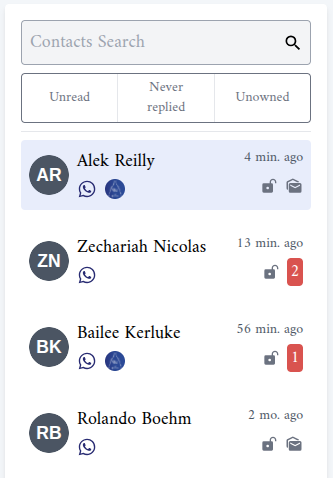
Each row of the list shows the client's name, the channel, the time of the latest message, and, when the contact has an owner, the owner's picture (hover it to read Owned by and the name).
Search
Type in Contacts Search and press Enter. The search looks for the text in the client's first name, last name, full name, email, phone and WhatsApp number, within the selected channel. A phone number matches whether you type it with a leading +, with a leading 0, or without either.
Filters
The three buttons under the search box narrow the list. A selected filter turns blue; click it again to clear it. When more than one is selected, a conversation must match all of them.
| Filter | Shows |
|---|---|
| Unread | Clients with at least one unread message in this channel. |
| Never replied | Clients your business has never sent a message to on this kind of channel (WhatsApp, Facebook or Instagram). |
| Unowned | Clients whose contact has neither an Owner nor a Communication Team. |
Never replied is the quickest way to find new clients nobody has answered yet, and Unowned the quickest way to find clients nobody is responsible for. Search and filters are cleared when you switch to another channel.
Read and unread
A client's unread messages are counted in a red badge on their row. Opening the conversation does not mark them as read; they are marked as read when you click inside the chat, click the message box, or send a message. This way a conversation you only glanced at stays unread for the team member who will answer it.
- Mark one conversation as read: click the red badge on the row. Its tooltip reads Mark All Messages as Read.
- Mark one conversation as unread: click the envelope icon on a row with no unread messages (Mark as Unread). The client's latest message becomes unread again, and the row shows a badge of 1.
- Mark a whole channel as read: use Mark All Messages as Read in the channel tab's ⋮ menu.
Use Mark as Unread when you opened a conversation you can't answer now: it stays visible under the Unread filter until someone handles it.
Blocking a contact
The lock icon on each row blocks or unblocks the client (Block Contact from Conversations and Unblock Contact from Conversations). Alaaqat asks you to confirm, then sets the contact's Blocked from Messages property. A blocked client shows a red closed lock.
While a contact is blocked:
- Their new messages do not reach the inbox. They are not saved, they don't count as unread, they don't notify anyone and they don't start workflows.
- Unblocking does not bring those messages back. Anything the client sent while blocked is lost to your team.
- Your business can still message them. Blocking only stops incoming messages. To stop your broadcasts and automated messages, unsubscribe the contact instead; see the Unsubscribe document.
{warning} Block only clients who send spam or abuse. A client blocked by mistake can write to you for days without anyone knowing.
Points to keep in mind
- Read and unread are shared by the whole team. When one team member marks a conversation as read, it is read for everyone. Use Mark as Unread to hand a conversation back.
- Mark All Messages as Read only covers what you can see. A team member who sees only their own and their team's clients marks only those as read.
- The unread count on a tab follows the same rule. It counts the unread messages of the conversations you can see, not the whole channel.
- One conversation per channel. A client who writes to two of your channels has a conversation under each tab. The same person writing on WhatsApp and on Instagram usually arrives as two contacts; merge them as described in Merging two contacts so their history is in one place.