- Introduction
- Requirements
- Building a workflow
- Events
- Conditions
- Actions
- How a workflow runs
- Points to keep in mind
- Workflow example
Introduction
Most of the messages your team handles every day need the same few reactions: greet a new client, send the price list to whoever asks for it, give the conversation to the right person, answer before the WhatsApp window closes. Done by hand, each one waits until somebody is free, and some are forgotten.
A workflow does them for you, every time, at any hour. It is a chain of three kinds of steps:
- an event, which starts the workflow, such as a message arriving;
- conditions, which check the message, the contact or the channel, and send the workflow down a True or a False path;
- actions, which do the work: wait, reply, assign the contact, update it, or let the AI answer.
This document is the reference for every event, condition and action, and explains how a workflow runs. The other pages of this section walk through complete workflows: auto-reply, auto assignment, interactive messages, unsubscribe, ad leads and AI Agent Reply.
Requirements
| Requirement | Detail |
|---|---|
| Menu | Workflow > List shows your workflows; Workflow > New opens an empty one. |
| Permissions | View Workflows, Create New Workflow, Edit Workflow and Delete Workflow. |
| Plan | Your plan limits how many workflows you can have and how many steps each one can hold. When a save would go past the limit, Alaaqat offers to upgrade the plan instead. See the plans on the pricing page. |
| Channels | Workflows react to messages on the channels you have connected: WhatsApp, Facebook and Instagram. |
Building a workflow
Open Workflow > New. The panel on the side has three tabs: Events, Conditions and Actions.
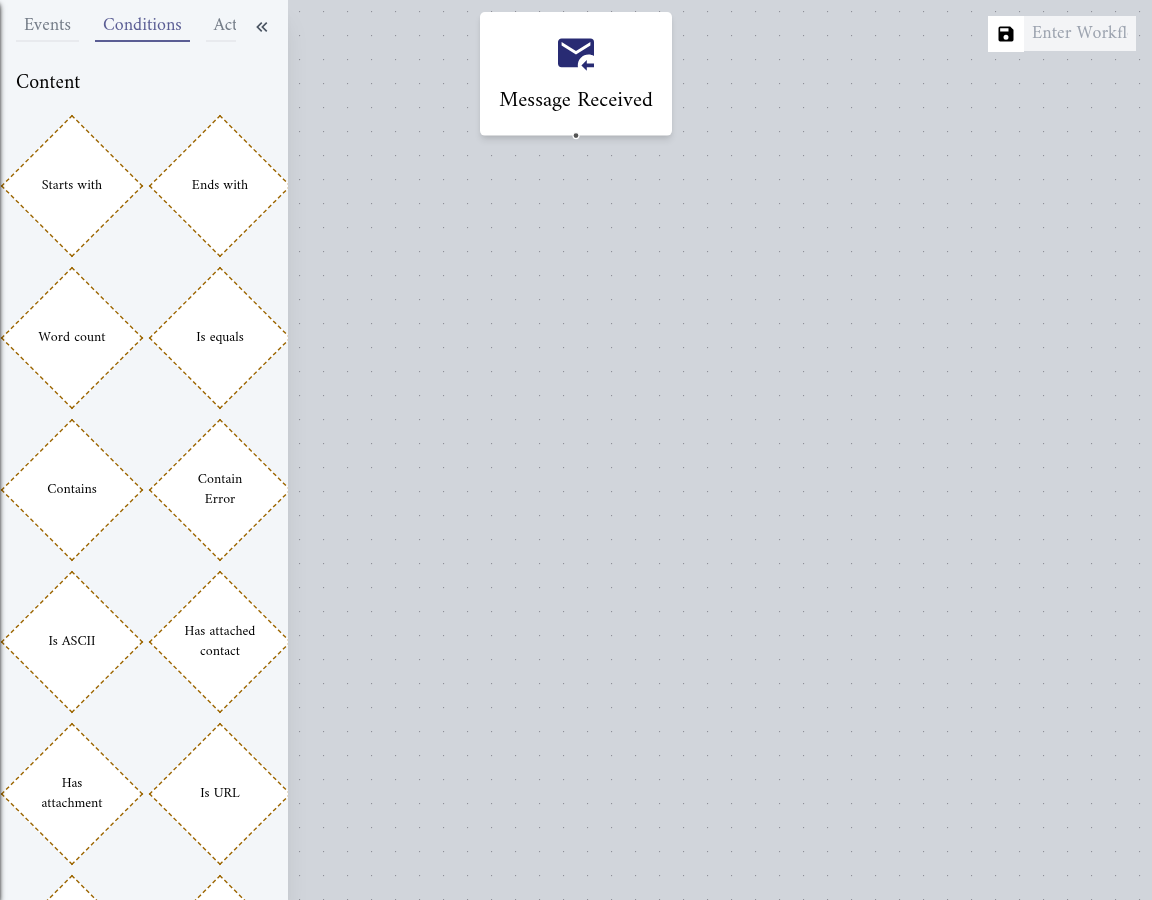
- In Events, click the event that starts the workflow. A workflow has exactly one event, and it decides which conditions and actions the other two tabs offer. The panel then moves to Conditions.
- In Conditions and Actions, click a step to add it to the canvas, then fill in its value, for example the word a Contains condition looks for.
- Connect the steps by dragging from the dot at the bottom of one step to the top of the next. A condition has two exits: the one on its right is True, the one on its left is False, and the canvas labels each connection with its path. Leave an exit unconnected when nothing should happen on that path.
- To remove a step, select it and click the bin icon at the bottom of the canvas, or press Delete.
- Type a name in Enter Workflow Name at the top, and click the save icon next to it. A workflow saved without a name is named after its event.
A new workflow is saved inactive, so nothing happens until you turn it on. After the first save, a light bulb appears next to the name: click it to switch the workflow between Active and Inactive. You can also use the switch on each workflow in Workflow > List.

Saving checks the chain first. A step whose value is still empty, or a workflow with no connected steps (You don't have any connected nodes.), is refused with a message saying what is missing.
Events
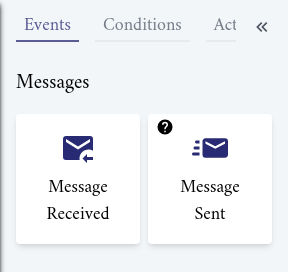
| Event | Starts when | Does not start for |
|---|---|---|
| Message Received | A client sends a message to one of your connected channels. | Messages from a blocked contact, and messages your team sends from the WhatsApp Business app or the Facebook and Instagram apps. |
| Message Sent | A team member sends a message from the Alaaqat inbox. | Broadcasts, templates, Facebook tagged messages, reactions, and messages that Alaaqat sends by itself: workflow actions and AI replies. |
Because automatic messages never start Message Sent, a workflow that replies can't set itself off again.
Conditions
A condition checks one thing and continues on its True exit when the answer is yes, and on its False exit when it is no. In the Conditions tab, the conditions of Message Received are grouped by what they check.
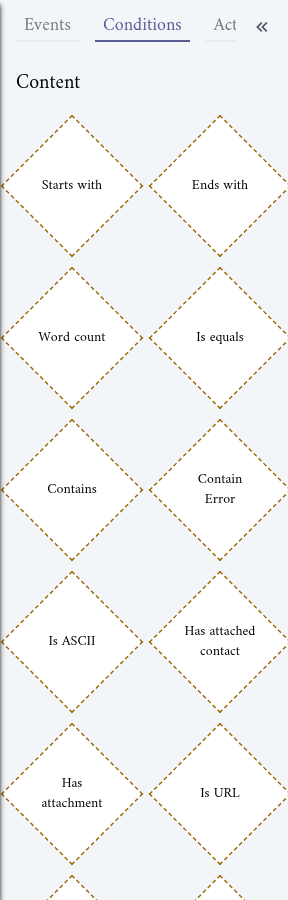
Content
These check the message itself. Where a condition compares text, it compares the text of the message, or the caption of a photo or file.
| Condition | True when | Value |
|---|---|---|
| Starts with | The message begins with the value. Capital letters count: Hello does not match hello there. |
Text |
| Ends with | The message ends with the value. Capital letters count. | Text |
| Word count | The number of words compares to the number as the operator says: <, <=, >, >=, = or !=. |
Operator and number |
| Is equals | The whole message is the value. * stands for any text, so *price* matches any message that mentions "price", and order * any message that starts with "order ". Capital letters count. |
Text, with * |
| Contains | The value appears anywhere in the message. Capital letters do not count: help matches Help me. |
Text |
| Contain Error | The channel could not pass the message on, usually because Meta does not deliver that kind of message to business apps. | None |
| Is ASCII | The message holds only Latin letters, digits and common symbols. A message in Arabic, or with an emoji, is not ASCII. | None |
| Has attached contact | The client shared a contact card. | None |
| Has attachment | The message carries a photo, video, voice note, sticker or file. | None |
| Is URL | The whole message is one web link. | None |
| Has Location | The client shared a location. | None |
| Is a reply | The client replied to one of the messages in the conversation. | None |
| Marked as read | A team member has read the message. | None |
| Message auto ID equals | The client tapped a list item or a button whose ID is the value. For a template's quick reply button, the ID is the button label. See Interactive Message and Unsubscribe. | Text |
Contact
| Condition | True when | Value |
|---|---|---|
| Contact Filter | The contact matches the filter you build with its properties, for example Owner doesn't exist. The filter works like the filters of the contacts list; see Views and filters. | Filter |
| Is new contact | This is the first message the client has ever sent to this channel. | None |
Channel
| Condition | True when | Value |
|---|---|---|
| From channel type | The message came through a channel of that type: WhatsApp Number, Facebook Page or Instagram. | Channel type |
| From following channel | The message came through that one connected channel, for example one of your WhatsApp numbers. | Channel |
Ads
Is from an ad, Ad title equals and Ad ID equals pick out the clients who wrote to you from a Meta ad. See Ad leads.
Misc
| Condition | True when | Value |
|---|---|---|
| Is last received message | The client has not sent anything newer to this channel. | None |
| Is last conversation message | Nobody has written in the conversation since this message: not the client, and not your team. | None |
These two are meant to come after a Delay. Right after a message arrives, it is always the last one; after a wait, they tell you whether the client wrote again, or whether anyone answered.
Conditions of Message Sent
A workflow that starts with Message Sent offers five conditions, all under Misc:
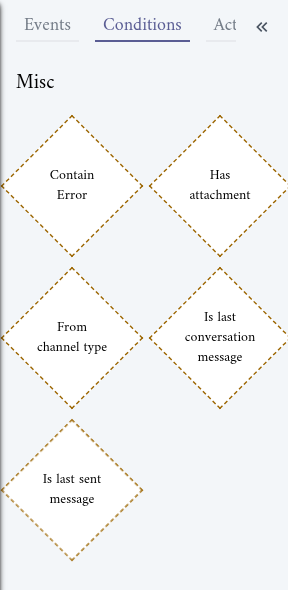
| Condition | True when |
|---|---|
| Contain Error | The channel reported that the message failed. WhatsApp reports a failure a moment after sending, so put a Delay before this condition. |
| Has attachment | Your team member sent a photo, video, voice note or file. |
| From channel type | The message went out on a WhatsApp, Facebook or Instagram channel. |
| Is last conversation message | Nobody has written in the conversation since. |
| Is last sent message | Your team has not sent anything newer to this client from this channel. |
Actions
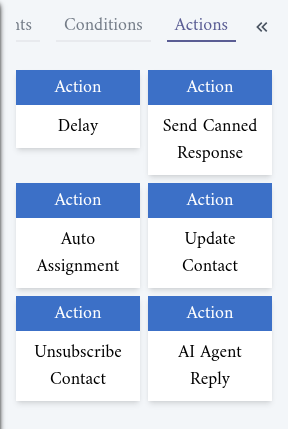
| Action | What it does | Value |
|---|---|---|
| Delay | Waits, then continues with the steps after it. | A whole number, and Second, Minute, Hour or Day |
| Send Canned Response | Sends one of your canned responses to the client, on the channel the message came through. See Canned responses. | Canned response |
| Auto Assignment | Makes a member of the team the contact's owner, in turn, and tells them about the message. See below. | Method and Team |
| Update Contact | Sets one property of the contact to a value. | Property and Value |
| Unsubscribe Contact | Records that the client no longer wants your messages. See Unsubscribe. | None |
| AI Agent Reply | Answers the client from your business profile and knowledge base, or hands the conversation to your team. Message Received only. See AI Agent Reply. | Hand over to |
Send Canned Response
- A General canned response can be sent on any channel. A WhatsApp interactive message is sent only when the message came through WhatsApp, and an Instagram carousel only on Instagram. On any other channel the action does nothing.
- Nothing is sent to a contact who has unsubscribed, and nothing is sent once your plan's monthly message allowance is used up.
- A canned response is an ordinary message, not a template, so it reaches the client only while the conversation's messaging window is open. See Messaging window.
Auto Assignment
Round-Robin is the only Method. Each time the action runs, it gives the contact to the member of the team whose last assignment is the oldest; members who have never been assigned a contact go first. That member becomes the contact's owner and is notified of the message.
The action replaces the contact's owner every time it runs, even when the contact already has one. To assign only contacts without an owner, put a Contact Filter condition before it, with Owner doesn't exist. See Auto assignment. A team with no members assigns nothing.
Update Contact
Choose the Property, then its Value. Properties that only Alaaqat fills in are not offered. The value is the one you choose while building the workflow, and it is the same for every client, so use Update Contact for values such as a stage or a team, not for a date that should record when something happened.
How a workflow runs
- Every active workflow runs. When a message arrives, each active workflow of the Message Received event starts, independently of the others. Two workflows that both reply will both send their reply.
- Every path runs. When one step is connected to several steps, all of them run, each on its own path.
- A Delay holds only its own path. The steps after a Delay wait; other paths go on.
- Conditions look at the present. A condition after a Delay sees the conversation as it is when the wait ends, not as it was when the message arrived. That is how Marked as read and Is last received message can tell you whether someone answered in the meantime.
- Turning a workflow off doesn't stop a waiting path. An inactive workflow no longer starts, but a path that is already in a Delay goes on when the wait ends.
Points to keep in mind
- Test a new workflow on your own phone before you rely on it, and keep it Inactive while you build it.
- Prefer one workflow per purpose over one large workflow. They are easier to read and to switch off one at a time, but check that two of them never answer the same message.
- Contains ignores capital letters; Starts with, Ends with and Is equals do not. When clients may type a word in any case, use Contains. Arabic text has no capital letters, so this matters only for Latin text.
- A photo or voice note with no caption has no text: text conditions such as Contains are false for it, and Is ASCII is true.
- Is new contact is true only for the very first message a client sends to a channel. A client who already wrote to one of your WhatsApp numbers is new again on the other.
- Keep automated messages inside the messaging window. A Delay that ends after the window has closed leads to a message that the channel refuses.
Workflow example
A business wants to answer clients who ask for help on its Facebook page, and greet everyone else.
| Step | Choice |
|---|---|
| Event | Message Received |
| Condition | Contains help |
| Action on True | Send Canned Response: "Hi there. How can we help you today? Tell us what you need, and we will get right to it." |
| Action on False | Send Canned Response: "Hello. We received your message and will reply as soon as possible." |
Because Contains ignores capital letters, "Help", "HELP" and "I need help" all take the True path.
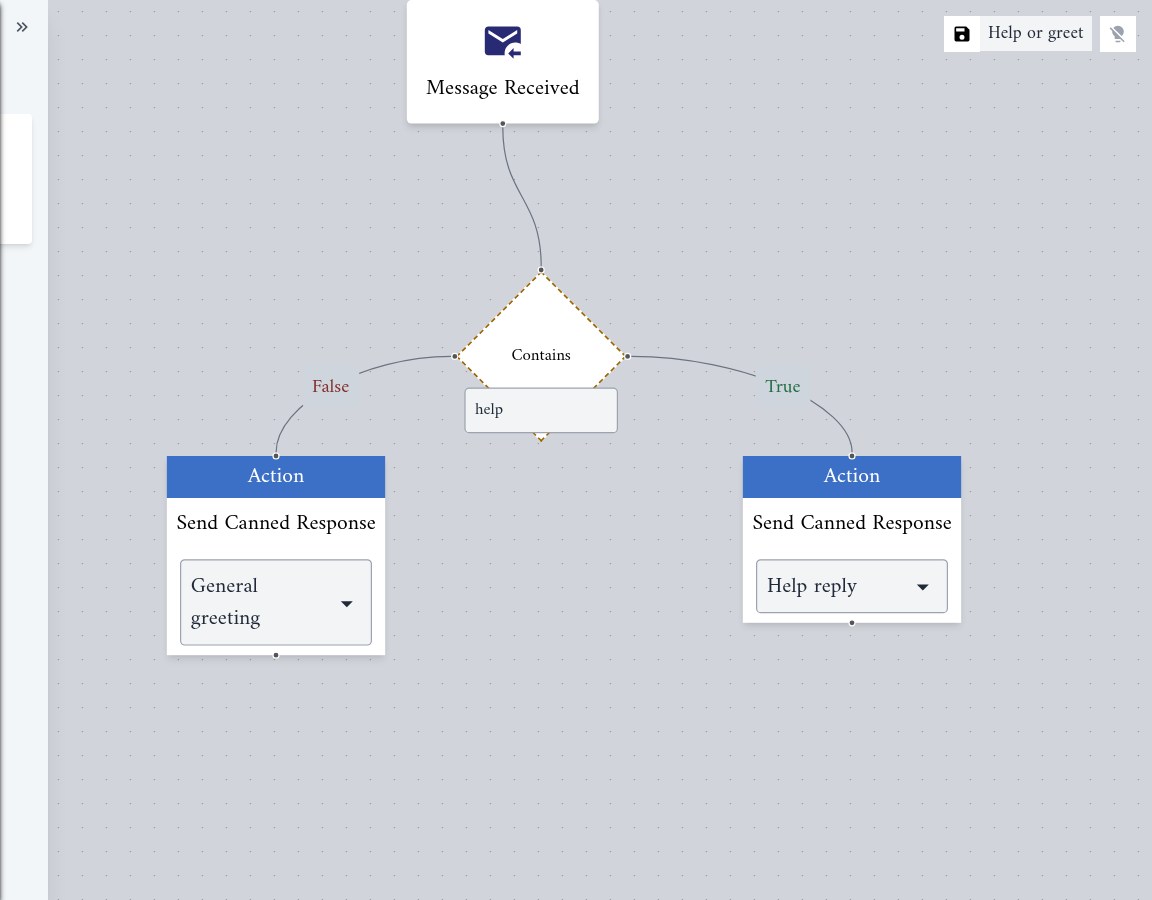
The finished workflow reads:
Message Received → Contains help → True → Send Canned Response (help) · False → Send Canned
Response (greeting)