- Introduction
- Requirements
- Writing a message
- Attachments and file limits
- Voice notes and location
- Replying to a message
- Reactions
- Message statuses and labels
- When a message fails
- Points to keep in mind
Introduction
Clients judge a business by how it answers: quickly, clearly, and in the same conversation they started. A reply that quotes the question, a photo of the product, or a voice note settles in one message what plain text needs three for.
This document explains everything you can send from the message box of the Alaaqat inbox, which channel accepts what, and how to read the small icons and labels on each message.
Requirements
| Requirement | Detail |
|---|---|
| Permission | Send Messages. |
| Messaging window | You can send a free message only while the client's messaging window is open. Outside it, the message box is replaced by other options. See The messaging window. |
| Plan | The number of messages your account sends in 30 days is limited by your plan. See the plans on the pricing page. |
Writing a message
Type in the message box at the bottom of the chat and press Enter to send. To start a new line, press Shift, Ctrl or Alt with Enter. On a phone, Enter starts a new line, and you send with the send button.

The buttons next to the message box are, in order:
- The smiley, inside the box, to insert an emoji.
- The AI assistant, to draft or rewrite a reply when AI is set up for your account.
- Canned Responses, to insert a ready-made answer. See Canned responses.
- The microphone, to record a voice note.
- The location pin, to send your location. WhatsApp only.
- The file, to attach files.
- The send button.
Every message you send is signed with your name in the conversation, so the team knows who answered. Messages you send also start workflows that use the Message Sent event.
Attachments and file limits
There are three ways to attach a file:
- Click the file button and choose one or more files.
- Drag files anywhere over the chat. The message box turns into Drop the files here to attach them.
- Paste an image you copied, with Ctrl+V.
{info} Some computers only copy a file's location when you copy it from a folder. When you paste one, Alaaqat shows The browser cannot read a file copied from a folder. Drag it into the chat, or use the attach button. Drag the file instead.
The files appear above the message box before you send; the bin removes one. Each file is sent as a message of its own. Text you type goes with the first file.
Each channel accepts its own file types and sizes. A file that breaks the rules is refused before it is sent, and the whole selection is dropped, so remove the file that doesn't fit and add the others again.
| Images | PNG, JPG, JPEG, up to 5 MB | PNG, JPG, JPEG, GIF, SVG, WEBP, up to 8 MB | PNG, JPG, JPEG, GIF, up to 8 MB |
| Videos | MP4, 3GP, up to 16 MB | MP4, AVI, 3GP, MOV, WEBM, up to 25 MB | MP4, AVI, MOV, WEBM, up to 25 MB |
| Audio | AAC, AMR, MP3, M4A, OGG, up to 16 MB | AAC, AMR, MP3, M4A, OGG, WAV, up to 25 MB | AAC, M4A, WAV, MP3, OGG, up to 25 MB |
| Documents | PDF, TXT, DOC, DOCX, XLS, XLSX, PPT, PPTX, up to 100 MB | PDF, TXT, DOC, DOCX, XLS, XLSX, PPT, PPTX, up to 25 MB | Not accepted |
Text with a file
- WhatsApp sends the text as the caption of an image, video or document, as long as it is no longer than 1,024 characters. With an audio file, or with longer text, the text is sent first as a message of its own and the file follows.
- Facebook and Instagram never send text and a file together: the text arrives first, then the file.
Voice notes and location
Voice notes. Click the microphone to start recording and the stop button to finish. The recording appears above the message box, where you can play it or delete it before sending. Voice notes work on all three channels. The browser asks for access to your microphone the first time.
Location. The location pin sends your current location, as your browser reports it, to a WhatsApp client. The browser asks for permission the first time. It does not let you pick another place: to send the address of a shop or an event, type it, or use a WhatsApp template with a location header.
Replying to a message
Hover a message and click the ⋯ next to it, then Reply. The message you reply to appears above the message box; the bin cancels the reply. The client sees your message attached to theirs, as in their own app.
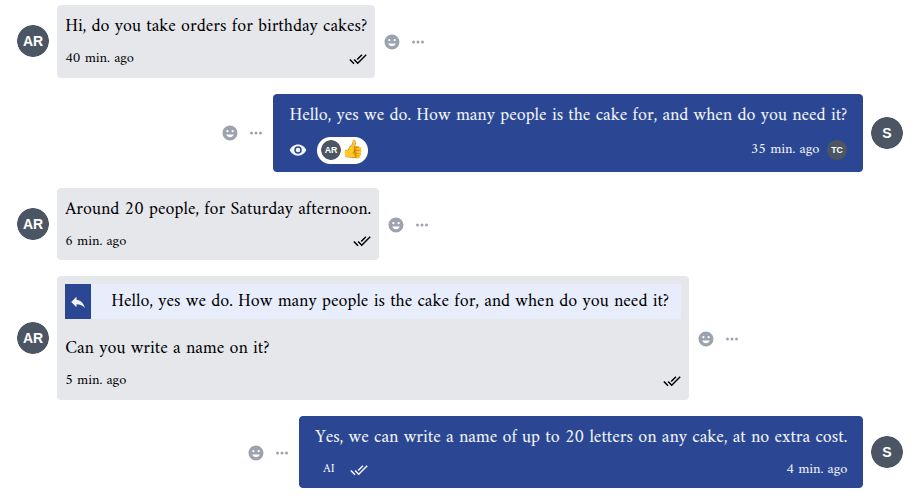
When a message in the conversation quotes another one, click the quote to jump to the original. If it is far back, Alaaqat shows Going to the original message... while it loads; if it was deleted, The original message is no longer available.
When you scroll up, a round arrow button takes you back to the latest messages, with a count of the messages that arrived meanwhile.
Reactions
| Channel | What you can react with |
|---|---|
| Any emoji, from the smiley next to the message. | |
| A heart only. Click the heart next to the message; click it again to remove it. | |
| Reactions can't be sent. |
The client's reactions and yours show under the message, each with the picture of whoever reacted. To remove your WhatsApp reaction, hover it and click the cancel icon.
Reply and reactions are only offered while the messaging window is open.
Message statuses and labels
The icon at the bottom of each message you send shows how far it got. Hover it to read its name.
| Icon | Status | Meaning |
|---|---|---|
| Two arrows in a circle | Sending | Still on its way to the channel. The message is shown faded. |
| One check | Sent | Accepted by the channel. |
| Two checks | Delivered | Reached the client's phone. |
| An eye | Read | The client opened it. |
| An ear | Heared | The client played your voice note. |
Messages can also carry these labels:
| Label | Meaning |
|---|---|
| A team member's picture | Sent from Alaaqat by that team member. Hover it to read Sent by and the name. |
| AI | Written by the AI assistant. Hover it to read Written by AI. |
| Edited: and a number | The client edited the message in WhatsApp; the number is how many times. You see the latest version. |
| Forwarded | The client forwarded the message from another chat. |
| Ad Title, Ad ID | The client wrote by tapping one of your ads. The ad's title, image or video show above the message. |
| Shared with You, Mentioned You, Replied On | An Instagram client shared a post with you, mentioned you in a story, or replied to your story. Go to Source opens it on Instagram. |
When a message fails
- The channel refused the message. The message turns red and shows the error code and the reason given by the channel.
- The message never left. It disappears from the conversation and Alaaqat shows Your message could not be sent, please try again. Your text is not kept, so copy long messages before sending on an unstable connection.
- Only part of the message was sent. When text and a file go as two messages and the second one fails, Alaaqat shows Part of your message could not be sent, only what you see in the conversation was delivered. Send the missing part again.
- The messaging window closed. The message is refused with You can't send a message to this conversation because it's outside the 24-hour response time window. (or the 7-day window for Facebook and Instagram).
- Your plan's message limit is reached. Sending is refused until older messages fall out of the 30-day count, or until you upgrade.
Points to keep in mind
- Several files mean several messages. Each one counts towards your plan's message limit, and on WhatsApp each one is a separate message on the client's phone.
- Check the channel before sending a document. Instagram does not accept documents at all; share a link instead.
- WebP images are not accepted on WhatsApp. Convert them to PNG or JPG first.
- The file size limit is the channel's, not yours. A video that goes through on Facebook (up to 25 MB) is refused on WhatsApp (up to 16 MB).