- Introduction
- Requirements
- The three types
- Step 1: Create a general response
- Step 2: Use it in a conversation
- Instagram carousels
- Finding and managing responses
- Responses used by workflows
- Points to keep in mind
Introduction
Most of what clients ask, they have asked before: opening hours, delivery areas, prices, how to pay. Typing the same answer fifty times a day is slow, and each team member ends up giving a slightly different version of it.
A canned response is an answer you write once and send in two clicks. Every agent gives the same, checked answer, with the right photo or document attached, and your workflows can send the same answers automatically.
This document explains how to create canned responses, how to use them in the inbox, and how they relate to your workflows.
Requirements
| Requirement | Detail |
|---|---|
| Menu | Conversations > Canned Responses. |
| Permissions | View Canned Responses to see them and use them in the inbox. Create New Canned Response, Edit Canned Response and Delete Canned Response to manage them. Seeing which workflows use a response needs View Workflows. |
| Plan | The number of canned responses an account can have depends on the plan. See the plans on the pricing page. |
The three types
| Type | Content | Channels |
|---|---|---|
| General | Text, an attachment, or both. The attachment can be a voice note recorded in the form. | All channels. |
| A carousel of cards, each with an image, a title, a text and buttons. | Instagram only. | |
| An interactive message: a list, a call-to-action link, reply buttons or a location request. | WhatsApp only. |
New Response creates General and Instagram responses. WhatsApp responses are created with the WhatsApp button next to it; see the Interactive Messages document.
Step 1: Create a general response
Go to Conversations > Canned Responses and click New Response.
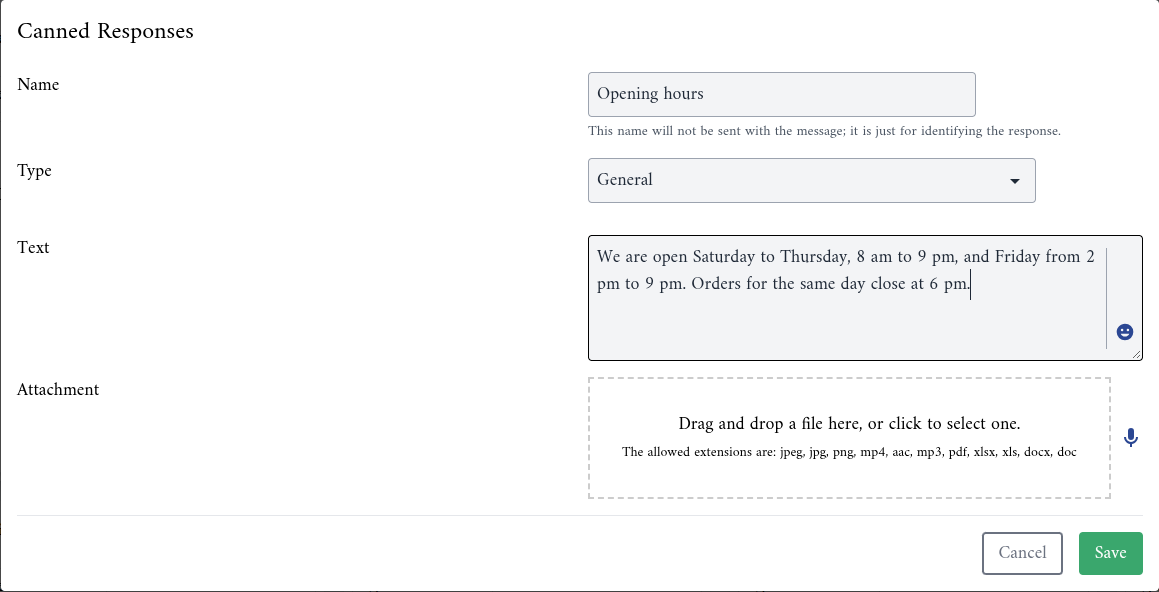
- Name: what your team searches for, up to 30 characters. As the form says, This name will not be sent with the message; it is just for identifying the response. Name responses after the question they answer, for example
Opening hoursorDelivery areas. - Type: leave it on General.
- Text: the message the client receives, at least 3 characters. The smiley inserts emoji.
- Attachment: drag a file onto the box or click it to choose one. The form accepts JPEG, JPG, PNG, MP4, AAC, MP3, PDF, XLSX, XLS, DOCX and DOC. To attach a voice note instead, click the microphone, record, and stop.
- Click Save.
A response needs a text, an attachment, or both. Attachments are limited to about 5 MB for images, 25 MB for videos and 16 MB for audio.
Step 2: Use it in a conversation
In the inbox, click the Canned Responses button next to the message box. The list shows the responses that fit the channel: General responses everywhere, plus WhatsApp responses in WhatsApp conversations and Instagram responses in Instagram conversations. Type in Search by Title to find one by name.
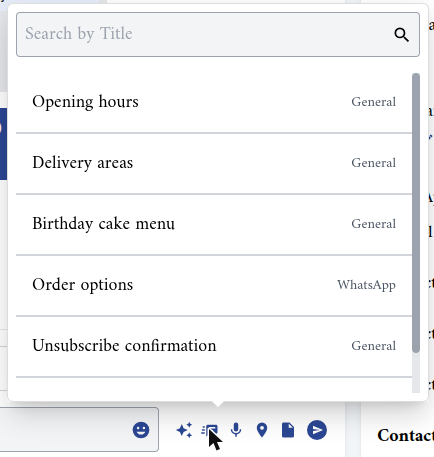
- A general response fills the message box with its text and attaches its file. Nothing is sent yet: adapt the text to the client, for example add their name, then send.
- An Instagram response opens View Instagram Template with a preview of the carousel. Click Send to send it as it is.
- A WhatsApp response opens its own dialog, where you check it and send it.
Canned responses are sent like any other message, so they follow the messaging window and the file limits of each channel.
Instagram carousels
An Instagram response sends a row of cards the client swipes through, each with its own image and buttons. Use it to show a few products, services or offers, each with a link to its page.
Click New Response and set Type to Instagram. The form shows Element 1, the first card:
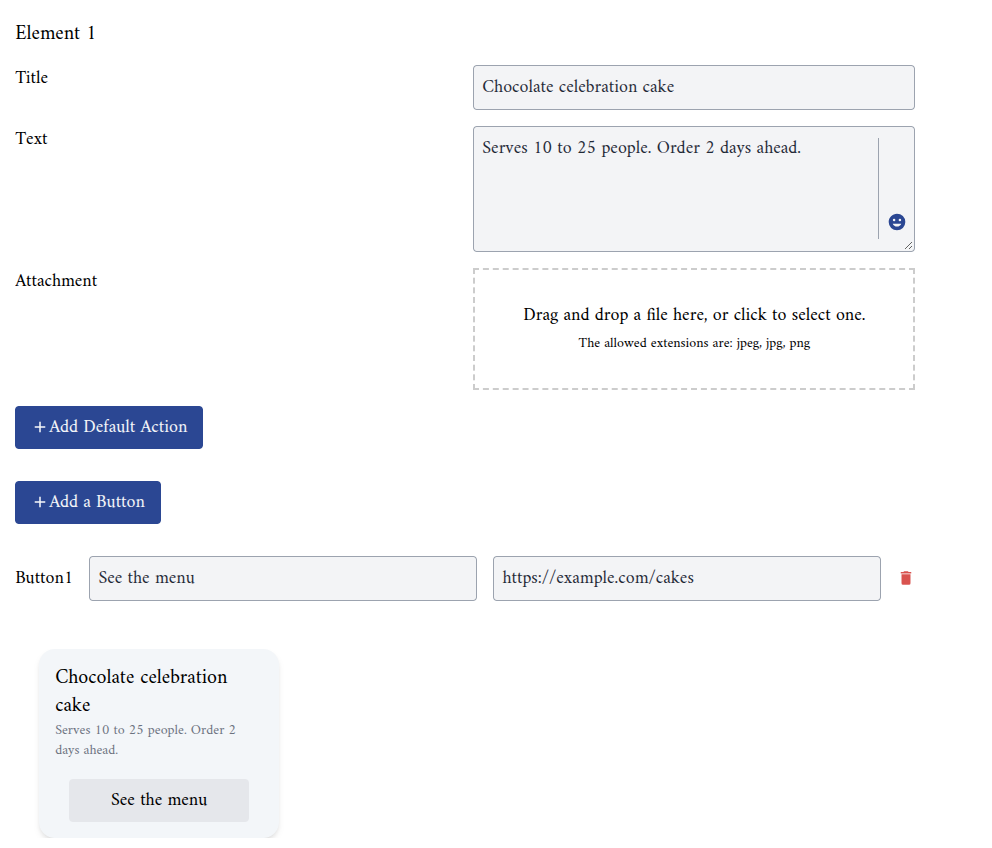
| Field | Rule |
|---|---|
| Name | Required, up to 150 characters. Not sent. |
| Title | Required, up to 80 characters. The bold line of the card. |
| Text | Optional, 3 to 80 characters, under the title. |
| Attachment | Optional image, JPEG, JPG or PNG, up to 16 MB. |
| + Add Default Action | Optional link, in URL, opened when the client taps the card itself. |
| + Add a Button | Up to 3 buttons per card. Each one is a Phone Number button that calls a number, or a URL button that opens a link. Button text is up to 20 characters. |
The preview under the fields shows the card as the client will see it.
To add another card, click the + at the top right of the form. A carousel can have up to 9 cards. The bin next to a card's title removes it.
Finding and managing responses
Conversations > Canned Responses shows every response as a card with its type and a preview.
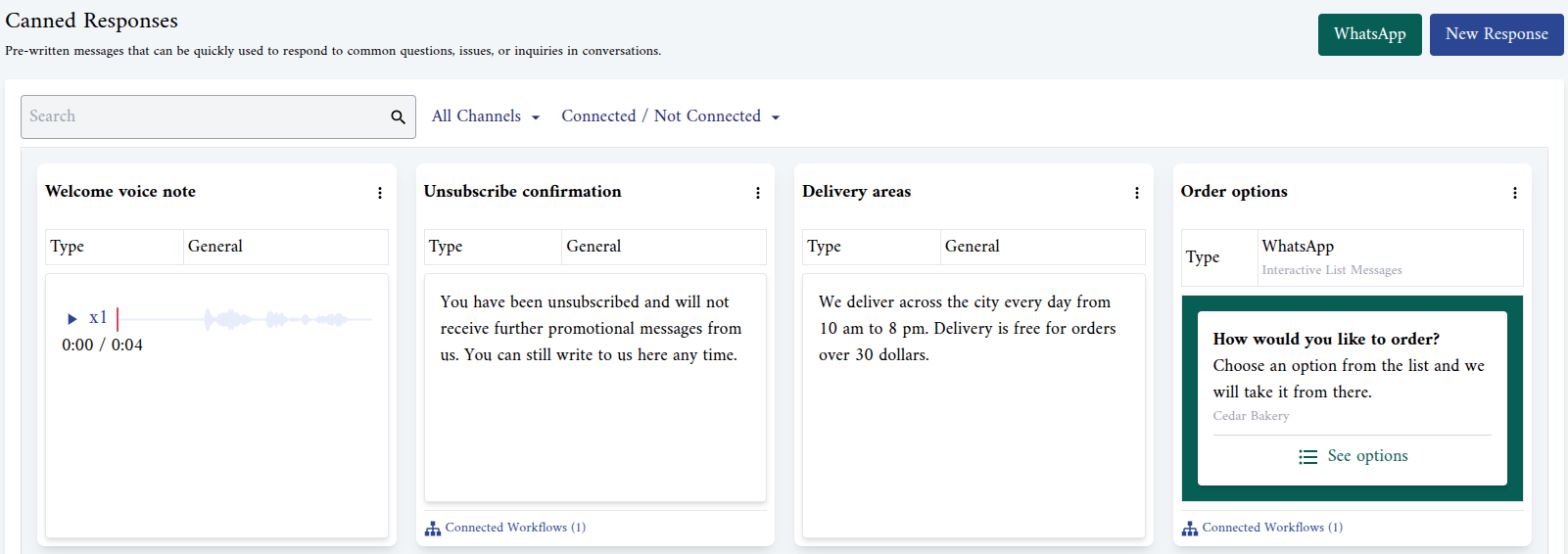
- Search finds responses by name.
- All Channels filters by type: General, Instagram or WhatsApp.
- Connected / Not Connected shows only the responses that a workflow uses (Connected to workflow) or only those no workflow uses (Not connected to workflow).
- The ⋮ on a card opens Update and Delete.
Responses used by workflows
The Send Canned Response workflow action sends one of your canned responses automatically, for example as an auto-reply. See the Workflow introduction and the Auto-Reply document.
A response used by at least one workflow shows Connected Workflows and their number at the bottom of its card. Click it to see the workflows, each with a green dot when it is active and a grey one when it isn't, and to open them.
- Editing a connected response changes what the workflow sends from then on. Check the wording with the workflow in mind, not only for manual use.
- A connected response can't be deleted. Alaaqat refuses with This predefined response is connected to the following workflow(s) and cannot be deleted: and the names of the workflows. Remove the response from those workflows first, then delete it.
Points to keep in mind
- The attachment must suit the channel it is sent on. A general response is offered on every channel, but each channel keeps its own file rules: Instagram refuses documents, and WhatsApp refuses videos over 16 MB. Keep documents and large videos in responses your team uses on the right channel.
- Canned responses have no variables. The text is sent as written. Edit it in the message box when you need the client's name or an order number.
- The name is for your team. Clients never see it, so make it easy to search for.
- Deleting a response is permanent. Alaaqat asks you to confirm first.