- Introduction
- Interactive message template types
- Interactive list messages
- How to create interactive list template
- Interactive Call-to-Action URL Message
- Location Request Message
- Interactive reply buttons Message
Introduction
This document provides step-by-step instructions for creating a WhatsApp interactive message template and explains how to use it effectively within a workflow.
The following video is a step-by-step guide:
Key features of WhatsApp interactive message:
- Start effective conversations with your clients.
- The ability to add CTA (Call to action) buttons.
- Makes it easy for clients to respond or take action with a single click.
- Easy to use in automated workflow for effective communication.
WhatsApp Interactive message template types:
- Interactive list Message: Presents WhatsApp users with a list of options to choose from.
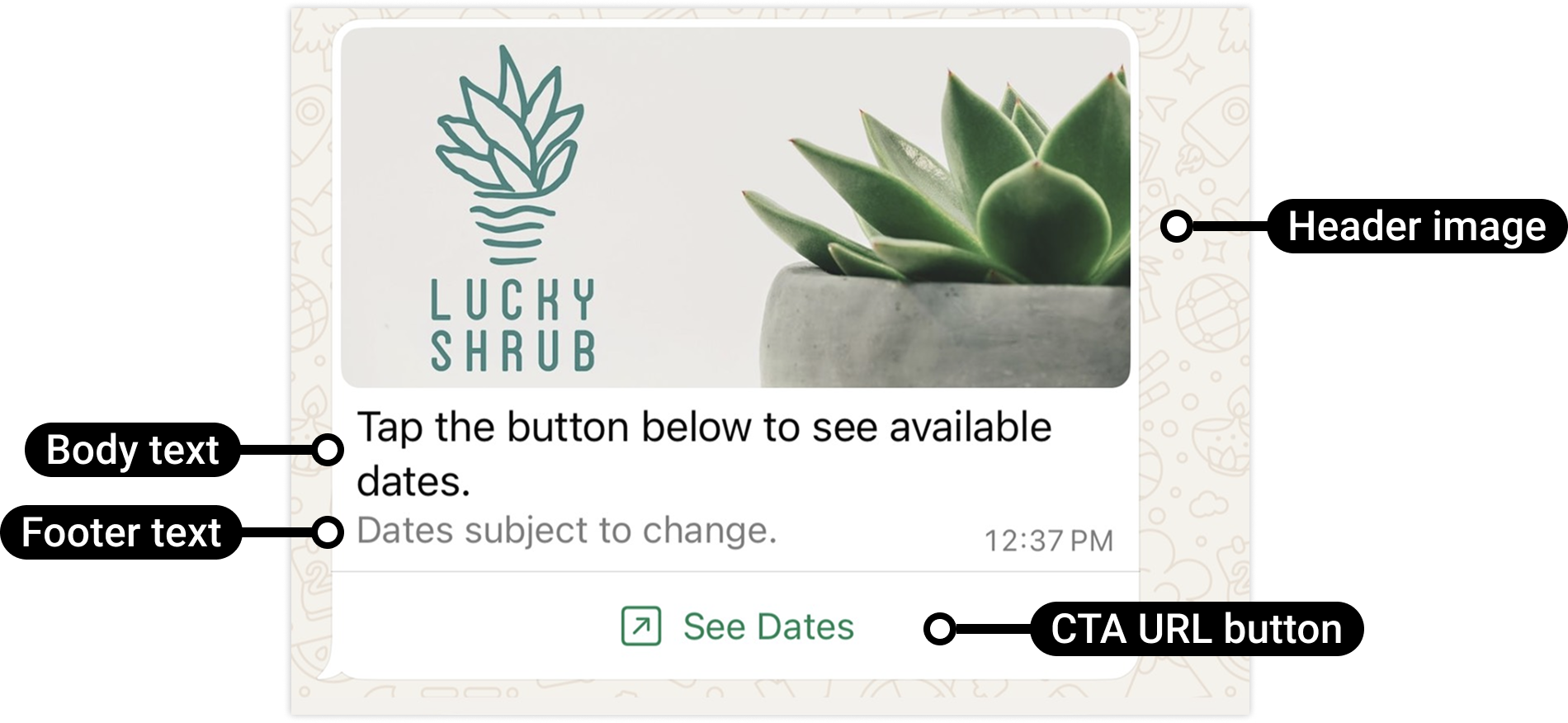
- Interactive Call-to-Action URL Message: Adds a URL to a button, so you do not have to show long or messy links in the message body.
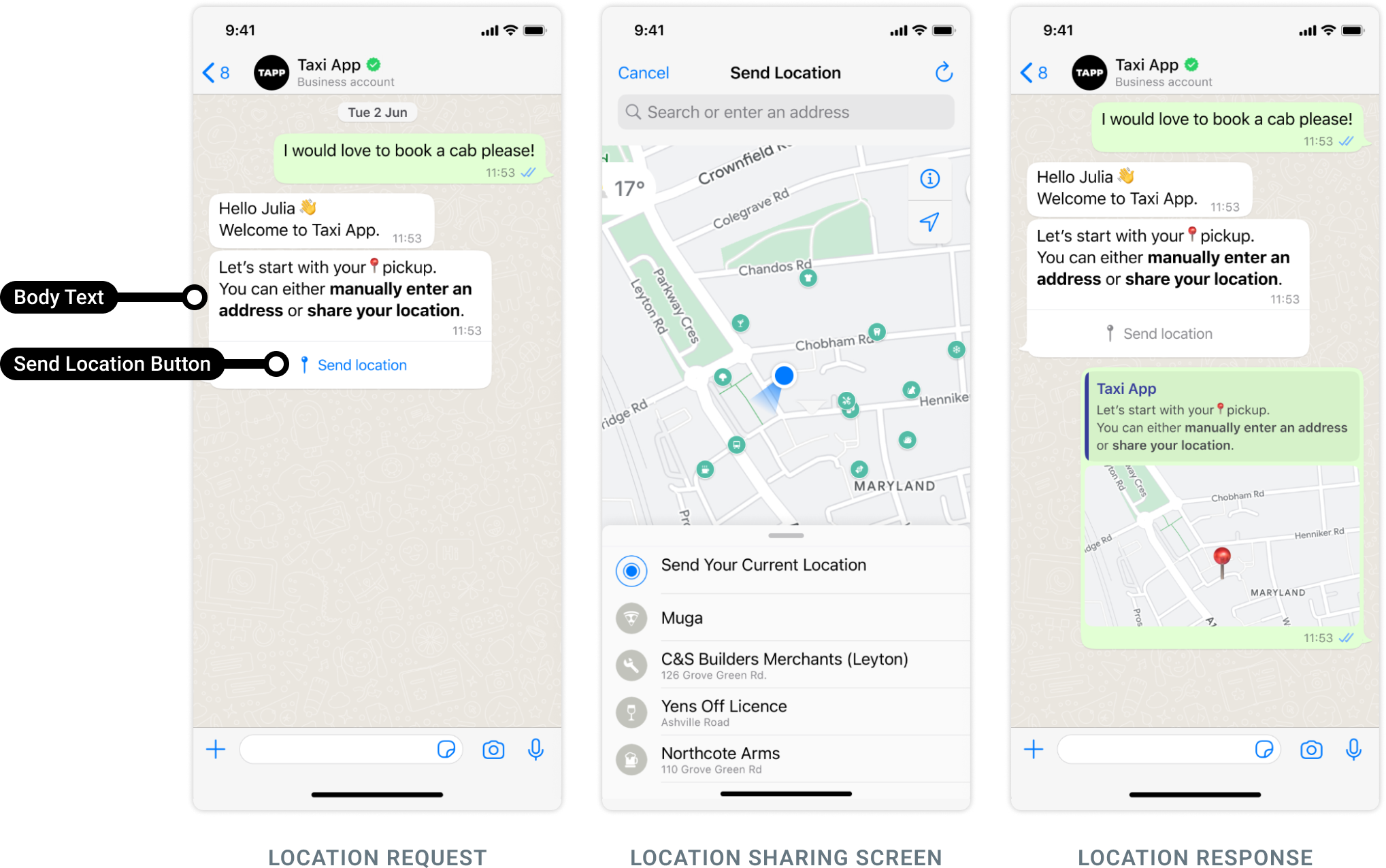
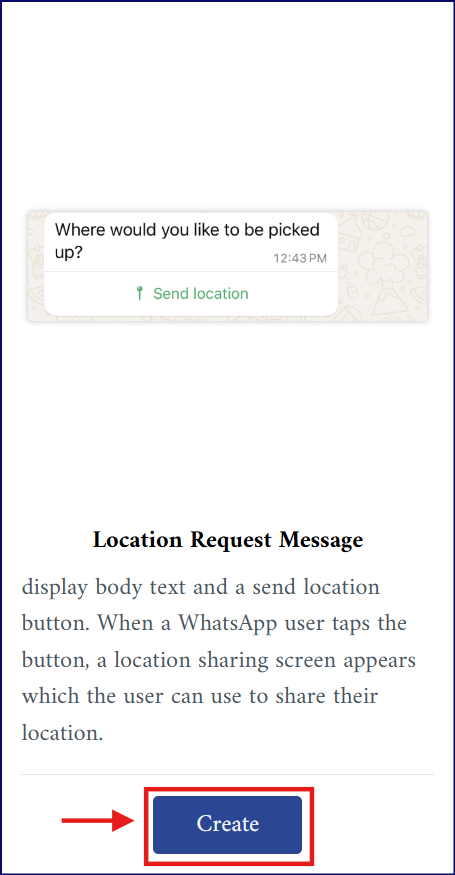
- Location Request Message: Display body text and a send location button. When a WhatsApp user clicks the button, a location sharing screen appears which the user can use to share their location.
- Interactive reply buttons Message: Sends up to three predefined replies for users to choose from.
Interactive list messages:
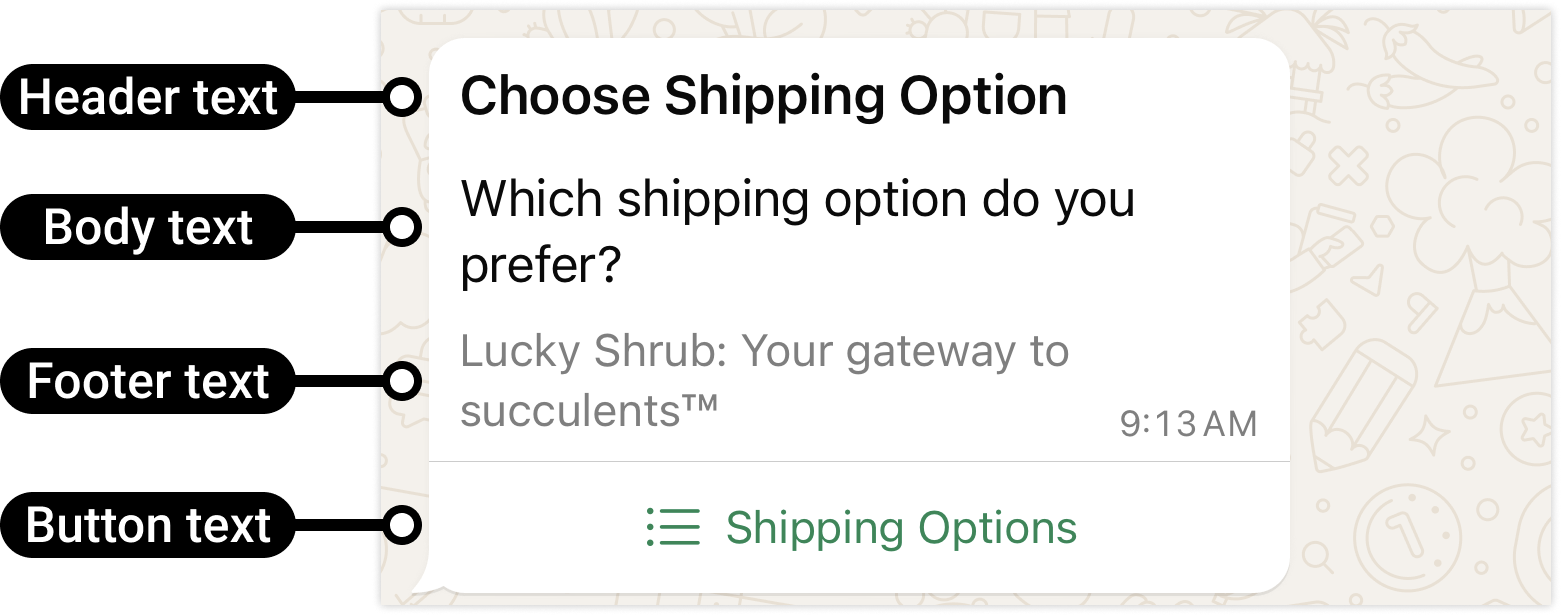
Interactive list messages allow you to present WhatsApp users with a list of options to choose from (options are defined as rows in the request data).
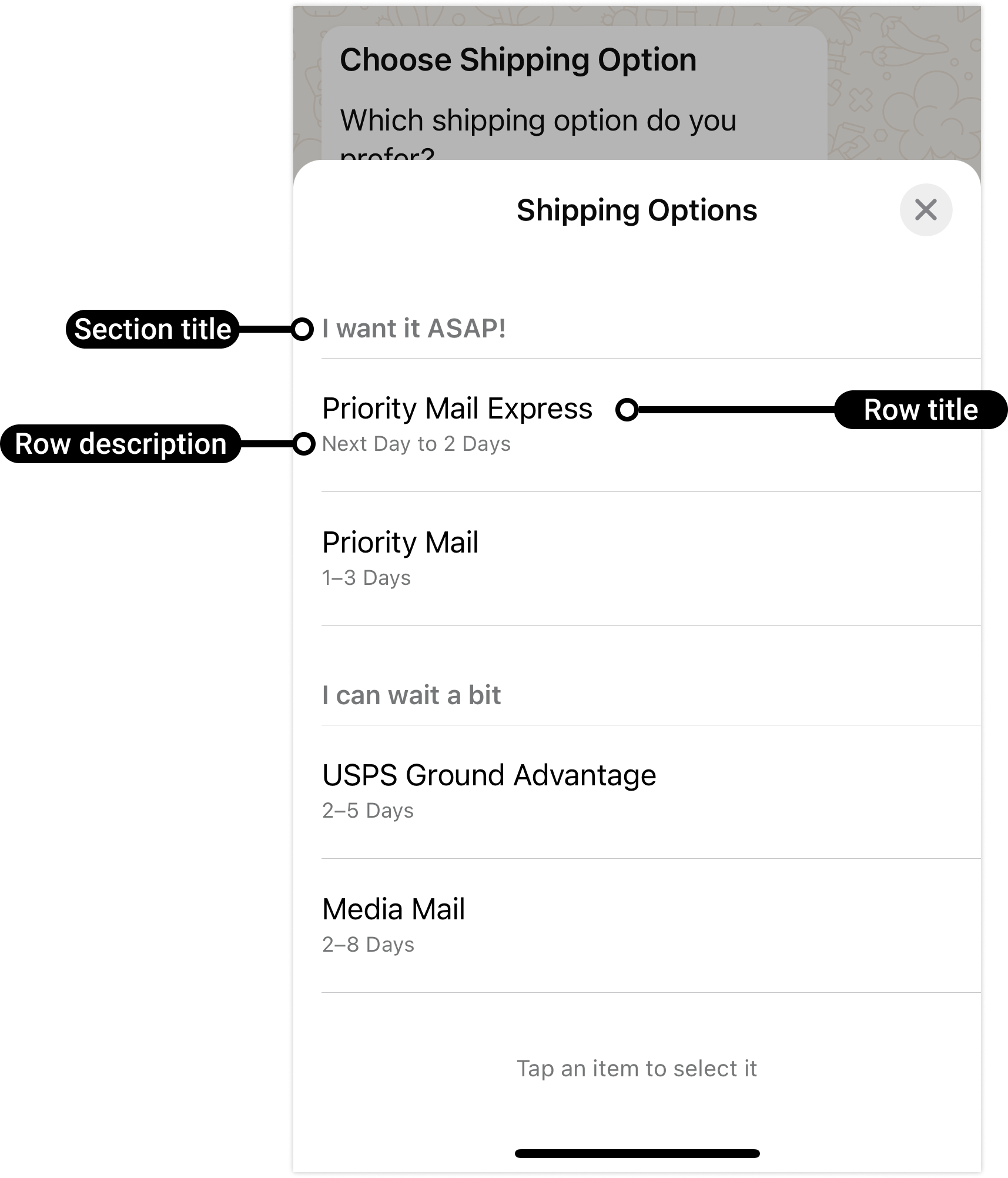
When a user taps the button in the message, it displays a modal that lists the options available:
Users can then choose one option, and their selection will be sent as a reply.
Interactive list messages support up to 10 sections, with up to 10 rows in total across all sections, and can include an optional header and footer. Each section must contain at least one row.
How to create interactive list template:
-
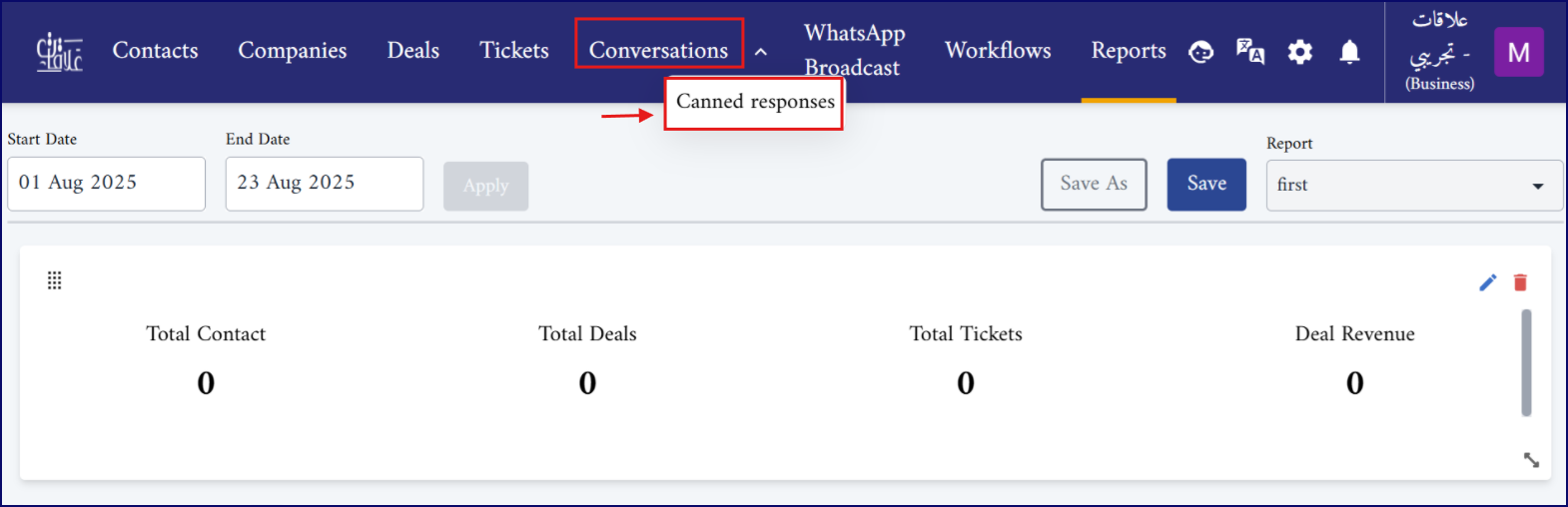
From the main page, navigate to the Conversation tab, then select Canned Responses.
-
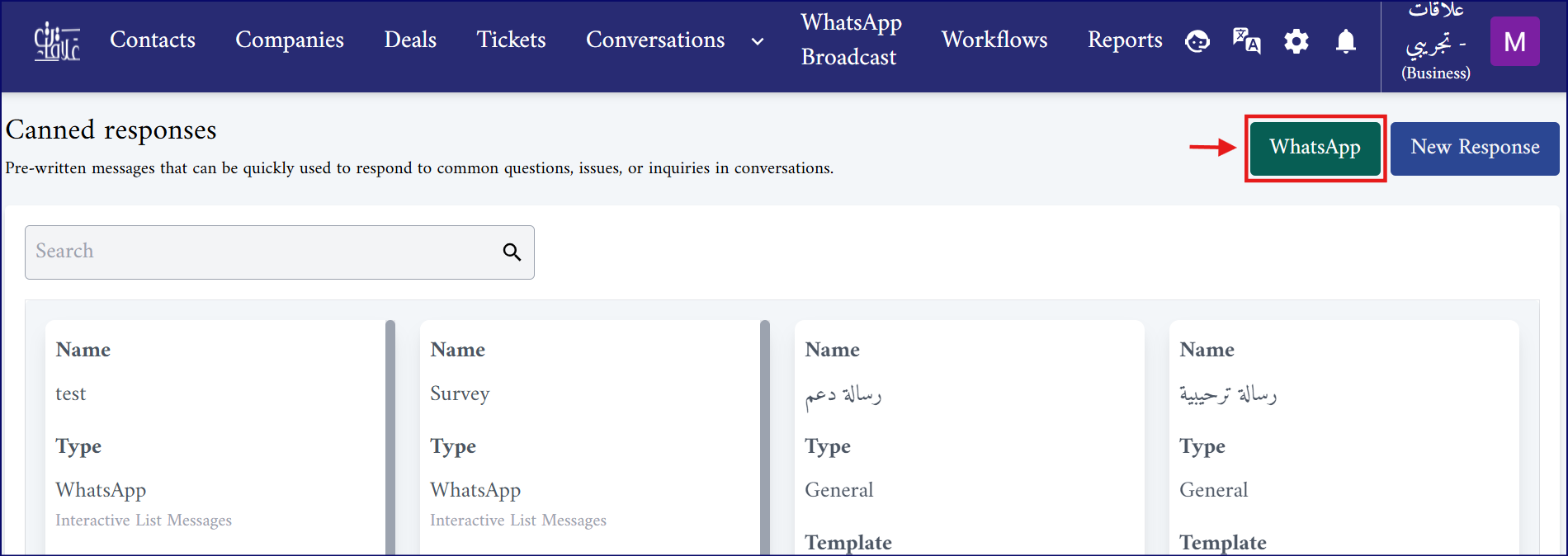
On the Canned Responses page, you will find two buttons in the upper-right corner:
-
New Response: to create a general canned response.
-
WhatsApp Response: to create a canned response specifically for WhatsApp.
-
-
In the same page, you can view a list of all previously created templates. WhatsApp response templates are highlighted in green to distinguish them from general responses.
-
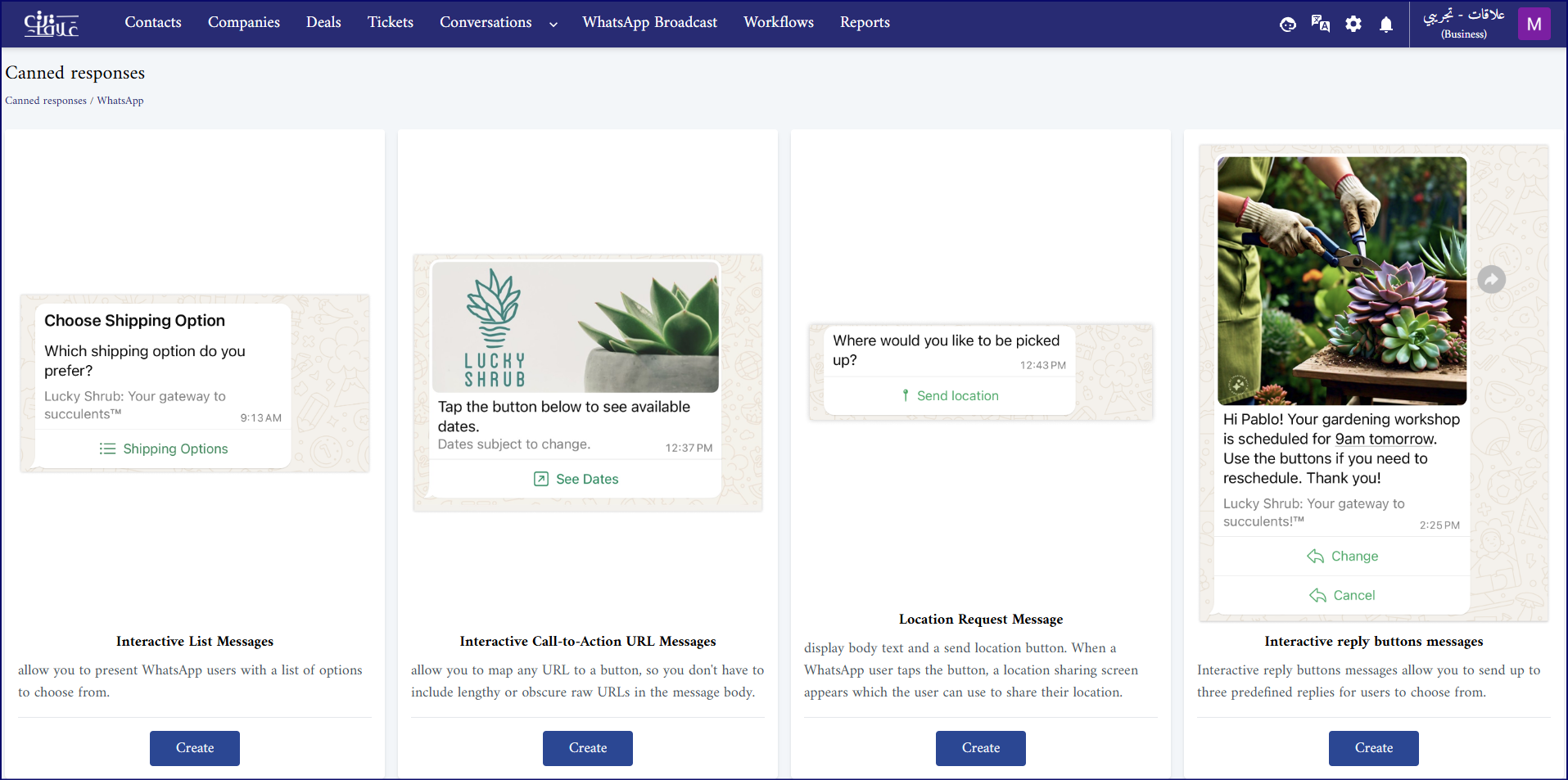
Click the WhatsApp button to open a page displaying four different options for WhatsApp interactive message templates.
- Interactive list Message.
- Interactive Call-to-Action URL Message.
- Location Request Message.
- Interactive reply buttons Message.
-
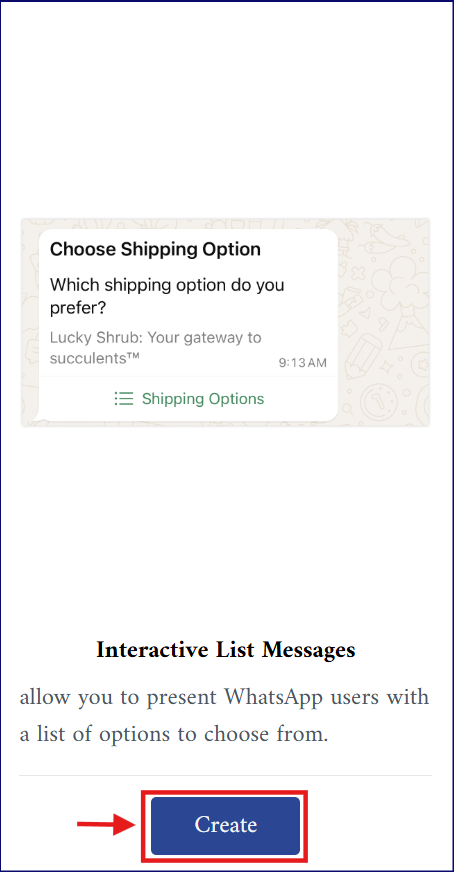
Click Create under Interactive List Message option.
-

A form with the following fields will be displayed.
| Field | Description |
|---|---|
| Name (Required) | Name of the list. This name is only used to identify the response, so it is not sent with the message. |
| Header (Optional) | Add a header to the message, if needed. Text only, up to 60 characters. |
| Body (Required) | The main content of the message, up to 4096 characters. |
| Footer (Optional) | Add a footer to the message, if needed. Up to 60 characters. |
| Button Text (Required) | The label shown on the interactive button, up to 20 characters. |
| Sections | Used to group list items (rows) under categorized headings. |
| You can add up to 10 sections per message, and up to 10 rows in total across all of them. Each section contains: | |
| Section 1 | |
| Title (Required) | The title or the name of the section, up to 24 characters. |
| Rows | Array of options the user can select. |
| Each section must contain at least one row, and each row contains: | |
| Row1 | |
| ID (Required) | A unique value used to identify which option the user selected, up to 200 characters. This ID is used in workflows to trigger actions. Must be unique within the list. |
| Title (Required) | Title of the row, up to 24 characters. |
| Description (Optional) | Description of the row, up to 72 characters. |

- After completing all required fields, click Submit.
- The preview on the right side of the form is to help you visualize the final result.
Interactive Call-to-Action URL Message:
WhatsApp users may avoid clicking long or unclear links in messages. To make it easier, you can use a call-to-action (CTA) button that opens a URL. This way, the link is hidden behind a clean, clickable button.
- Click Create under Interactive Call-to-Action URL Message option.
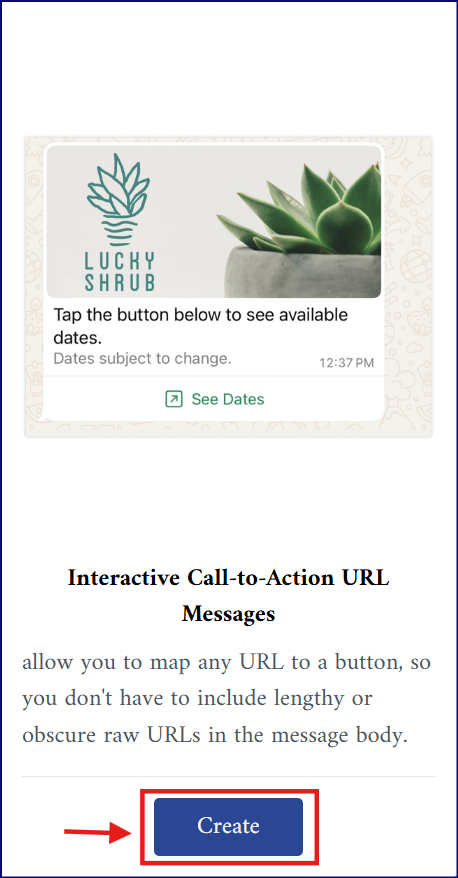
- A form with the following fields will be displayed.
| Field | Description |
|---|---|
| Name (Required) | Name of the message. |
| Header (Optional) | Could be: • Text (up to 60 characters) • Image (jpg, jpeg, png, webp) • Video (mp4, webm, mov) • Document (pdf, doc, docx, xls, xlsx, ppt, pptx, txt, odt, rtf) |
| Body (Required) | The main content of the message, up to 1024 characters. |
| Footer (Optional) | Add a footer to the message, if needed. Up to 60 characters. |
| Button Text (Required) | The label shown on the (CTA) button, up to 20 characters. |
| The URL | Must be a valid URL. |
Location Request Message:

Location request messages display body text and a send location button. When a WhatsApp user taps the button, a location sharing screen appears which the user can then use to share their location.
- Click Create under Location Request Message option.
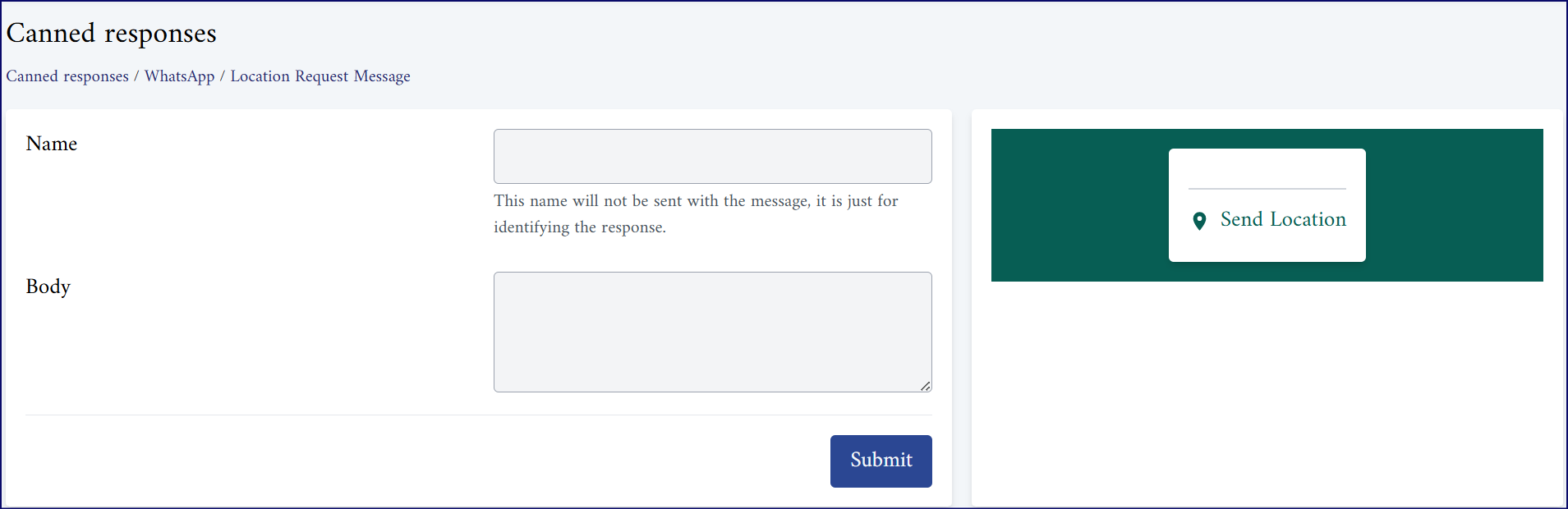
- A form with the following fields will be displayed.
| Field | Description |
|---|---|
| Name (Required) | Name of the message. |
| Body (Required) | The main content of the message, up to 1024 characters. |
Interactive reply buttons Message:
Interactive reply buttons messages allow you to send up to three predefined replies for users to choose from. This type of message offers a quicker way for users to make a selection from a menu when interacting with a business which improves the user experience by guiding conversations and reducing the need to type.
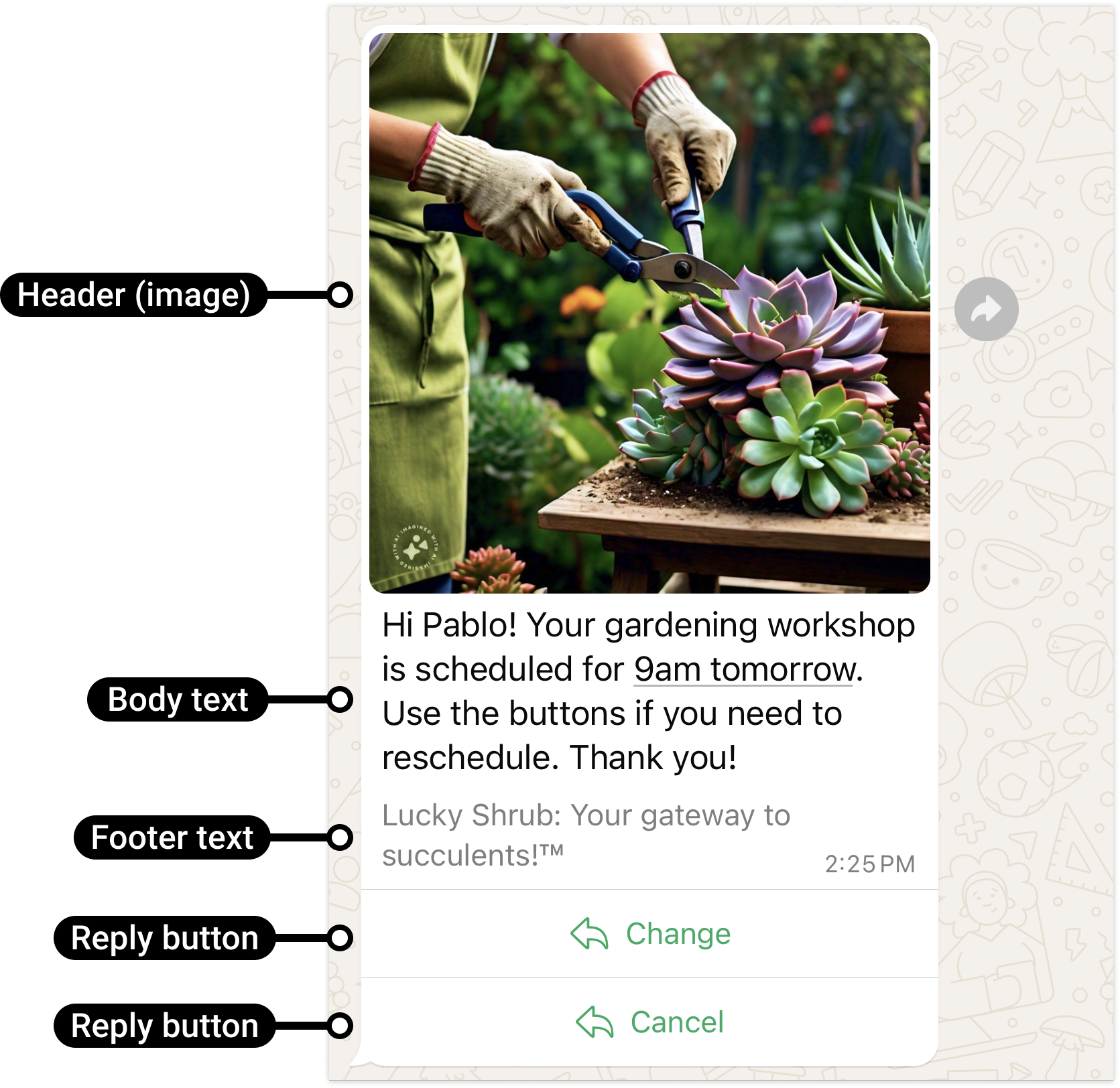
- Click Create under Interactive reply buttons Message option.
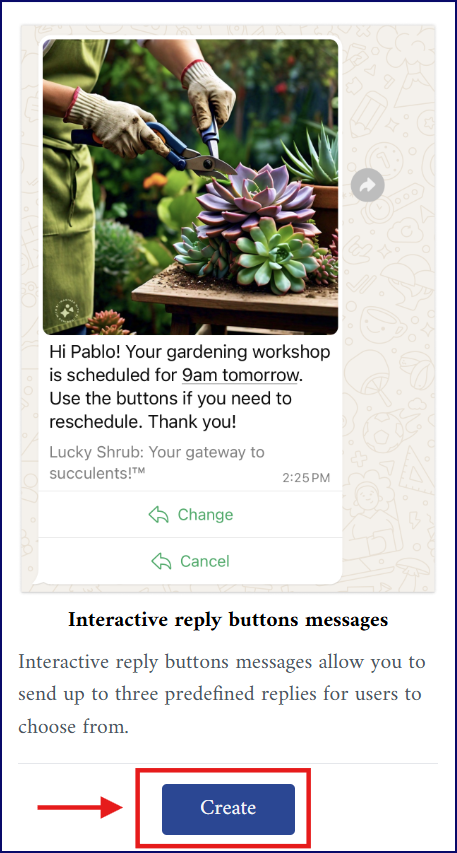
- A form with the following fields will be displayed.
| Field | Description |
|---|---|
| Name (Required) | Name of the message. |
| Header (Optional) | Could be: • Text (up to 60 characters) • Image (jpg, jpeg, png, webp) • Video (mp4, webm, mov) • Document (pdf, doc, docx, xls, xlsx, ppt, pptx, txt, odt, rtf) |
| Body (Required) | The main content of the message, up to 1024 characters. |
| Footer (Optional) | Add a footer to the message, if needed. Up to 60 characters. |
| Buttons | Each button presents an option for the user to select. |
| You can add up to 3 buttons per message, and each button contains: | |
| ID (Required) | A unique value used to identify which option the user selected, up to 256 characters. This ID is used in workflows to trigger actions. Must be unique within the message. |
| Button Text (Required) | The label shown on the interactive button, up to 20 characters. |