- Introduction
- Requirements
- Choosing what the panel shows
- Contact Details
- Contact Activities and Notes
- Deals and Tickets
- Points to keep in mind
Introduction
An answer is only as good as what the agent knows about the client. Without the client's history, the agent asks again for an order number the client already gave, offers a discount to someone who just complained, or misses that the client has an open ticket.
The contact panel, on the side of the Alaaqat inbox, puts the client's record next to their conversation: who they are, what your team noted about them, their deals and their tickets. You can update it without leaving the chat.
Requirements
| Panel view | Permission needed |
|---|---|
| Contact Details and Contact Activities | View Contact Details, View Team Contacts or View User's Contacts. Changing a property needs Edit Contact. |
| Notes | View All Notes on Contact. |
| Deals | View All Deals, View Team's Deals or View User's Deals. |
| Tickets | View All Tickets, View Team's Tickets or View User's Tickets. |
The panel itself only appears for team members with one of the contact permissions above or View All Notes on Contact.
Choosing what the panel shows
The panel shows one view at a time. The menu at its top switches between Contact Details, Contact Activities, Notes, Deals and Tickets; each team member only sees the views their permissions allow.
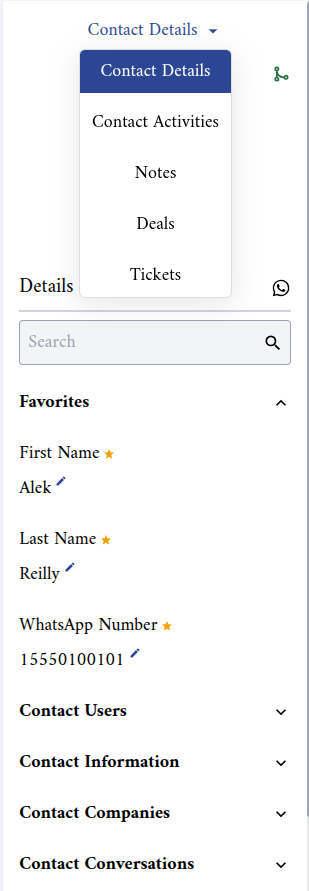
The panel follows the conversation: when you open another client, it shows that client's record. On a narrow screen, open it by tapping the client's name above the chat.
Contact Details
The Contact Details view shows:
- The client's picture and name. Click the picture to change it. Click the name to open the full contact page.
- The merge icon (Merge current contacts into another contact), to merge this contact with a duplicate. See Merging two contacts.
- The WhatsApp icon next to Details (Send broadcast template via WhatsApp), when the contact has a WhatsApp Number. It sends a WhatsApp template to the client, even when the messaging window is closed. See Sending a WhatsApp template from the inbox.
- The properties, grouped as on the contact page, with your favourite properties first. Use the Search box to find a property by name.
To change a property, click the pencil next to it and enter the new value. A bar with Cancel and Save appears at the bottom of the panel; nothing is saved until you click Save.
This is where you set the client's Owner and Communication Team, in the Contact Users group, which also decides who sees the conversation. See Who sees which conversations.
Contact Activities and Notes
Contact Activities lists what happened on the contact, such as the changes made to its properties, newest first.
Notes lists the notes your team wrote about the client. New Note adds one. Notes are internal: the client never sees them. Use them for what the next agent needs to know, for example "Prefers to be called after 5 pm" or "Waiting for the bank transfer".
Deals and Tickets
Deals lists the deals linked to the client, with their amount and stage. New Deal creates a deal already linked to the client, and Link Deals links one that exists.
Tickets lists the client's tickets with their category. New Ticket creates a ticket already linked to the client, and Link Tickets links one that exists.
Opening a ticket from the conversation is the quickest way to record a problem the client reports in the chat: it is linked to the right client from the start. See Deals and Tickets.
Points to keep in mind
- Save before switching conversations. Changes you haven't saved are lost when you open another client.
- The panel is the same record as the contact page. A change here shows on the contact page, in lists and in workflows straight away.
- Unique keys still apply. A value another contact already holds in a unique key, such as a phone number, is refused. See Unique keys.