- Introduction
- Requirements
- Creating a ticket
- The ticket properties
- Working a ticket
- Team and owner
- Points to keep in mind
Introduction
A client's problem that lives only in a chat scrolls out of sight as soon as new messages arrive. Nobody is sure who is handling it, the client asks again, and the next agent answers without knowing it was ever raised.
A ticket keeps the problem in view until it is resolved: what it is about, how urgent it is, who is handling it, and whether your team is waiting on the client or the client is waiting on you. Tickets are linked to the contacts and deals they concern, so whoever opens the client's page sees their open problems before replying.
This document explains how to create tickets, what each ticket property is for, and how to take a ticket from report to resolution.
Requirements
| Requirement | Detail |
|---|---|
| Object | Tickets must be turned on. See Objects. |
| Permissions | View All Tickets, View Team's Tickets or View User's Tickets to see tickets, and View Ticket Details to open any ticket. Create New Ticket to add one, Edit Ticket to change one or to link it to other records, and Delete Ticket to delete one. Changing the options of the ticket properties needs Edit Custom Field. |
Creating a ticket
From the tickets list
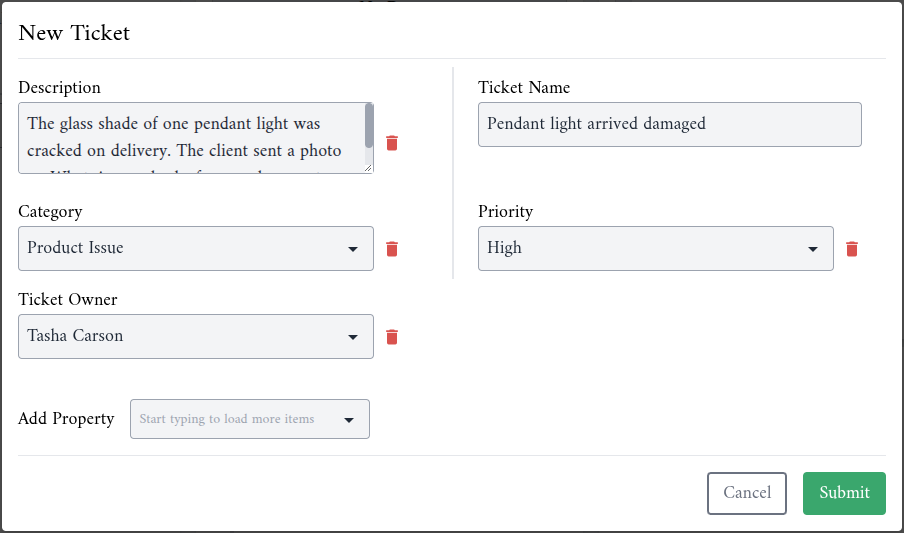
- Go to Objects > Tickets and click New Ticket.
- Fill in Ticket Name. It is required and needs at least 3 characters.
- Describe the problem in Description, and choose the Category, the Priority and the Ticket Owner.
- To fill in another property, such as Status or Team, choose it under Add Property.
- Click Submit.
From a contact or a deal
Open the record and find the Tickets card in the Associations tab. New Ticket opens the same form and links the ticket to the record as soon as you submit it, and Link Tickets links a ticket that already exists.
Usually the best place to open a ticket is the client's contact page, while you are reading their conversation: the ticket is linked to the right client from the start.
The ticket properties
| Property | Options in a new account | What it is for |
|---|---|---|
| Status | New, Waiting on Contact, Waiting on Us, Closed | Where the ticket stands, and who has to act next. |
| Category | Product Issue, Billing Issue, Feature Request, General Inquiry | What the ticket is about. |
| Priority | Low, Medium, High | How urgent it is. |
| Resolution | Issue Fixed, Feature Request Tracked, Refund Applied, Sent Knowledge Document Link | How the ticket was resolved. |
| Communication Channel | Facebook Page, WhatsApp Number, Instagram | Where the client raised it. |
| Team | Your teams | The team handling the ticket. |
| Ticket Owner | Your team members | The person handling the ticket. |
| Close Date | A date | When the ticket was closed. |
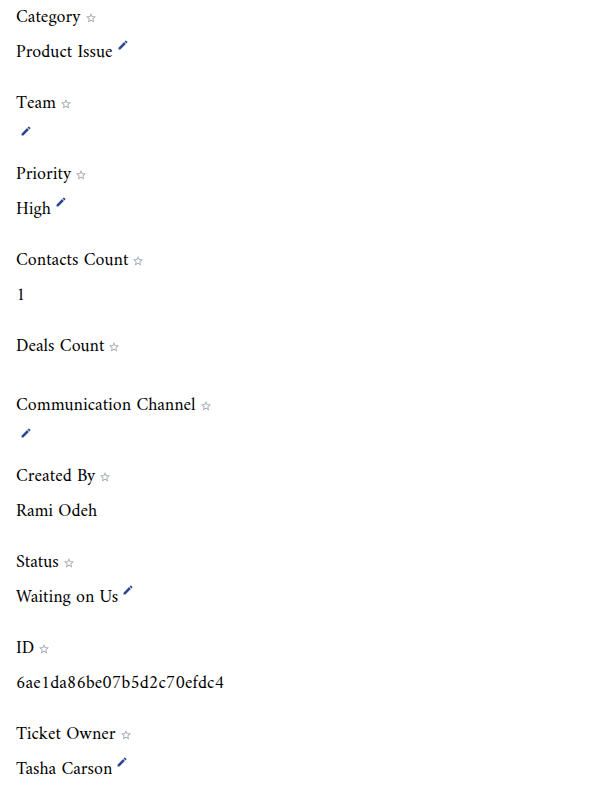
To change a value, click the pencil next to it in the ticket's Details card, then click Save.
The options of Status, Category, Priority and Resolution can be renamed, added to and removed in Settings > Properties > Tickets. The steps are the same as for customising deal stages.
Contacts Count and Deals Count are kept up to date by Alaaqat as you link and unlink records.
Working a ticket
No property of a ticket changes by itself. A new ticket has no status until someone sets one, and closing it doesn't fill in its resolution or close date. A routine your team can follow:
- When the ticket is opened, set Status to New, choose the Priority, and assign a Ticket Owner or a Team. To have Status in the form every time, add it once with Add Property: the form remembers it, in this browser.
- While your team works on it, set Status to Waiting on Us.
- When you need something from the client, such as a photo or an order number, set it to Waiting on Contact, and back to Waiting on Us when they answer.
- When it is done, set Status to Closed, choose the Resolution, and fill in the Close Date.
To see the tickets of one category, pick it in the All Categories list above the tickets table.
Team and owner
Ticket Owner and Team decide who can see a ticket. A team member with View All Tickets sees every ticket. Without it, View Team's Tickets gives access to the tickets whose Team is one of their teams, and View User's Tickets to the tickets they own.
So a ticket with neither an owner nor a team doesn't appear in the list of a team member who can only see their team's or their own tickets. Assign one as soon as the ticket is opened.
Points to keep in mind
- Ticket Name needs at least 3 characters.
- A ticket can be linked to several contacts and several deals.
- Assigning a Ticket Owner doesn't notify that team member. Tell them, or agree that each member checks the tickets they own.