Introduction
WhatsApp Coexistence is a feature from Meta that lets teams use the WhatsApp Business app and the API with the same number. In other words, it enables businesses to manage customer conversations by leveraging the capabilities of both the WhatsApp Business App and the API simultaneously.
The following video is a step-by-step guide:
Advantages of WhatsApp Coexistence:
- The same number is used on both the WhatsApp Business app and the API.
- You can reply manually while automation (auto replies, workflows, CRM) handles messages at the same time.
- Messages sent from the app also appear in the API system, keeping everything synced in one place.
- Even after the API's 24-hour window ends, you can continue the conversation manually from the WhatsApp Business app.
- On activation you can import your contacts and up to 6 months of chat history from the app.
Requirements:
Activation of WhatsApp Coexistence requires meeting the following conditions:
- Your number must be active: the account should have real conversations. New or inactive numbers may be rejected.
- Updated WhatsApp Business app: your app must be on version 2.24.17 or later.
- A verified number in Meta Business Manager: this is set up automatically through Alaaqat, with no external steps needed.
- You must open the WhatsApp Business app at least once every 14 days, otherwise the connection with the API may be dropped.
What Coexistence does not cover
Some WhatsApp Business app features have no equivalent on the Cloud API, so they stay in the app and do not sync to Alaaqat:
- Group chats, disappearing messages and view-once messages.
- Companion devices such as WhatsApp for Windows and WearOS.
A number connected through Coexistence also has a fixed sending throughput, so it is not suited to very high-speed bulk sending.
How to enable this feature:
- On the Alaaqat platform, go to Settings > Channels -> Conversations.
- Click New Channel.
- Choose Whatsapp.
- Click Start.
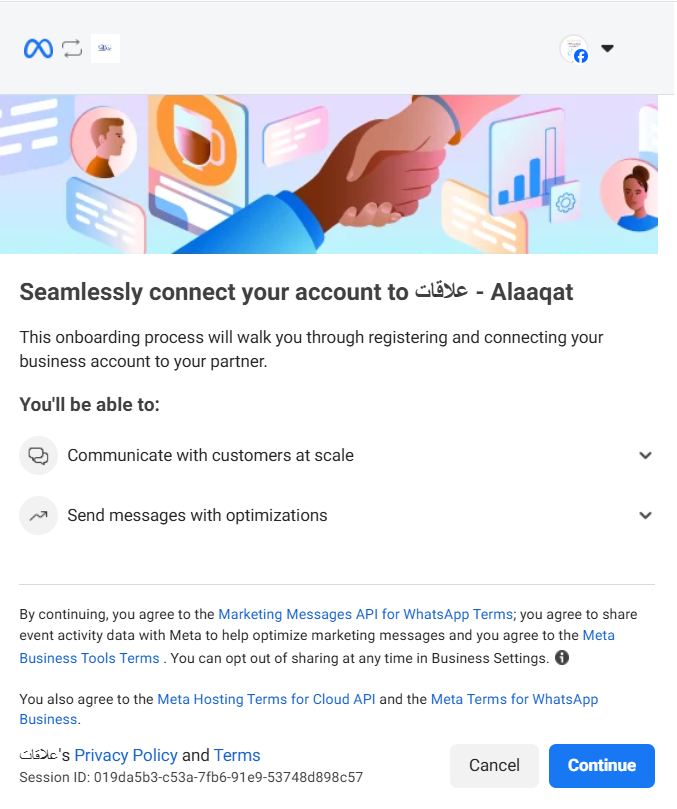
- The WhatsApp integration consent screen opens; log in with your connected Facebook account.
- Click Continue to grant Alaaqat permission to manage your WhatsApp Business account and start the embedded signup flow.
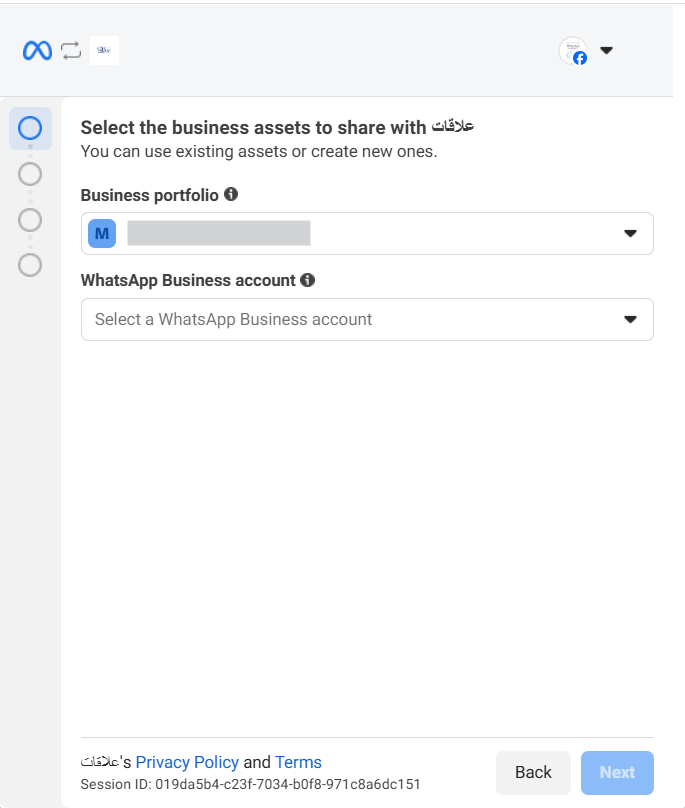
- Select the business assets (business portfolio) to share with Alaaqat. You can use existing assets or create new ones.
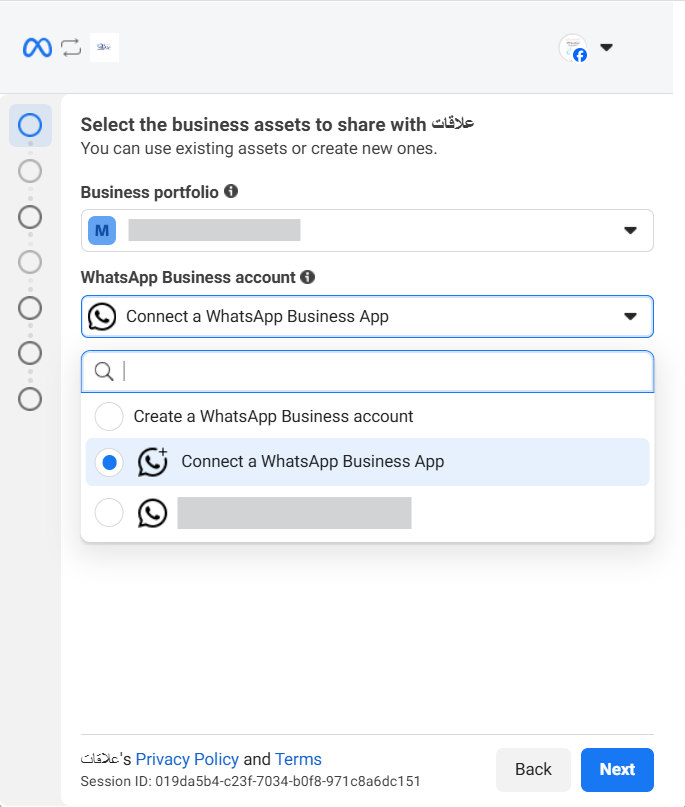
- In the WhatsApp Business Account field, select “Connect a WhatsApp Business App”, then click Next.
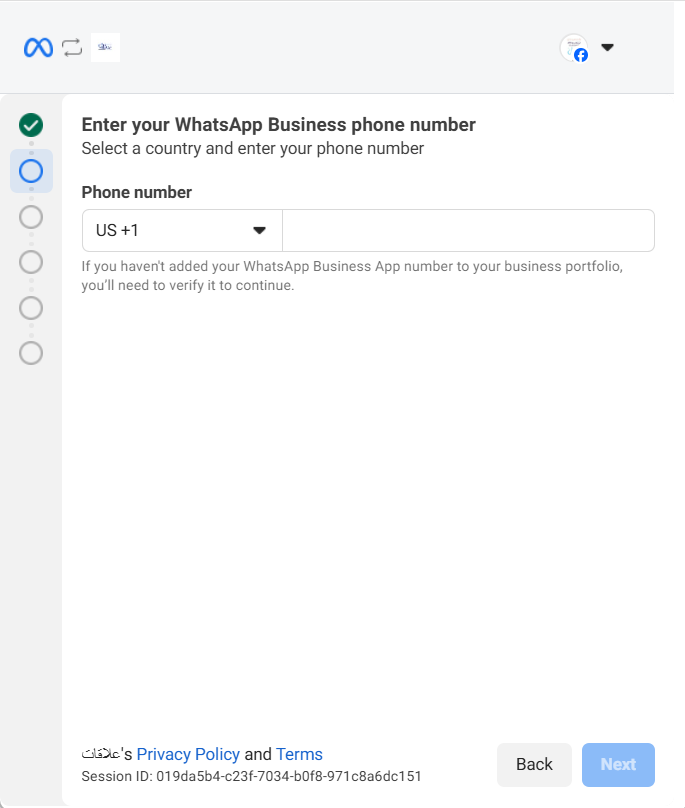
- Enter your WhatsApp Business phone number, then click Next.
- Verify your phone number: a verification code will be sent to your WhatsApp Business App via the official Meta (Facebook Business) chat.
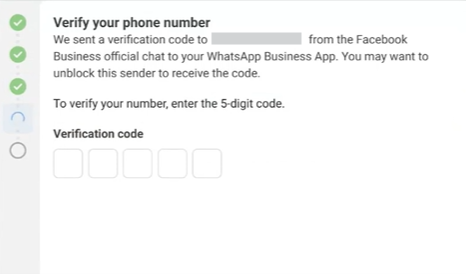
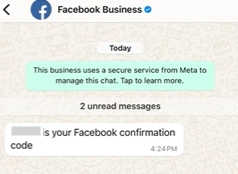
- Confirm your WhatsApp Business Account details, including the Account Name and Time zone, then Click Next.
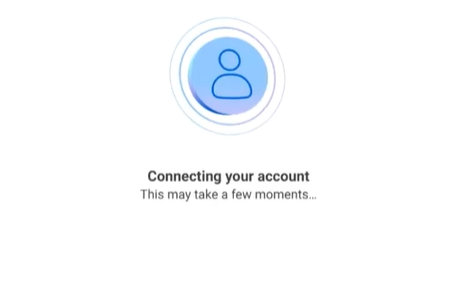
- Your account is now being connected.
- In the next step (share your contacts and chats) you can import your contacts and up to 6 months of chat history from the WhatsApp Business app into Alaaqat.
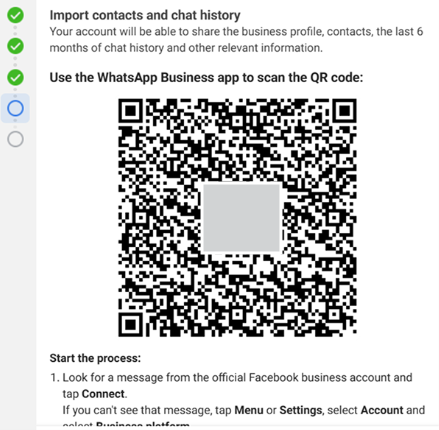
- Facebook Business Account will send a message to your WhatsApp Business App tap to scan the QR code.
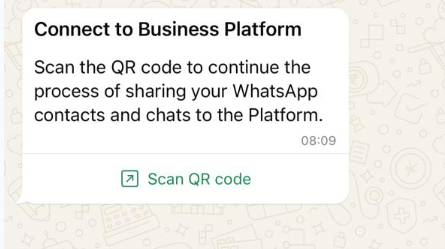
- Tap the message and scan the QR code displayed on screen.
- Your account is now connected to Alaaqat. Click Finish.
FAQ
-
Will messages be synchronized between both platforms?
Once the integration is successfully established, new incoming and outgoing messages are synchronized across both platforms. -
What does error 131060 mean in conversation logs?
This error shows up with a message like “This message is unavailable.” In most cases you should wait for the next message: it often resolves itself when the client sends a follow-up, or it is a temporary glitch in the conversation. -
What about the 24-hour messaging window? How can businesses engage with clients outside this window via Alaaqat and the WhatsApp Business App?
The 24-hour messaging window is unchanged for the WhatsApp Business API that Alaaqat uses. To send a message outside it, you need a pre-approved message template. The WhatsApp Business app has no such restriction: you can message your contacts at any time without a template, because the 24-hour rule does not apply to the app. Messages sent from the app also do not open or extend the API's window. -
Can I use this feature if I’ve previously integrated with Alaaqat?
If you have already integrated with Alaaqat, you need to delete your existing WhatsApp API account, reinstall the WhatsApp Business app, and sign up again.