Introduction
Whatsapp Coexistence is a powerful feature from Meta that allows teams to use the WhatsApp Business app and API with the same number. In other words, it enables businesses to manage customer conversations by leveraging the capabilities of both the WhatsApp Business App and the API simultaneously.
Advantages of WhatsApp Coexistence:
- The same number is used on both the WhatsApp Business and the API.
- Ability to reply manually while automation (auto replies, workflows, CRM) handles messages at the same time.
- Messages sent from the app also appear in the API system, keeping everything synced in one place.
- Even after the API’s 24-hour window ends, you can still continue the conversation manually from the WhatsApp Business app.
Requirements:
Activation of WhatsApp Coexistence requires meeting the following conditions:
- Your number must be active: The account should have real conversation; New or inactive numbers may get rejected.
- Updated WhatsApp Business App: Your app must be on a recent version (e.g., v2.24+ or later).
- A verified number in Meta Business Manager: the process must set up through an official provider (BSP) like Alaaqat using Embedded Signup, Otherwise, coexistence won’t work.
- You must open the WhatsApp Business App every 14 days, Otherwise, the connection with API may disconnect.
How to enable this feature:
- On the Alaaqat platform, go to Settings > Channels -> Conversations.
- Click New Channel.
- Choose Whatsapp.
- Click Start.
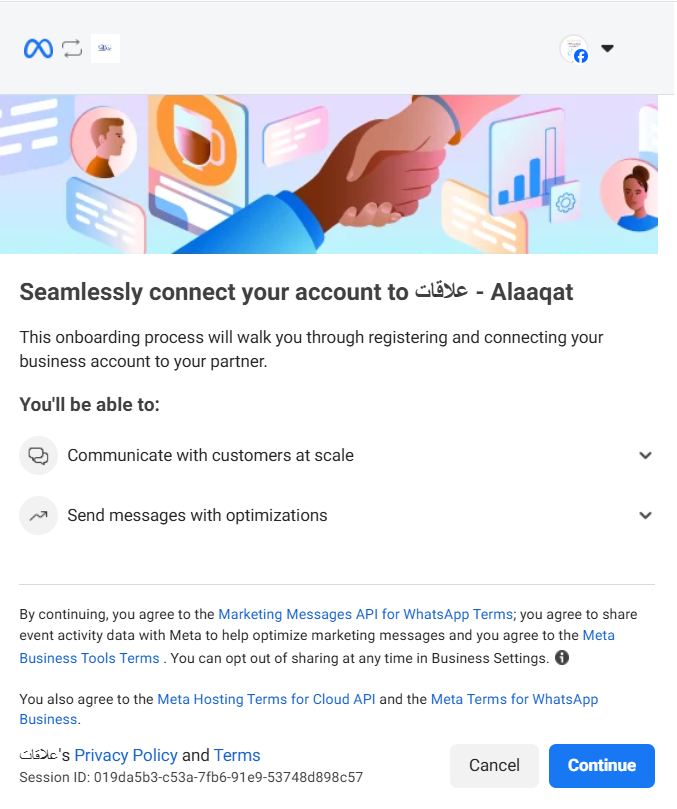
- Whatsapp integration consent screen will open, login with your connected facebook account.
- Click Continue to grant permissions for Alaaqat to manage your WhatsApp Business account and initiate the embedded sign-up flow.
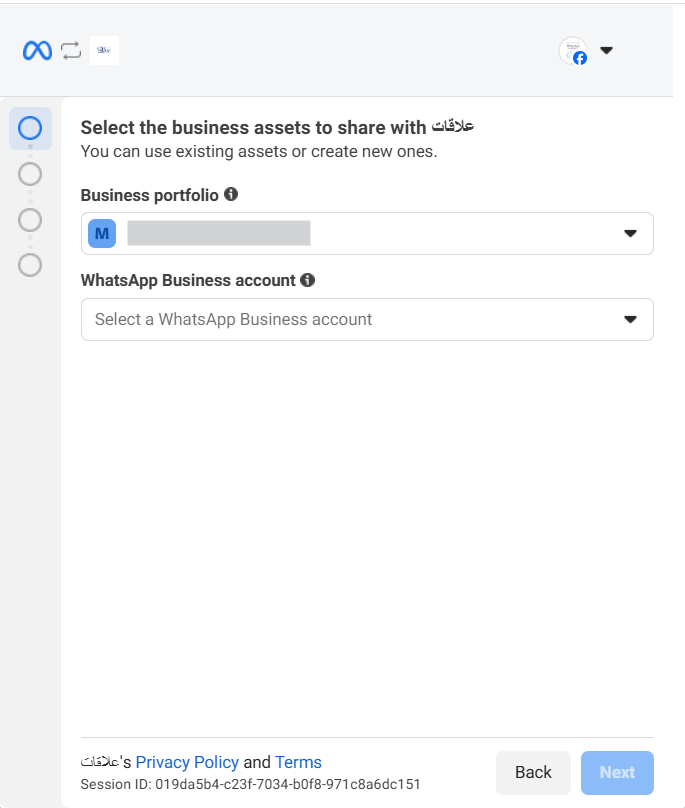
- Select the business assets (Business portfolio) to share with Alaaqat. You can use existing assets or create new ones.
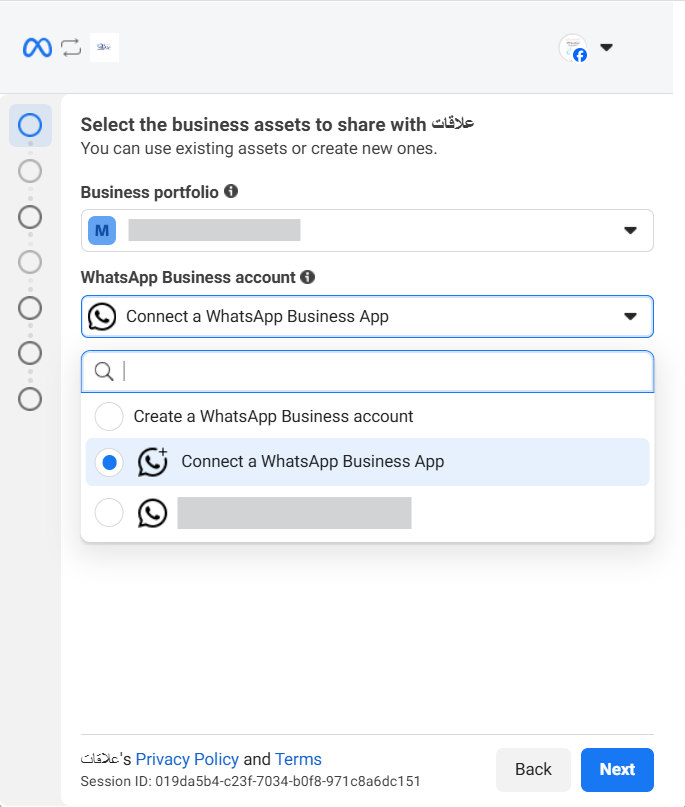
- In the WhatsApp Business Account field, select “Connect a WhatsApp Business App”, then click Next.
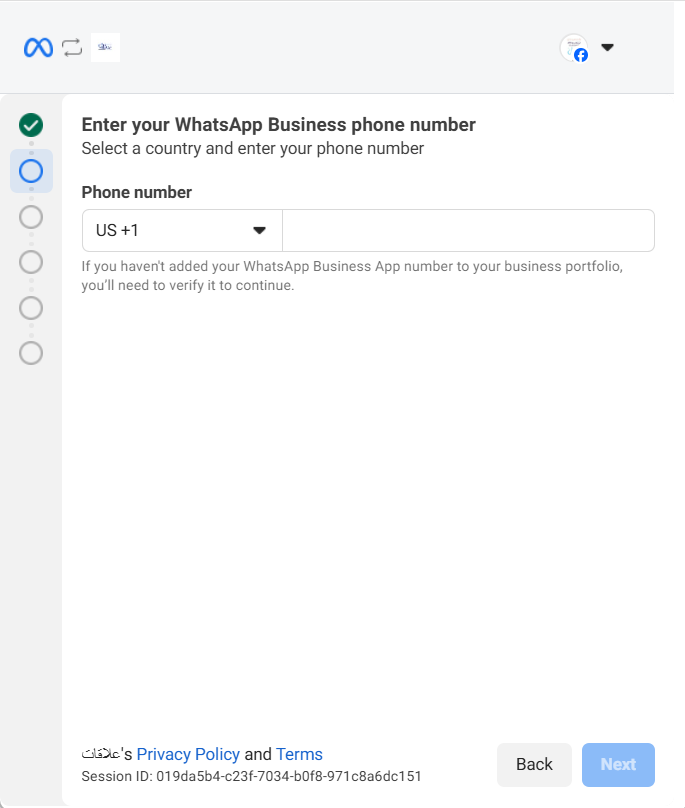
- Enter your WhatsApp Business phone number, then click Next.
- Verify your phone number: a verification code will be sent to your WhatsApp Business App via the official Meta (Facebook Business) chat.
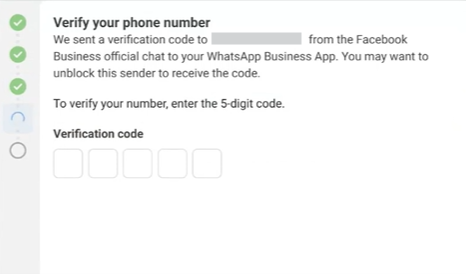
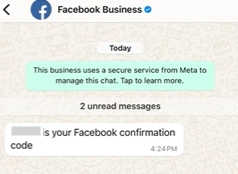
- Confirm your WhatsApp Business Account details, including the Account Name and Time zone, then Click Next.
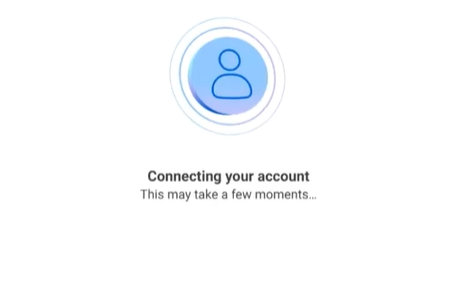
- Your account is now being connected.
- In the next step (share your contacts and chats): This step helps you to import contacts and up to 6 months of chat history from the whatspp business app to Alaaqat.
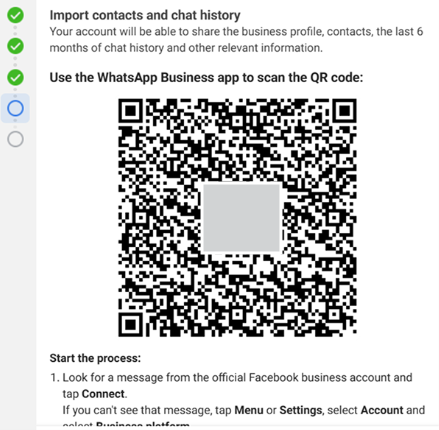
- Facebook Business Account will send a message to your WhatsApp Business App tap to scan the QR code.
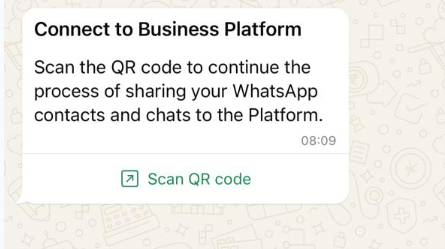
- Tap the message and scan the QR displayed on screen.
- Your account is now connected to Alaaqat. Click Finish.
FAQ
-
Will messages be synchronized between both platforms?
Once the integration is successfully established, new incoming and outgoing messages will be synchronized across both platforms.
-
What does error 131060 mean in conversation logs?
This error may show up with a message like “This message is unavailable.” In most cases, you should wait for the next message, as it may resolve itself when the client sends a follow-up message or simply be a temporary glitch during the conversation. -
What about the 24-hour messaging window? How can businesses engage with clients outside this window via Alaaqat and the WhatsApp Business App?
The 24-hour messaging window remains the same for whatsapp business API used by Alaaqat. To send a message outside this window you’ll need to use a pre-approved message template. For the WhatsApp Business App, there are no restrictions. You can message your contacts anytime without template requirements, as the 24-hour rule does not apply to the WhatsApp Business App. -
Can I use this feature if I’ve previously integrated with Alaaqat?
If you have already integrated with Alaaqat, you’ll need to delete your existing WhatsApp API account, reinstall the WhatsApp Business App, and sign up again.