- Introduction
- Requirements
- Exporting a list
- Preparing a file to import
- Step 1: Upload the file
- Step 2: Match each column to a property
- Step 3: Choose how rows find existing records
- Step 4: Start the import
- How rows are matched
- When an import fails
- Points to keep in mind
Introduction
Most businesses don't start in Alaaqat with an empty list. Their clients are already in a spreadsheet, a phone, or another system, and typing them in one by one takes days and invites mistakes. Importing brings a whole file in at once.
The way back matters just as much. An export gives you a copy of a list to share with your accountant, to work on in a spreadsheet, or to keep as a backup.
An import can also do damage at the same scale: a file imported the wrong way can create a second copy of every client, or overwrite good data with empty cells. This document explains how to export a list, how to prepare and import a file, and how Alaaqat decides whether a row updates an existing record or creates a new one.
Import and export work the same way on every list: contacts, companies, tickets, deals, products and invoices. The examples use contacts.
Requirements
| Requirement | Detail |
|---|---|
| Object | The object must be turned on. See Objects. |
| Permissions | Each object has its own export and import permissions, for example Export Contacts and Import Contacts, or Export Deals and Import Deals. |
| Plan | Export isn't available on the Free plan. Import is available on every plan. See the plans on the pricing page. |
| File | An xls, xlsx or csv file of up to 1 MB, with the column headers in the first row. |
Exporting a list
An export writes the list as you see it to a file: the records that match the search and the filters, with the list's columns.
- Open the list and narrow it down to the records you need, with the search, the filters, or a saved view. See Views and Filters.
- Show the columns you want in the file, in the order you want them. Each column of the list becomes a column of the file.
- Click the export icon in the toolbar (its tooltip reads Export).
- In File Type, choose xlsx or csv. The window shows how many columns will be exported.
- Click Submit.
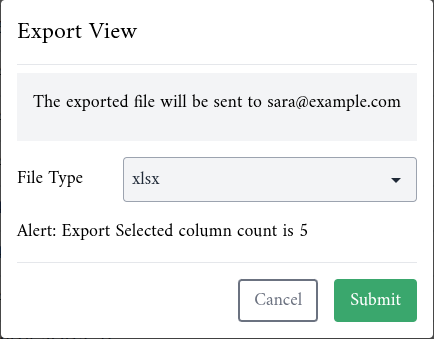
Alaaqat prepares the file in the background. When it is ready, you receive an email at the address shown in the window, and a notification such as "Contacts export has been completed." Click Download Now in either one to download the file.
What the file contains:
- Every record that matches, on all the pages of the list, not only the page you were looking at.
- Only the records you are allowed to see. A team member who sees only their team's contacts exports only those.
- On the contacts list, the Name column is written as two columns: first name and last name.
{info} The file is kept for about two days, then deleted. If the download link no longer works, export the list again.
Preparing a file to import
The easiest way to get a file in the right shape is to export the list first, even a short one, and fill in that file. Then check it against these rules:
- The first row holds the column headers. A file without a header row is refused. Empty columns are ignored.
- Every column you keep is imported. Each column must be matched to a property in the next step, so delete the columns you don't want to import.
- Some columns can't be imported. Properties that Alaaqat fills in itself, such as the record's ID, Created At or Original Source, aren't offered in the matching step. Delete these columns.
- Every row must have the required values. This applies to the rows that update an existing record too:
| List | Required in every row |
|---|---|
| Contacts | First Name |
| Deals | Deal Name, at least 3 characters |
| Tickets | Ticket Name, at least 3 characters |
| Companies and Products | Nothing |
- Values must fit the property's type: numbers in number and currency properties, a date in date properties, and phone numbers with their country code.
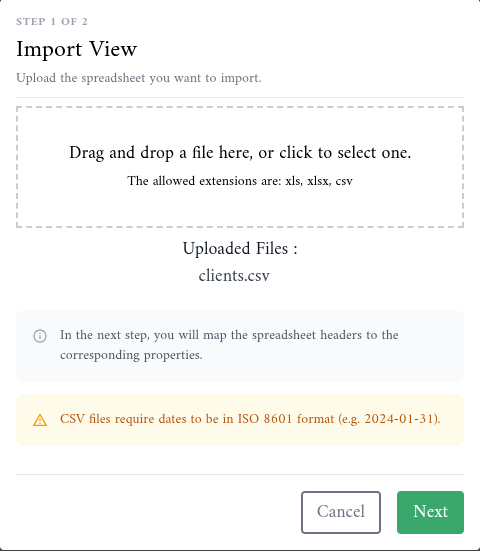
- Dates in a csv file must be written as year-month-day, for example 2024-01-31. In an xlsx or xls file, date cells are read as dates.
- Keep the file under 1 MB. Split a larger file into several files and import them one after the other.
{warning} Invoices can't be imported. An invoice is made of line items, and a row of a file can't hold them. Create invoices in Alaaqat instead; you can still export them.
Step 1: Upload the file
- Open the list you are importing into, for example Objects > Contacts.
- Click the import icon in the toolbar (its tooltip reads Import).
- In Step 1 of 2, drag the file into the box, or click the box to choose it.
- Click Next.
Step 2: Match each column to a property
Step 2 of 2 lists the columns of your file under Column. For each one, choose the matching Property. Type part of the property's name to find it quickly.
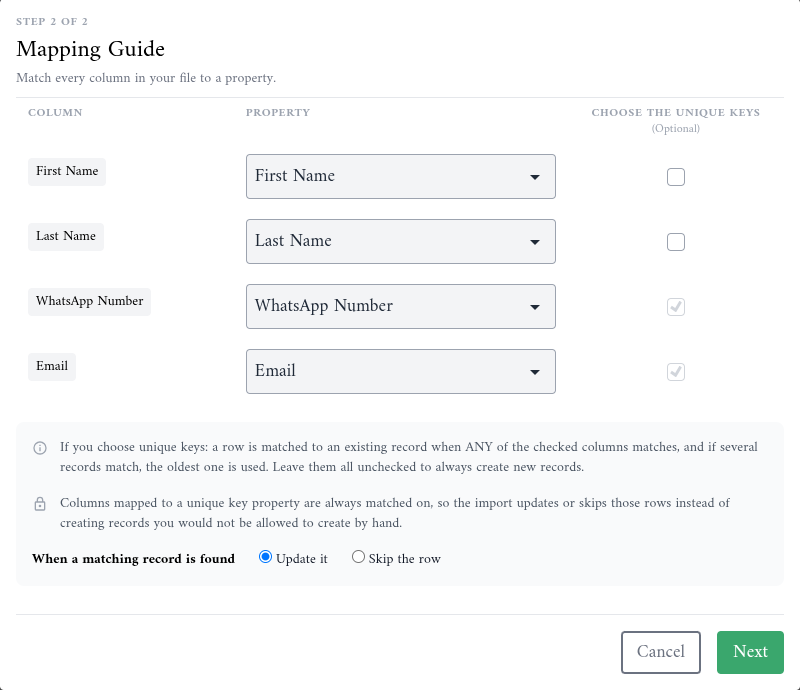
Every column must have a property. If a column has no property that fits, cancel, delete the column from the file, and upload it again. To import a value that has no property yet, create the property first; see the Properties document.
Step 3: Choose how rows find existing records
Under Choose the Unique Keys, tick the columns that identify a record, such as the WhatsApp number or the email address. Alaaqat uses them to find the record a row belongs to. See How rows are matched.
- A box that is ticked and locked belongs to a property that is a unique key in your account. Rows are always matched on it, whatever you choose. See Unique keys.
- Leave every box unticked only when every row is a new record that isn't in Alaaqat yet.
As soon as a column is ticked, When a matching record is found appears:
- Update it: the row's values replace the values of the existing record.
- Skip the row: the existing record stays as it is, and the row is ignored. Use it to add new clients from a file without touching the ones you already have.
Step 4: Start the import
Click Next. Alaaqat shows "We will notify you when the import process is done." and imports the file in the background, so you can keep working.
When it is done, you receive a notification and an email such as "Contacts import has been completed." If a row can't be imported, you receive "Contacts import has failed." instead, with the row and the reason; see When an import fails.
The contacts an import creates get import as their Original Source. Contacts that it only updates keep their original source.
How rows are matched
For each row, Alaaqat looks for an existing record that has the same value in one of the ticked columns.
- Any ticked column is enough. With WhatsApp number and email ticked, a row matches a contact that has the same WhatsApp number, or the same email.
- The oldest record wins. When several records match, the oldest one is updated or skipped.
- An empty cell can't match. A row whose ticked cells are all empty creates a new record.
- Text must be exactly the same. "layla@example.com" and "Layla@example.com" are different values, so they don't match.
- Without a ticked column, every row creates a new record. Importing the same file twice this way creates every record twice.
{warning} With Update it, an empty cell in the file empties the property on the existing record. Before you import, delete the columns you don't mean to change, and make sure the columns you keep are filled in.
When an import fails
Alaaqat imports the rows in order and stops at the first row it can't import, for example a contact without a first name, or a deal name shorter than 3 characters.
- The rows above that row are already imported.
- That row and every row below it are not imported.
- The notification names the row and the reason. Row numbers count the header row, so the first record in the file is row 2.
To finish the import, fix the row in your file, then import the whole file again with the same unique keys ticked and Update it chosen. The rows that were already imported match their records and are updated with the same values, instead of being created twice.
{warning} Don't import the same file again without a unique key. The rows that were already imported would be created a second time.
Points to keep in mind
- An import can't be undone. Try a new file with a few rows first, check the result, then import the rest.
- Import the WhatsApp number for every client who uses WhatsApp, with the country code. It is the number broadcasts and templates are sent to.
- A row whose value is already used by another record in a unique key property is matched to that record; it can't create a duplicate.
- An export with a filter or a search exports only what the list shows. Clear them to export the whole list.
- Import and export run in the background. You can leave the page; the notification reaches you wherever you are in Alaaqat.