- Introduction
- The six objects
- Requirements
- Lists and record pages
- Step 1: Open the Objects settings
- Step 2: Choose the objects your team uses
- Step 3: Save
- What turning an object off does
- Points to keep in mind
Introduction
Every conversation in Alaaqat is with a client, and everything your team learns about that client has to live somewhere. When the sale is tracked in a spreadsheet, the complaint in a chat and the invoice in another tool, nobody sees the whole story, and the next agent who answers starts from zero.
Objects are the kinds of record Alaaqat keeps for you: contacts, companies, tickets, deals, products and invoices. Records of different objects link to one another, so the agent who opens a client sees their conversations, their open deals and their support tickets on the same page.
Not every business needs all six. A shop that never issues invoices from Alaaqat can turn Invoices off, and the menu then shows your team only what they use. This document explains what each object is for, how its records are laid out, and how to turn objects on or off.
The six objects
| Object | What a record holds | In the menu |
|---|---|---|
| Contacts | One client: their name, phone and WhatsApp numbers, email, stage, and their conversations. See Contacts. | Objects > Contacts |
| Companies | An organisation that your contacts belong to. | Objects > Companies |
| Tickets | A client's request or problem, from the moment it is reported until it is resolved. See Tickets. | Objects > Tickets |
| Deals | A sales opportunity, with an amount and a stage. See Deals. | Commerce > Deals |
| Products | An item or a service that you sell. | Commerce > Products |
| Invoices | A bill to a client, made of line items. | Commerce > Invoices |
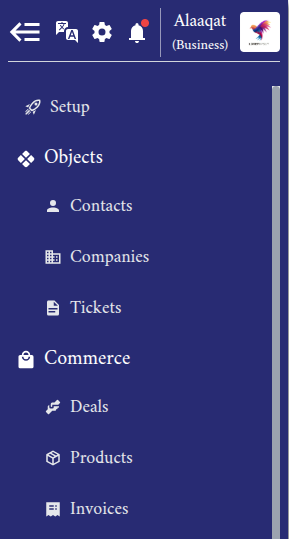
The objects are grouped in the sidebar under Objects and Commerce.
What a record stores is defined by its object's properties, such as First Name for a contact or Deal Stage for a deal. Some properties come with Alaaqat and you can add your own; see the Properties document.
Requirements
| Requirement | Detail |
|---|---|
| Plan | Some limits depend on your plan, such as the number of notes you can add to records and the storage for attached files. See the plans on the pricing page. |
| Permissions | Each object has its own permissions, for example View All Contacts, Create New Contact, Edit Contact and Delete Contact. Turning objects on or off needs Objects Management. |
Lists and record pages
Every object has a list and a page for each record.
The list opens from the menu. The button at the top creates a record, for example New Contact or New Deal. The table can be searched, filtered, sorted and given extra columns, and what you set up can be saved as a view; see Views and Filters. Its toolbar also holds the tools to import, export and find duplicates; see Import and Export. Finding duplicates is explained with contacts, and works the same way on every list.
The record page opens when you click a record's name in the list.
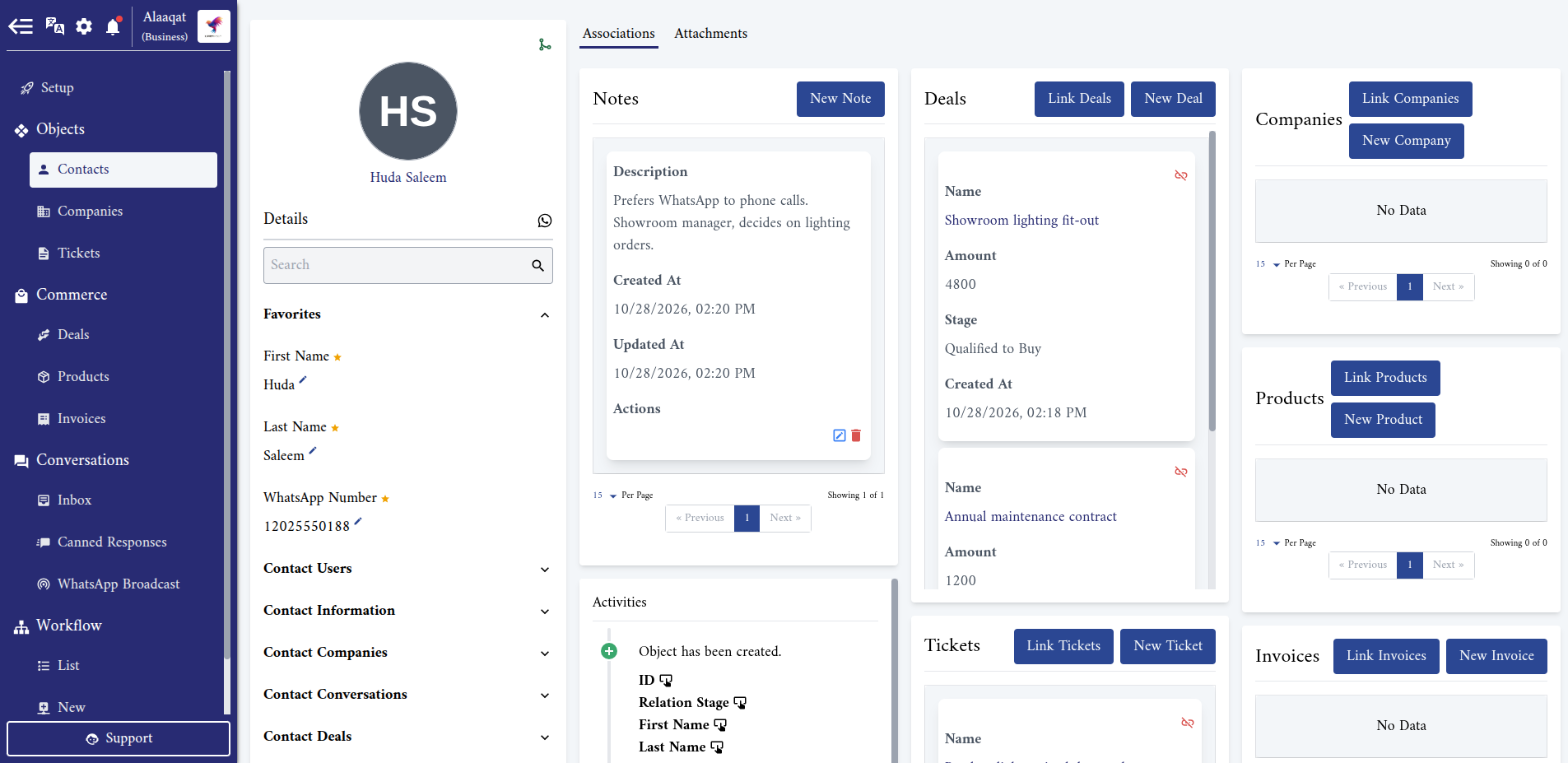
- On the left, the Details card lists the record's properties by group, with a search box to find one quickly. Click the pencil next to a value to change it, then click Save at the bottom of the card. A property without a pencil is filled in by Alaaqat, or your permissions don't allow you to edit the record.
- On the right, the Associations tab shows the record's Notes, its Activities (a history of what changed and who changed it), and a card for each of the other objects. In each card, Link Deals, Link Tickets and so on link records that already exist, and New Deal, New Ticket and so on create a record that is linked from the start. On a contact, the conversations appear here too.
- The Attachments tab holds the files and folders you keep on the record.
Step 1: Open the Objects settings
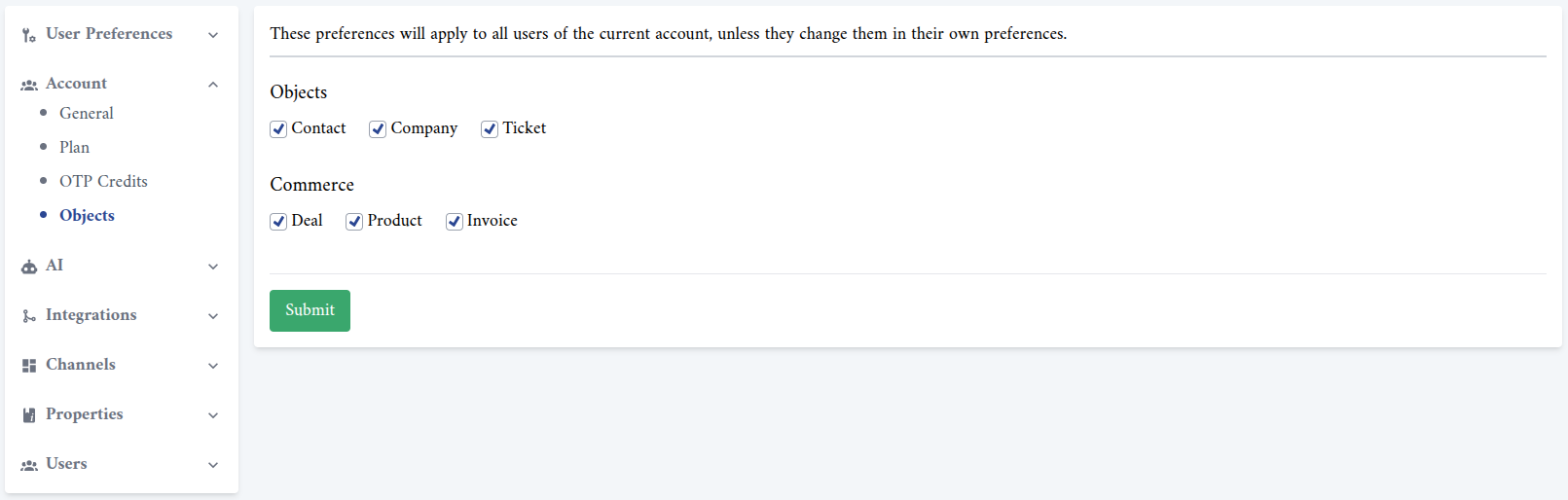
Click the gear icon at the top of the sidebar to open Settings, then go to Account > Objects.
Step 2: Choose the objects your team uses
The page lists the objects in two groups, as the menu does:
- Objects: Contact, Company and Ticket.
- Commerce: Deal, Product and Invoice.
Tick the objects you use and untick the ones you don't. All six are on in a new account.
Step 3: Save
Click Submit. The menu changes for you right away, and for the rest of your team the next time they open or reload Alaaqat.
What turning an object off does
The setting applies to the whole account. Every team member sees the same menu, whatever their own preferences.
What changes:
- The menu. The object disappears from the sidebar.
- Record pages. Its card disappears from the pages of the other objects. With Deals off, for example, a contact's page no longer shows a Deals card.
- Setup. The Setup checklist stops asking you to create a record of that object.
What does not change:
- Your records. Nothing is deleted. Turn the object back on and its records, and their links to other records, are there as before.
- Its properties. The object's properties are still listed under Settings > Properties.
Points to keep in mind
- Keep Contacts on. Every conversation belongs to a contact, and Alaaqat keeps creating a contact for each new client who writes to you, even while the Contacts menu is hidden. Turning Contacts off only takes the list of your clients away from your team.
- Turning an object off hides it from your team; it is not a way to protect data. To limit who sees what, use the object's permissions instead.
- Only team members with the Objects Management permission can change this setting.