- Introduction
- Requirements
- How credits work
- What spends credits
- Step 1: Read your balance
- Step 2: Buy credits
- Step 3: Follow your usage
- Low credit alerts
- When the credits run out
- Points to keep in mind
Introduction
AI credits are what the AI features in Alaaqat run on. When they run out, the reply assistant stops drafting, and the AI agent in your workflows stops answering clients, without handing their conversations to your team. A client who wrote at night gets no answer until someone notices.
This document explains where credits come from, what spends them, and how to see a shortfall coming before your clients do.
Requirements
| Requirement | Detail |
|---|---|
| Menu | Settings > AI > AI Credits. |
| Permission | Manage Billing and Subscriptions. |
| Plan | AI features and the monthly allowance are part of the paid plans; the Free plan has none. See the plans on the pricing page. |
How credits work
Credits come from two places, and are spent in this order:
- Your plan's monthly allowance. Every paid plan includes a number of credits each month. The allowance is used first, and resets at the start of each calendar month. What you don't use in a month does not carry over.
- Purchased credits. Credits you buy are used once the month's allowance is spent. They never expire.
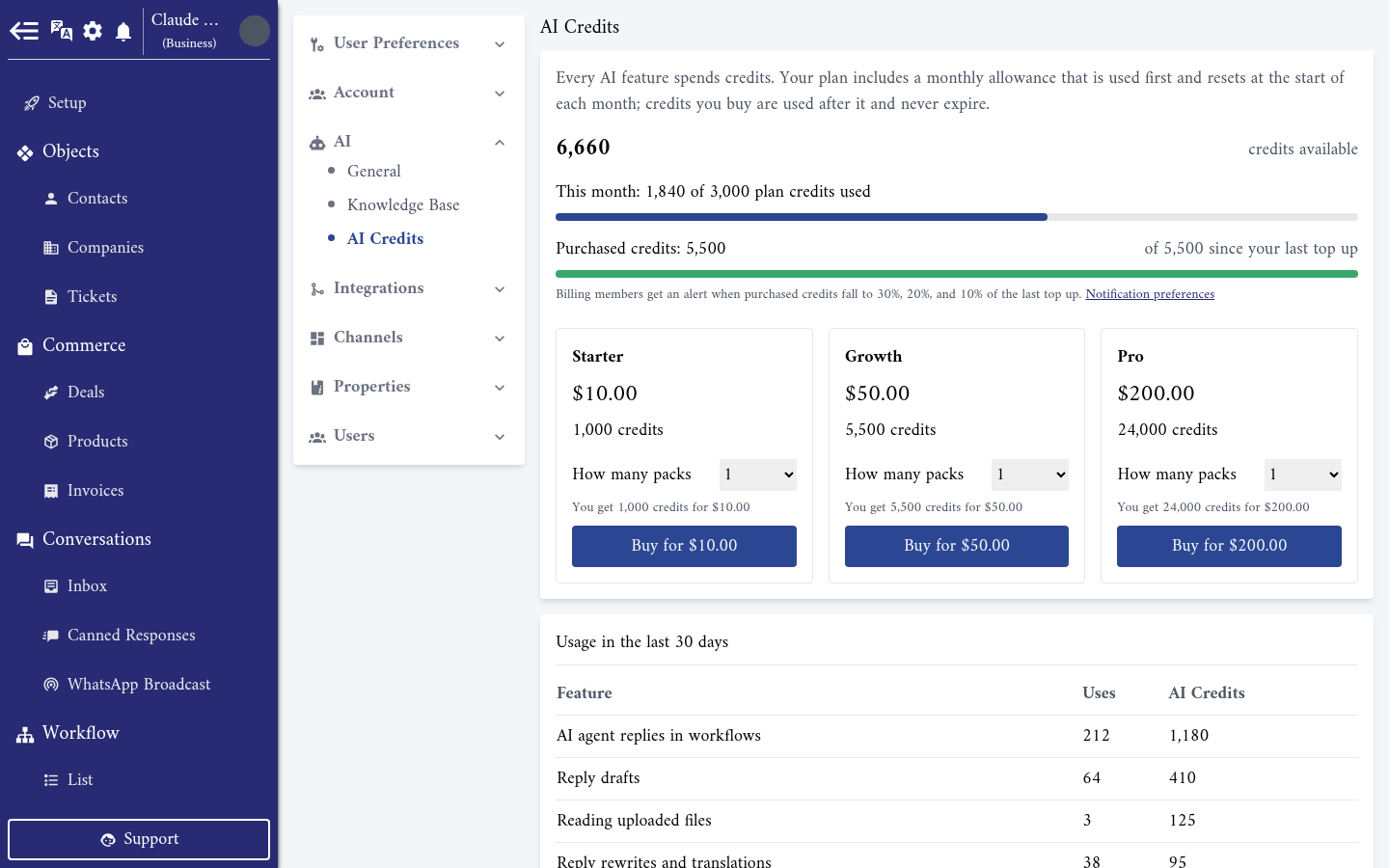
credits available at the top of the page is the sum of both: what is left of this month's allowance plus your purchased credits.
What spends credits
| Feature, as the page names it | When it spends credits |
|---|---|
| AI agent replies in workflows | Each time the AI Agent Reply action answers a client or hands a conversation over. |
| Reply drafts | Each Draft a reply in the AI assistant. |
| Reply rewrites and translations | Each More formal, Friendlier, Shorter, Fix spelling and grammar or Translate to. |
| Reading uploaded files | Each PDF added to the knowledge base. |
| Knowledge base indexing | Adding content to the knowledge base, and looking up passages in it: Try a question, and every draft or agent reply. |
How many credits a use costs depends on how much the AI reads and writes. A long conversation, or a long answer, costs more than a short one.
Step 1: Read your balance
- This month: … of … plan credits used, with a bar, shows how much of the monthly allowance is spent.
- Purchased credits, with a second bar, shows what is left of your purchased credits, and of … since your last top up shows how much you had right after your last purchase. The bar changes colour as it empties.
Step 2: Buy credits
The page offers three packs: Starter, Growth and Pro. Each card shows its price and the number of credits it holds.
- Under the pack you want, pick How many packs. The line under it shows the total: You get … credits for ….
- Press Buy for …. A secure checkout window opens.
- Pay. Payment received, your credits will appear in a moment. shows on the page, and the credits are added to your purchased credits shortly after.
A purchase appears in Credit History as Purchase.
Step 3: Follow your usage
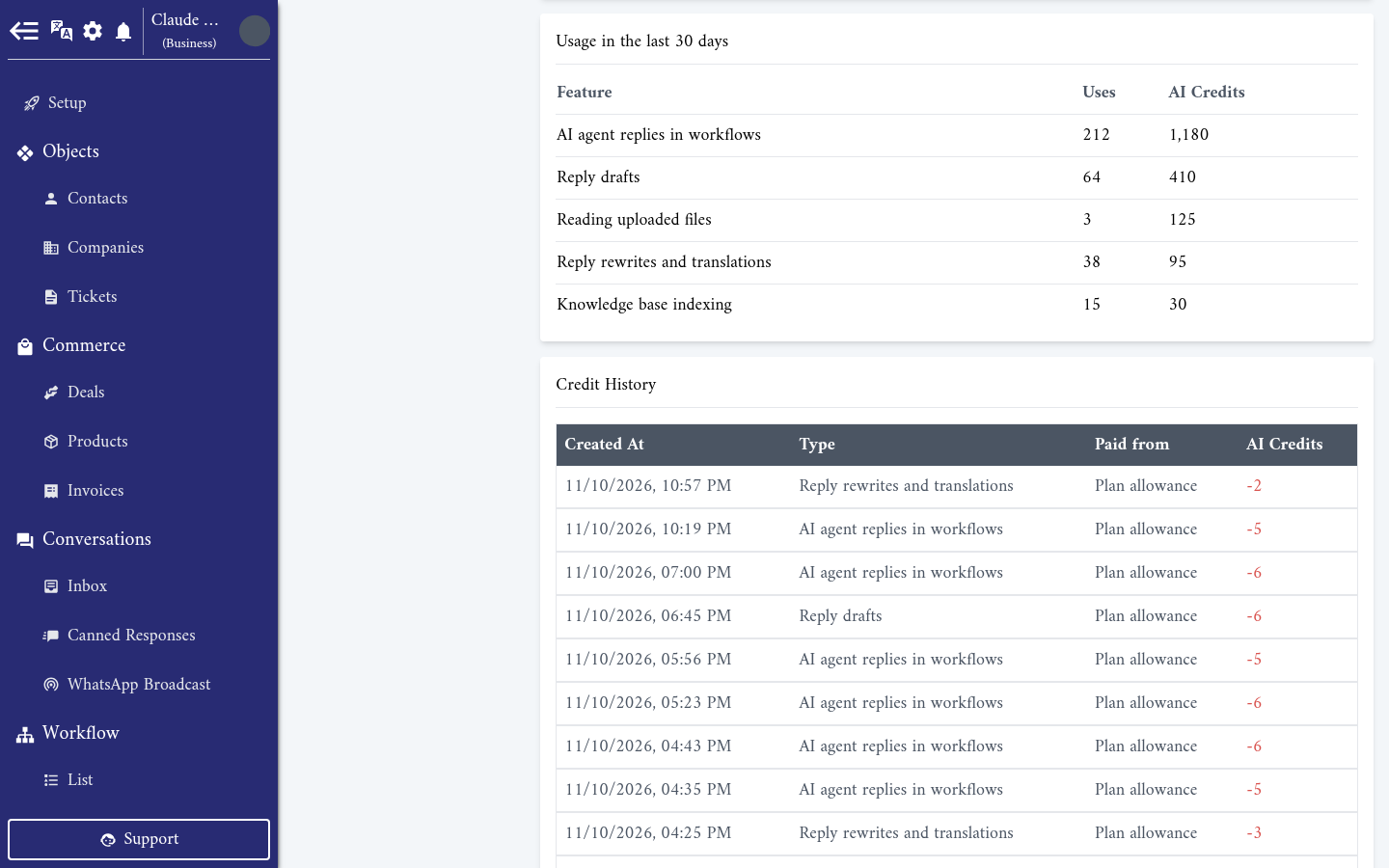
Usage in the last 30 days lists each feature with its Uses and the AI Credits it spent, the biggest first. It is the quickest way to see where the credits go.
Credit History lists every movement, newest first:
| Column | Shows |
|---|---|
| Created At | When it happened. |
| Type | The feature that spent the credits, or Purchase. |
| Paid from | Plan allowance or Purchased credits. |
| AI Credits | Credits added (green, with a +) or spent (red, with a -). |
A single use can show twice: once for the last of the month's allowance and once for the rest, taken from your purchased credits.
Low credit alerts
Members with Manage Billing and Subscriptions get an AI Credits Running Low notification when the purchased credits fall to set levels of the last top up. The page lists the levels under the bars. The alert says how much is left, and each level alerts once until you buy again.
Alerts follow your purchased credits only. An account that lives on its monthly allowance gets no alert before the allowance runs out, so check this page as the month goes on.
To choose how the alert reaches you, press Notification preferences on the page, or go to Settings > User Preferences > Notifications.
When the credits run out
When both the allowance and your purchased credits are spent, the page shows You have no AI credits left, AI features are paused until your allowance resets or you top up. Until then:
- The AI assistant shows an error instead of a draft or a rewrite.
- The AI Agent Reply action stays silent. It does not answer, and it does not hand the conversation to your team.
- New knowledge base content shows Failed. Press Try again after you top up.
Everything works again as soon as you buy credits, or at the start of the next month.
{warning} If your workflows rely on the AI agent to answer clients, running out of credits leaves those clients unanswered without warning your agents. Keep an eye on the balance, and buy before it reaches zero.
Points to keep in mind
- Credits are kept, but can't be used, on a plan without AI. If you move to the Free plan, the page shows Your plan does not include AI features, so AI credits cannot be used. and stops offering packs. Your purchased credits come back into use when you return to a paid plan.
- Turning AI off in AI settings stops all spending, but the monthly allowance still resets at the end of the month.
- A use that starts with a few credits left is completed, even if it costs a little more than what was left.