- Introduction
- Requirements
- Step 1: Prepare the AI
- Step 2: Build the workflow
- Step 3: Choose who takes over
- What the AI agent answers
- When it hands over
- When it stays silent
- Points to keep in mind
- Final workflow
Introduction
Clients write at night, on weekends and in the middle of a busy shift, and most of them ask something your team has answered a hundred times: the price, the delivery area, the opening hours. A client who waits hours for that answer often buys somewhere else.
The AI Agent Reply workflow action answers those clients by itself, at once, from your business profile and your knowledge base. When it should not answer, because the answer isn't there, the client asks for a person, or the subject is one you reserved for your team, it tells the client a team member will get back to them, and hands the conversation to your team.
Unlike the AI assistant in the inbox, nobody reviews these replies before the client reads them. This document explains how to set the action up, and exactly when it answers, hands over, or stays silent.
Requirements
| Requirement | Detail |
|---|---|
| Menu | Workflow > New. |
| Permission | Create New Workflow or Edit Workflow. |
| Plan | AI features are available on paid plans; the Free plan has none. See the plans on the pricing page. |
| AI settings | AI turned on, and About your business filled in. See AI settings. |
| Knowledge base | At least one entry. See Knowledge base. |
| AI credits | Every reply and every hand-over uses AI credits. See AI credits. |
| Event | Message Received only. |
Step 1: Prepare the AI
The AI agent answers only from your AI settings and your knowledge base. Before you turn it on:
- In Settings > AI > General, fill in About your business, your Opening hours, and When to hand over to a person.
- In Settings > AI > Knowledge Base, add your FAQs, prices and policies, and check them with Try a question.
A workflow with AI Agent Reply can't be saved until both are done. The action itself shows what is missing, for example The AI agent needs a knowledge base before it can answer customers., with a link to set it up.
Step 2: Build the workflow
Create a workflow, add the Message Received event, then open the Actions tab. AI Agent Reply is the last action in the list.
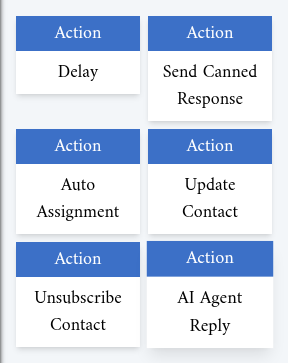
Click it to add it, and connect the event to it.
| Event | Message Received | The workflow starts when a client sends a message. |
| Action | AI Agent Reply | Answers the client, or hands the conversation to your team. |
You can put conditions between the two, for example to let the AI answer only on one channel, or only outside your opening hours. See the workflow introduction.
Step 3: Choose who takes over
Hand over to decides who is told when the AI agent hands a conversation over:
- A team. If the contact has no owner, it is assigned to a member of that team, in turn (round robin), and that member is told. If the contact already has an owner, the owner keeps it and is told.
- Whoever sees the conversation (the default). The contact's owner is told; when it has none, every member who can see the conversation is told.
The notification is AI Handed a Conversation Over. It names the client and carries a one-line summary of what they want and why the AI handed over. When no reply was sent to the client, it says so.
What the AI agent answers
When a client writes, the AI agent reads the last 20 messages of the conversation, your AI settings, the client's name, preferred language and stage, and the passages of your knowledge base that match the client's message. It then replies to the client's last message, in the language the client wrote in, in the tone you chose.
It answers only from your settings and your knowledge base, and never guesses. Its messages carry an AI badge in the inbox.
When it hands over
The AI agent hands the conversation to your team when:
- What the client needs is not in your AI settings or your knowledge base.
- The client asks for a person, complains, or is upset.
- The subject is one you listed in When to hand over to a person.
- It has already replied several times in a row since a team member last answered.
- The client sends again the message it just answered. That usually means the answer didn't help.
- The client's message was written by a machine, such as an away message or another business's bot menu.
- It could not write a reply, or the reply could not be sent.
In the first four cases it tells the client, in a sentence or two, that a team member will get back to them. It says when only if your opening hours tell it. In the last three, it sends nothing to the client.
After a hand-over, the AI agent stays out of that conversation until a team member replies. A reply sent from Alaaqat counts, and so does one sent from the WhatsApp Business app or Meta Business Suite. From then on, it answers that client's new messages again.
When it stays silent
The AI agent neither answers nor hands over when:
- The message was sent by your business, not by the client.
- The contact is unsubscribed or blocked. See Unsubscribe.
- Your account has reached the number of messages its plan allows.
- AI is turned off, your plan has no AI, or your AI credits have run out.
- The client has already sent a newer message. Only the newest one is answered.
- The message was already answered.
{warning} When AI is turned off or the credits run out, the clients who write in get no answer, and your team gets no hand-over notification. Watch your AI credits.
Points to keep in mind
- Avoid two automatic answers. If another workflow already replies to the same messages, such as an auto-reply, the client gets both. Turn the other one off, or separate them with conditions.
- Clients who write in several short messages. Only the newest message is answered, but the AI agent answers as soon as each one arrives. Put a Delay action of a minute before AI Agent Reply, so the client has finished writing before the AI answers once.
- Test before you activate. A workflow is created inactive, and you activate it from Workflow > List. Once active, the AI agent replies to real clients, so try their questions in Try a question first.
- Keep any Delay before the action short. The AI agent answers inside the client's messaging window, which opens when the client writes. A reply that can't be sent is handed over instead. See Messaging window.
- The AI doesn't see the contents of photos, voice notes or documents, only that the client sent one. It can't answer a question asked in a photo.
Final workflow
The finished workflow reads:
Message Received → AI Agent Reply (Hand over to: your support team, or Whoever sees the conversation)
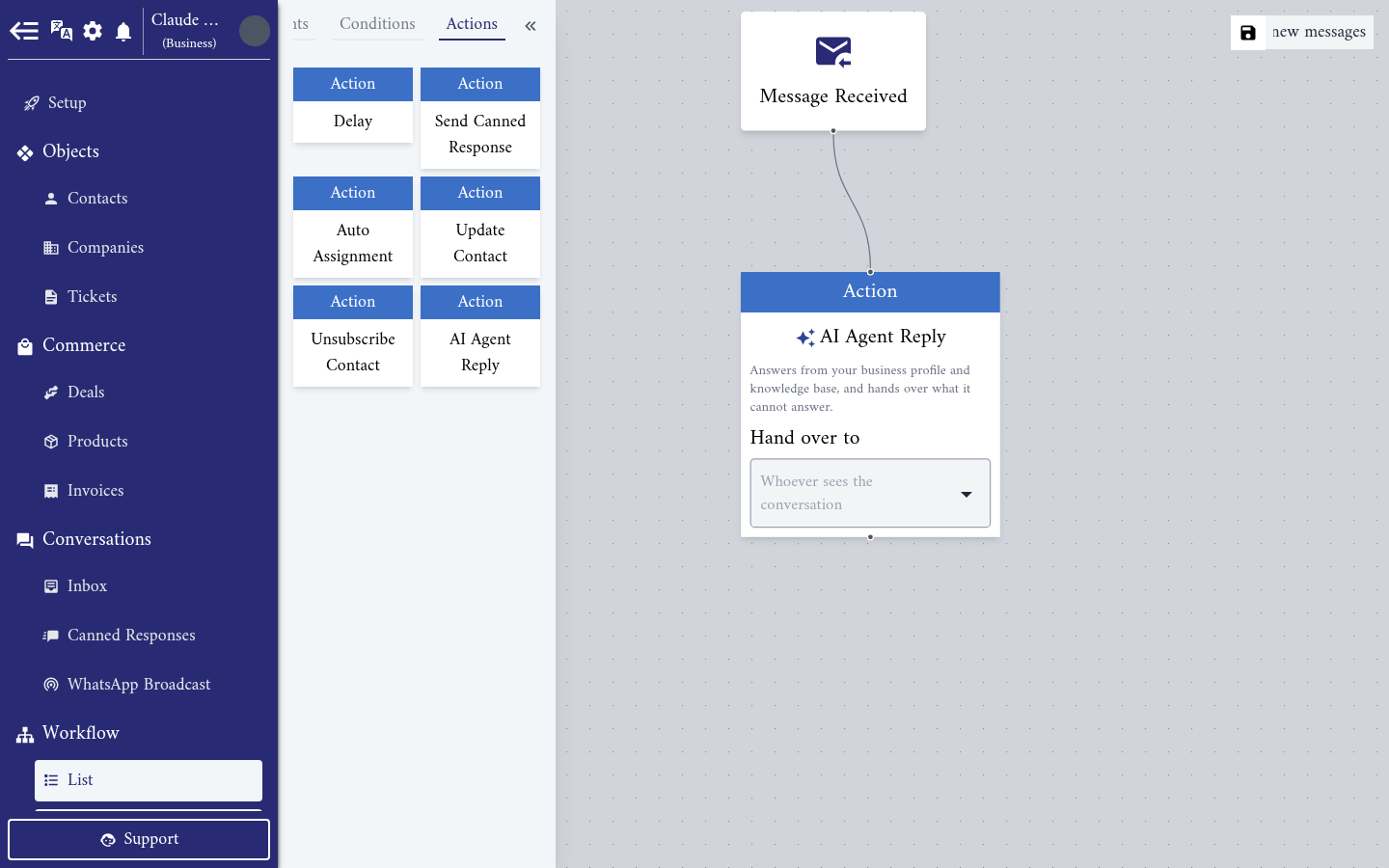
From now on, every client who writes gets an answer within moments, and the conversations that need a person reach your team with a summary of what the client wants.