- Introduction
- Requirements
- How the AI uses it
- Step 1: Write content
- Step 2: Upload files
- Step 3: Add web pages
- Step 4: Import your canned responses
- Step 5: Check the status
- Step 6: Try a question
- Renaming, updating and deleting
- Points to keep in mind
Introduction
An AI that answers clients is only as good as what it knows. Without your price list, delivery areas and return policy, it can do one of two things: guess, and give a client a wrong price in your name, or say "a member of the team will get back to you" to every question.
The knowledge base is where you give the AI those details. The AI assistant in the inbox and the AI Agent Reply workflow action answer from it, and from nothing else besides your AI settings.
This document explains how to fill the knowledge base, how to check what the AI will find in it, and how to keep it up to date.
Requirements
| Requirement | Detail |
|---|---|
| Menu | Settings > AI > Knowledge Base. |
| Permission | Manage Account Settings. |
| Plan | AI features are available on paid plans; the Free plan has none. See the plans on the pricing page. |
| AI credits | Reading new content uses AI credits, and so does Try a question. See AI credits. |
How the AI uses it
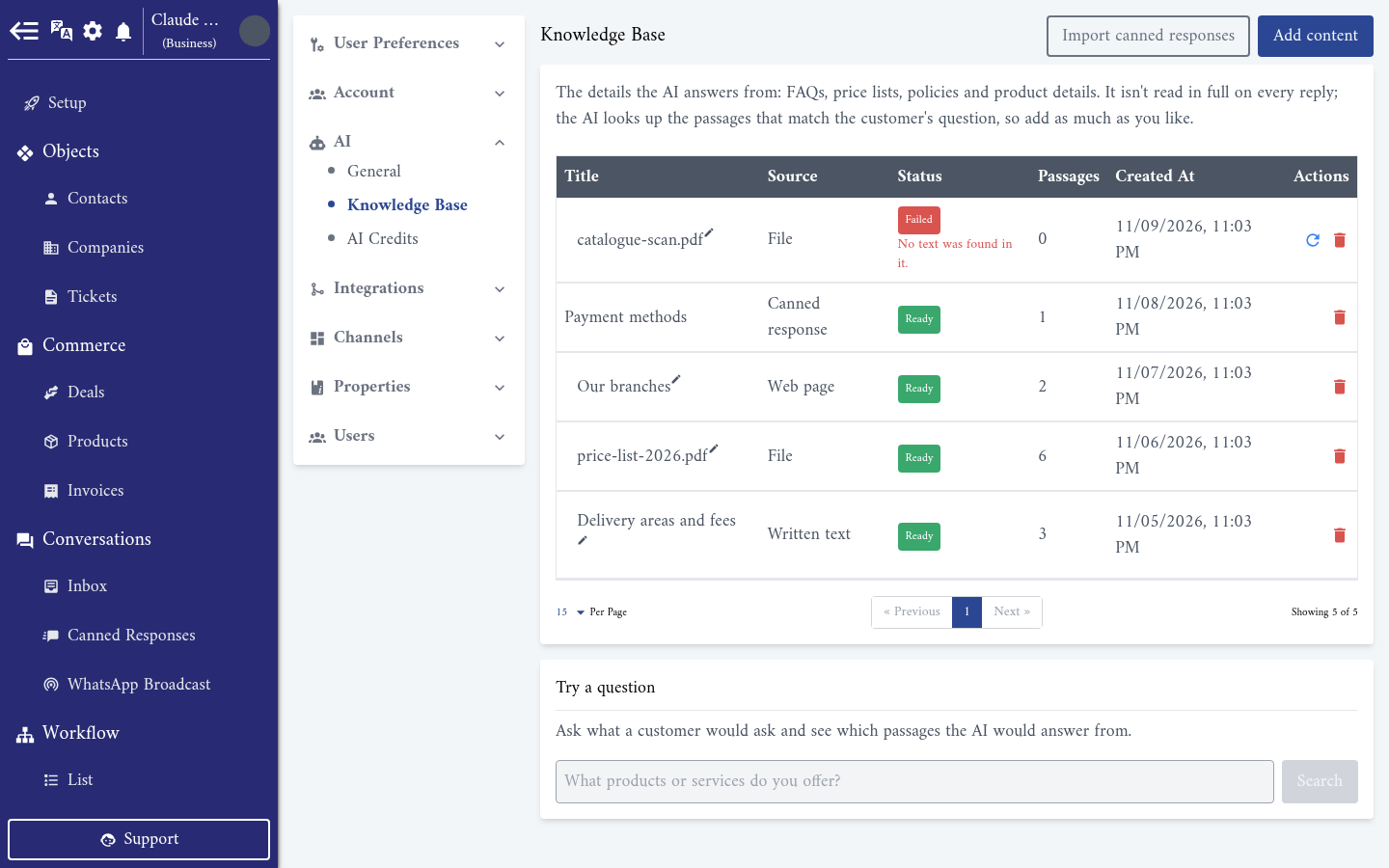
The knowledge base is not read in full before every reply. When Alaaqat adds content, it cuts it into passages. When a client writes, the AI looks up the passages that best match the client's last message, and answers from those.
So you can add as much as you like: a long price list costs nothing extra when a client asks about delivery. What matters is that the answer to a question is written somewhere, in words close to the ones a client would use.
Step 1: Write content
Press Add content. The Write tab is open.
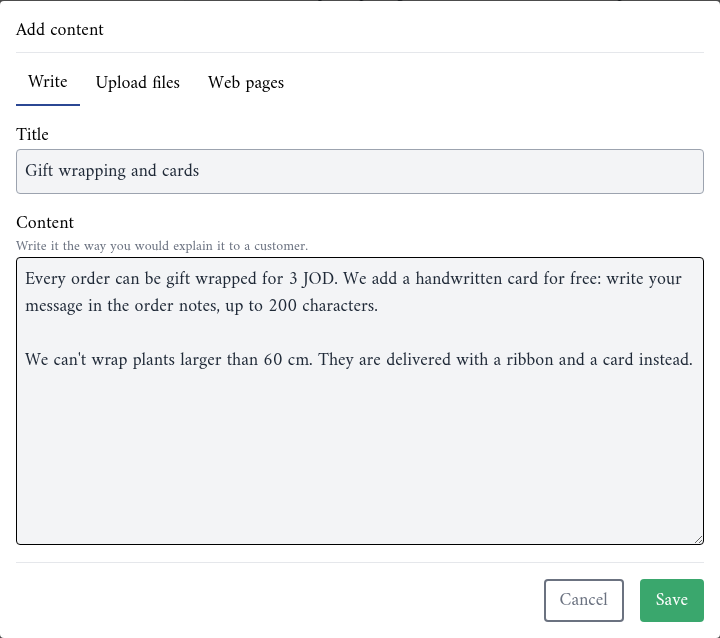
- Title: up to 255 characters. It names the entry in the list, and the AI sees it as the source of the passage.
- Content: up to 200,000 characters. Write it the way you would explain it to a client.
Press Save. The entry appears in the list with the status Reading….
Prefer one entry per subject, such as Delivery areas and fees or Gift wrapping and cards, over one long text about everything. Entries are easier to find, rename and replace.
Step 2: Upload files
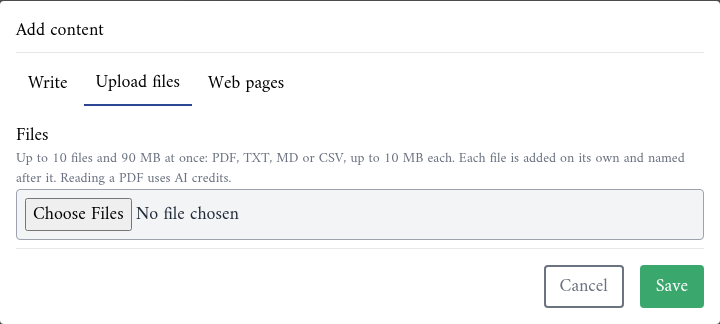
On the Upload files tab, press Choose Files.
| Rule | Limit |
|---|---|
| File types | PDF, TXT, MD or CSV. |
| Size of one file | Up to 10 MB. |
| One upload | Up to 10 files and 90 MB together. |
Each file becomes its own entry, named after the file. Reading a PDF uses AI credits; text files don't.
A TXT, MD or CSV file must be saved as UTF-8 text. Excel and Notepad sometimes save Arabic text in an older format, and the file then fails. In Excel, choose CSV UTF-8 when you save.
Step 3: Add web pages
On the Web pages tab, paste the address of a page, such as your FAQ page. Press Add another page to add more, up to 20 at once.
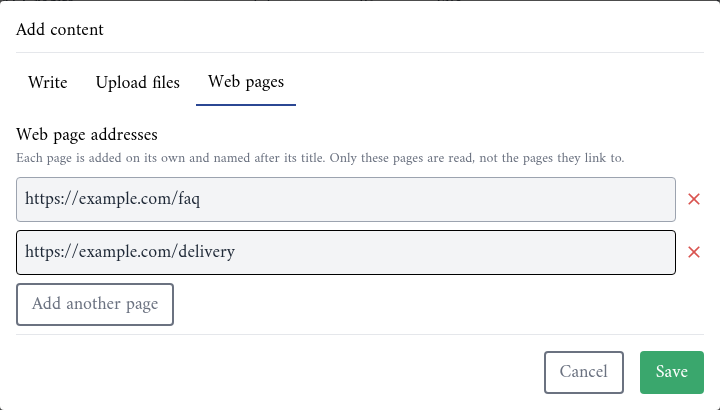
- Each page becomes its own entry, named after the page's title.
- Only the pages you list are read, not the pages they link to.
- The page must be public, start with
http://orhttps://, and be at most 5 MB. - An address that redirects to another one fails. Add the final address instead.
- A page is read once, when you add it. If you change the page on your website later, delete the entry and add the page again.
Step 4: Import your canned responses
Your canned responses already hold answers your team checked. Press Import canned responses to add them to the knowledge base.
- Only the text of General responses is imported. A response with only an attachment is skipped, and Instagram carousels and WhatsApp interactive messages are left out.
- The import adds new responses, updates the ones you changed and removes the ones you deleted. A message shows what it did, for example 3 added, 1 updated, 0 removed.
- It does not run by itself. After you change your canned responses, press Import canned responses again.
- An imported entry is named after its canned response and can't be renamed here. Rename the canned response, then import again.
Step 5: Check the status
| Status | Meaning |
|---|---|
| Reading… | The content is being read and cut into passages. The list updates by itself. |
| Ready | The AI can answer from it. Passages shows how many passages it was cut into. |
| Failed | It could not be read. The reason is shown under the status. |
A failed entry has a Try again button. Fix the cause first, if it is one you can fix:
| Reason shown | What to do |
|---|---|
| No text was found in it. | The file is probably a scan or a picture. Upload a file with real text, or write the content. |
| It is longer than 200,000 characters. Split it into smaller parts. | Split it into several entries. |
| It is too long to be read in one go. Split it into smaller files. | Split the file. |
| The file is not saved as UTF-8 text. | Save it as UTF-8 and upload it again. |
| This address cannot be read. | Use a public page starting with http:// or https://. |
| The page redirects to another address. Add the final address instead. | Open the page in your browser and copy the address it ends on. |
| The page could not be opened. | Check the page is online and public, then press Try again. |
| The address is not a web page, or the page is larger than 5 MB. | Add a smaller page, or upload the content as a file. |
| AI is switched off for this account or you have no AI credits left. | Turn AI on in AI settings or top up your AI credits, then press Try again. |
| Something went wrong. Try again in a few minutes. | Press Try again later. |
Step 6: Try a question
Under the list, Try a question shows what the AI would find for a question. Type what a client would ask, up to 500 characters, and press Search.
The result lists the passages the AI would answer from, each with the title of its entry. If it shows Nothing in your knowledge base matches this question., or passages that don't answer the question, add the missing answer before your clients ask it.
Try the questions clients really send, in the words they use and in both languages you serve.
Renaming, updating and deleting
- Rename an entry by clicking its title. Imported canned responses are renamed from the canned response.
- Update an entry by deleting it and adding the new version. The content of an entry can't be edited in place, and a web page or file is not read again by itself.
- Delete an entry with the bin icon. After you confirm, the AI no longer answers from it.
Points to keep in mind
- The AI answers only from your AI settings and the knowledge base. When the answer is not there, it says the team will get back to the client, and the AI agent hands the conversation over. A gap in the knowledge base becomes work for your team.
- Keep it true. An old price list is answered from as readily as a new one. Delete what is out of date.
- Don't put anything in the knowledge base that a client must not read. The AI may quote any passage.
- The reply assistant and the AI agent both need at least one entry in the knowledge base before they work.