- Introduction
- Requirements
- The Channels page
- Activating and deactivating a channel
- Activating a WhatsApp number with its PIN
- Reauthenticating a channel
- Syncing Facebook and Instagram history
- Refreshing a WhatsApp Business Account
- Deleting a channel
- Points to keep in mind
Channel Management
Connecting a channel is a one-time step, covered in the WhatsApp, Facebook and Instagram guides. Keeping it working is not. A Facebook page loses its connection when someone changes a password or removes a permission. A WhatsApp number added in WhatsApp Manager doesn't appear by itself. A channel left inactive by mistake receives nothing, and your clients' messages go unanswered without anyone noticing.
This document covers everything you do with a channel after connecting it: activating and deactivating it, reconnecting it, importing its history, and removing it.
Requirements
| Requirement | Details |
|---|---|
| Menu | Settings > Channels > Conversations. |
| Permissions | View Connected Channels to see the page. Connect WhatsApp Account, Connect Facebook Page or Connect Instagram Account to activate, deactivate and reconnect that kind of channel. Disconnect WhatsApp, Disconnect Facebook or Disconnect Instagram to delete it. Sync Latest Messages from Channels to import Facebook and Instagram history. |
| Plan | Your plan limits how many channels of each kind can be active at the same time. See the plans on the pricing page. |
The Channels page
Each connected channel has a card: one per Facebook page, one per Instagram account, and one per WhatsApp Business Account with its phone numbers listed inside.
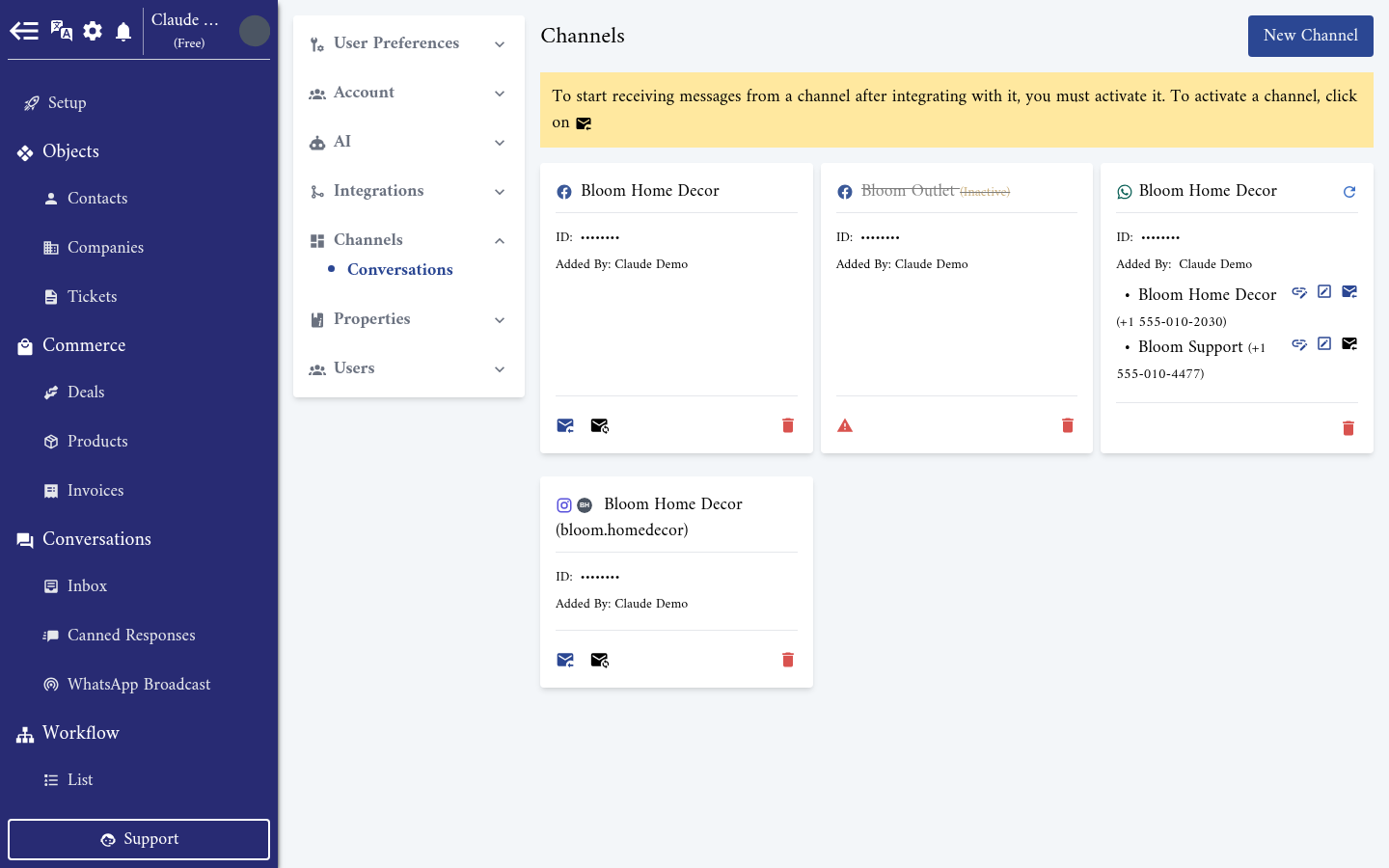
A card shows the channel's name, its ID on Meta, and Added By, the team member who connected it. Two signs need your attention:
- (Inactive) next to the name: the channel is connected but does not receive messages. The yellow banner at the top of the page reminds you of it.
- A crossed-out name with a red warning icon: Alaaqat has lost access to the channel. See Reauthenticating a channel.
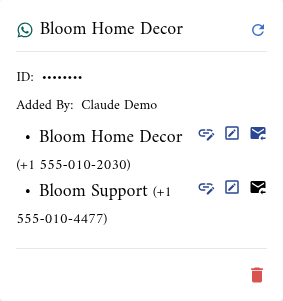
The icons at the bottom of a Facebook or Instagram card are, from left to right: activate or deactivate, Sync Messages, and delete. On a WhatsApp card, each number has its own icons, and the card has a refresh icon at the top and a delete icon at the bottom:
| Icon | What it does |
|---|---|
| Link | Creates a WhatsApp link that opens a chat with this number and a pre-filled message. |
| Pencil | Edits the number's business profile. See Profile. |
| Envelope | Activates or deactivates the number. It is blue while the number is active. |
| Sync Contacts | Shown instead of the pencil for numbers that also use the WhatsApp Business app. See Business App. |
Activating and deactivating a channel
A channel only receives messages while it is active. Click the envelope icon to switch it: the tooltip reads Activate or Deactivate, depending on its state.
When you activate a channel:
- New messages from clients start arriving in the inbox.
- The channel counts towards your plan's limit of active channels. If the limit is reached, activation is refused. Deactivate another channel or upgrade your plan.
When you deactivate a channel:
- Alaaqat asks you to confirm, because you lose access to the channel's messages.
- New messages from clients no longer reach Alaaqat.
- The channel disappears from the inbox, and its conversations can't be opened until you activate it again.
- A deactivated WhatsApp number is no longer offered in the channel lists of WhatsApp Broadcast, such as Sync.
{warning} Clients are not told that a channel is inactive. They keep writing, and nobody in your team sees it. Deactivate a channel only when you really stop using it in Alaaqat.
Activating a WhatsApp number with its PIN
Activating a WhatsApp number registers it with WhatsApp, which requires the number's six-digit PIN. A dialog asks for it:
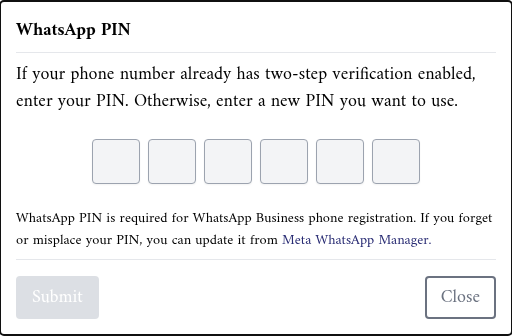
- If the number already has two-step verification turned on, enter its existing PIN.
- If it doesn't, enter a new PIN. It becomes the number's PIN.
- If you have forgotten the PIN, change it in Meta WhatsApp Manager, then try again. The link in the dialog takes you there.
Click Submit. A wrong PIN is refused with WhatsApp's error message. After too many attempts, WhatsApp refuses new ones for a while, so wait before trying again.
Deactivating a WhatsApp number deregisters it from WhatsApp. To use it again in Alaaqat, activate it and enter the PIN again.
{info} A number that also uses the WhatsApp Business app is activated automatically and can't be deactivated or deleted from Alaaqat. To disconnect it, open the WhatsApp Business app and go to Settings > Account > Business Platform, then tap Disconnect Account.
Reauthenticating a channel
Facebook pages and Instagram accounts are connected through a Facebook login. When that access ends, for example because the person who connected the channel changed their Facebook password, lost their role on the page, or removed Alaaqat from their Facebook settings, the card shows the channel's name crossed out and a red warning icon.
- Click the red warning icon, whose tooltip reads Click here to reauthenticate.
- Log in with Facebook and grant the requested permissions again.
- A success message appears and the card returns to normal.
Log in with a Facebook account that still manages the page. While a channel needs reauthenticating, its activate and Sync Messages icons are hidden.
Syncing Facebook and Instagram history
A newly connected Facebook page or Instagram account starts with an empty inbox: Alaaqat only receives the messages that arrive after the connection. Sync Messages imports the conversations the channel already had.
- On the Facebook or Instagram card, click the Sync Messages icon.
- Confirm Sync latest messages and contacts for this page.
- The import runs in the background. The message "Messages and contacts are syncing in the background." confirms it started.
Alaaqat reads the channel's existing conversations from Meta, adds their most recent messages, and creates a contact for each person you talked to. Conversations with deleted Facebook accounts are skipped.
WhatsApp has no such import, because WhatsApp does not give access to past messages. The only exception is a number connected with the WhatsApp Business app, see Business App.
Refreshing a WhatsApp Business Account
Click the refresh icon at the top of a WhatsApp card to read the account again from Meta. Use it when:
- you added a phone number to the WhatsApp Business Account in WhatsApp Manager, and it isn't on the card;
- you changed a number's display name or business profile outside Alaaqat.
New numbers appear on the card, inactive, so you can activate the ones you want. Numbers that use the WhatsApp Business app are activated automatically, as long as your plan has room for them.
Deleting a channel
Click the bin icon on the card and confirm.
- Facebook page or Instagram account: the channel is deactivated, then removed from Alaaqat.
- WhatsApp Business Account: every number on the card is deactivated, then the whole account is removed from Alaaqat. You can't remove a single number. Deleting is refused while any of the numbers also uses the WhatsApp Business app.
Your templates stay in WhatsApp Manager. If you connect the account again later, use Sync on the Broadcast Templates page to bring them back. See Syncing templates.
To use a deleted channel again, connect it again with New Channel.
Points to keep in mind
- One Alaaqat account per channel. A Facebook page or a WhatsApp Business Account can be connected to only one Alaaqat account. Connecting one that already belongs to another account does not move it.
- Activate after connecting. A newly connected channel is inactive until you activate it, except WhatsApp numbers that use the WhatsApp Business app.
- The PIN belongs to the number. It is the same PIN WhatsApp asks for on any registration, so keep it with your other business credentials.