- Introduction
- Requirements
- Creating a company
- The company properties
- Linking contacts to a company
- Owner and team
- Points to keep in mind
Introduction
When you sell to businesses, you rarely talk to just one person. A buyer asks for a quote, a manager approves it, and someone in accounts asks about the invoice. If each of them is only a contact, nothing shows that they work for the same client, and the agent who answers one of them doesn't know what the others asked for.
A company record groups those people under the organisation they work for. It holds what you know about the business, such as its industry, size and address, and it is linked to its contacts, deals, tickets and invoices. Open the company and you see the whole relationship on one page.
This document explains how to create companies, what their properties are for, and how to link contacts and other records to them.
Requirements
| Requirement | Detail |
|---|---|
| Object | Companies must be turned on. See Objects. |
| Permissions | View All Companies, View Team's Companies or View User's Companies to see companies, and View Company Details to open any company. Create New Company to add one, Edit Company Information to change one or to link it to other records, and Delete Company to delete one. Changing the company properties and their options needs Edit Custom Field. |
Creating a company
From the companies list
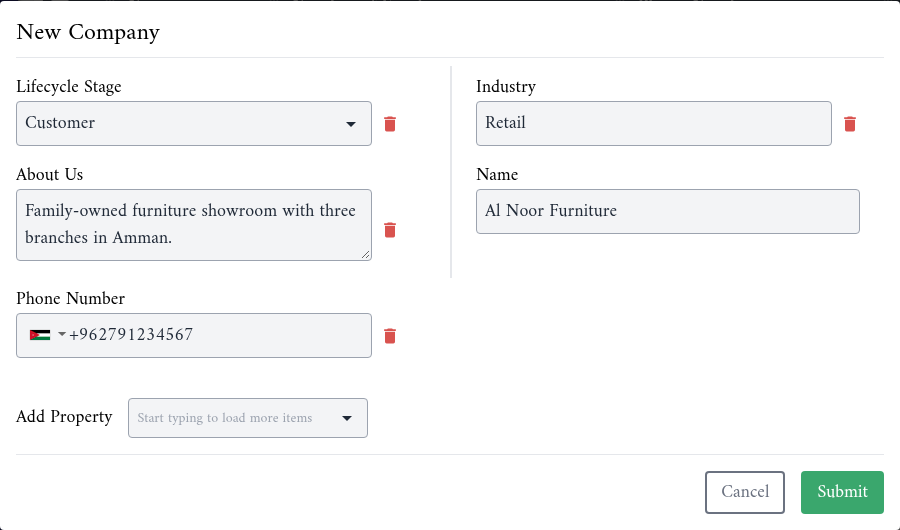
- Go to Objects > Companies and click New Company.
- Fill in Name. It is required.
- Fill in the other fields of the form, such as Industry, About Us, Phone Number and Lifecycle Stage.
- To fill in another property, such as Company Domain Name or Number of Employees, choose it under Add Property. The form remembers the properties you add, in this browser, and the bin icon next to a field takes it off the form.
- Click Submit.
From another record
Open a contact, a deal, a ticket, a product or an invoice, and find the Companies card in the Associations tab. New Company opens the same form and links the company to the record as soon as you submit it, and Link Companies links a company that already exists.
The company properties
A company's properties are grouped in three sections of its Details card. The ones you will use most:
| Group | Properties |
|---|---|
| Company Information | Name, Registered Name, Industry, About Us, Phone Number, Company Domain Name, Number of Employees, Annual Revenue, Logo, and the address: Street Address, City, State/Region, Postal Code and Country/Region. |
| Company Sales | Lifecycle Stage, Owner and Team. |
| Company Social Media | Facebook Company Page, LinkedIn Company Page, Twitter URL, Instagram URL and YouTube URL. |
Lifecycle Stage tells your team how far the company has come with you. In a new account its options are Subscriber, Lead, Marketing Qualified Lead, Sales Qualified Lead, Opportunity, Customer, Evangelist and Other. To see the companies at one stage, pick it in the All Stages list above the companies table. The options can be renamed, added to and removed in Settings > Properties > Companies, the same way as the deal stages.
To change a value, click the pencil next to it in the company's Details card, then click Save. To add a logo, click the circle at the top of the card and choose an image.
Linking contacts to a company
Open the company and find the Contacts card in the Associations tab.
- Link Contacts links contacts that already exist. Pick one or more, then click Submit.
- New Contact creates a contact that is linked to the company from the start.
- The broken-link icon on a contact unlinks it. The contact itself is kept.
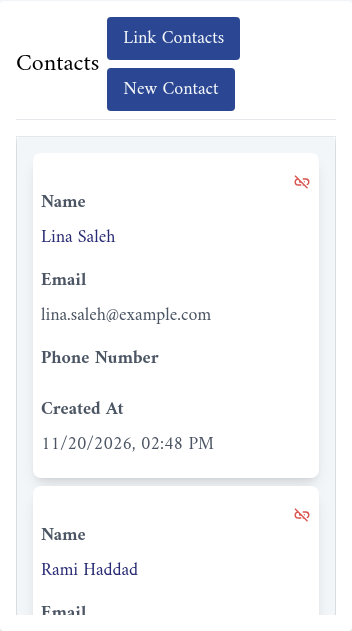
You can also link from the contact's side: open the contact and use the Companies card. A contact can be linked to more than one company.
The same cards link the company to its deals, tickets, products and invoices.
Owner and team
Owner is the team member responsible for the company, and Team is the team that follows it.
Owner and Team also decide who can see the company. A team member with View All Companies sees every company. Without it, View Team's Companies gives access to the companies whose Team is one of their teams, and View User's Companies to the companies they own.
So a company with neither an owner nor a team doesn't appear in the list of a team member who can only see their team's or their own companies. Assign one when you create the company.
Points to keep in mind
- Name is a unique key in a new account: two companies can't have the same name. If you type a name that another company already has, the form warns you, links to that company and keeps Submit disabled. Unique keys work as they do for contacts; see Unique keys.
- Alaaqat doesn't link contacts to a company by itself, for example by their email domain. Company Domain Name is for your information only. Link each contact yourself.
- Linking a contact to a company doesn't copy any value between them. The contact's own properties stay as they are.
- Companies can be imported and exported like the other lists. See Import and Export.