- Introduction
- Requirements
- The Users page
- Step 1: Invite a team member
- Step 2: The invitation is accepted
- Resending an invitation
- Changing a team member's teams
- Disabling a team member
- Removing a team member
- The account owner
- Points to keep in mind
Introduction
When your team shares one login, nobody knows who sent a message, who changed a deal or who deleted a contact. Anyone who leaves the business also keeps the password. Give each person their own login, and Alaaqat records who did what. You can also cut off one person's access without changing anything for the others.
Every person who works in your account is a team member. You add them by invitation, by email address. Each team member belongs to one or more teams, and the teams decide what they can see and do; see Teams and Permissions.
This document explains how to invite team members, how they accept, and how to change, disable or remove them later.
Requirements
| Requirement | Details |
|---|---|
| Permissions | View All Users to open Settings > Users > Users. Invite New User to invite someone. Edit User Data to change a team member's teams, resend an invitation, or disable a team member. Delete User to remove one. Members of the super admin team can do all of this. |
| Plan | The number of users depends on your plan. See the plans on the pricing page. |
The Users page
Go to Settings > Users > Users. The page lists everyone who belongs to the account, including people who have not accepted their invitation yet.
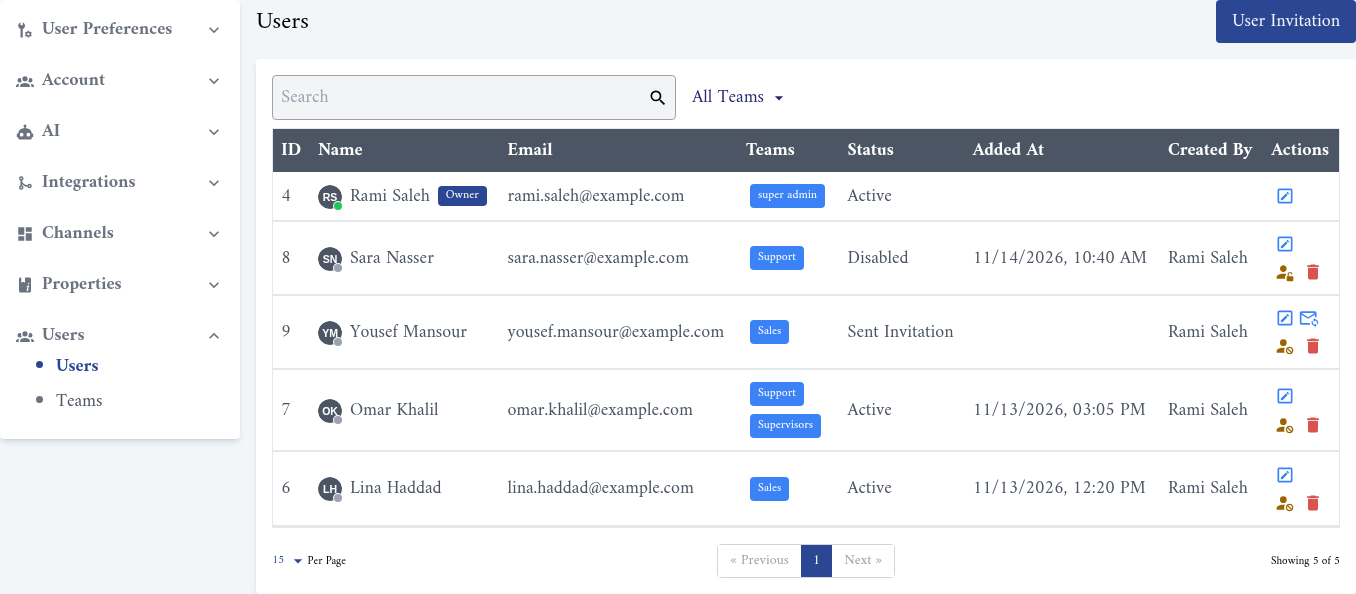
| Column | What it shows |
|---|---|
| Name | The team member's name and picture. The dot on the picture is green while they are online. The account owner carries an Owner label. |
| The email address the invitation was sent to. This is also their login. | |
| Teams | The teams the team member belongs to. |
| Status | Active: can use the account. Sent Invitation: invited, but has not accepted yet. Disabled: can't open the account. |
| Added At | When they accepted the invitation. |
| Created By | Who invited them. |
| Actions | Update teams, resend the invitation, disable or enable, and delete. Each action is explained below. |
Use the search box to find a team member by name or email, and the All Teams filter to list the members of one team.
Step 1: Invite a team member
- On Settings > Users > Users, click User Invitation.
- In Email, type the address the team member will log in with.
- In Teams, choose one or more teams. You must choose at least one.
- Click Submit.
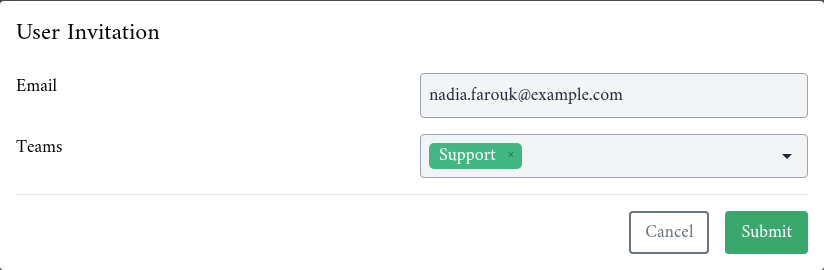
The team member appears in the list with the status Sent Invitation. Alaaqat sends them an email with an Invitation Link button and the name and email of the person who invited them.
Points to keep in mind:
- Choose the teams carefully. The teams decide what the new team member can see from their first minute in the account. Don't add someone to the super admin team unless they should be able to do everything, including invite and remove people.
- An address can only be invited once. If the address already belongs to a team member of this account, the invitation is refused.
- Pending invitations count towards your plan. A team member with the status Sent Invitation or Disabled still uses one of your plan's users. When the limit is reached, Alaaqat shows an upgrade message instead of sending the invitation. To free a place, remove a team member; see Removing a team member.
Step 2: The invitation is accepted
The invitation link works for 48 hours. What the team member sees when they open it depends on whether they already use Alaaqat.
They are new to Alaaqat. The link opens a New User form:
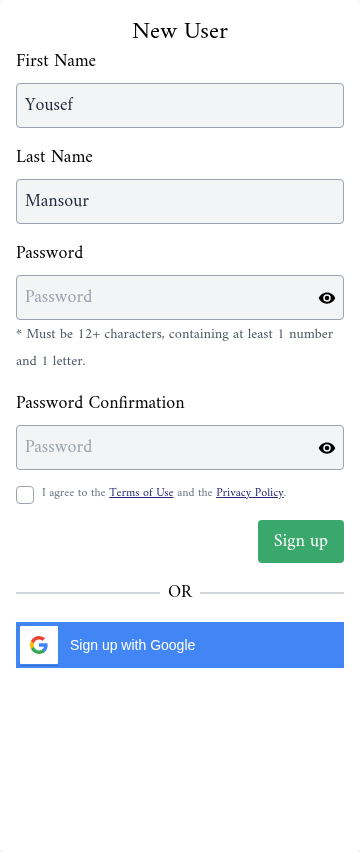
- They type their First Name, Last Name, Password and Password Confirmation. The password must be at least 12 characters long and contain at least one number and one letter.
- They tick the box to agree to the Terms of Use and the Privacy Policy, and click Sign up.
- Alaaqat shows You have been invited to join the "account name" account. They click Continue, and the account opens.
They can also click Sign up with Google instead of choosing a password. They must pick the Google account with the same email address the invitation was sent to. A different Google address creates a separate login that is not part of your account, and the invitation stays pending.
They already use Alaaqat, for example in another business's account. The link asks them to log in, then shows You have been invited to join the "account name" account. They click Continue. Your account now appears in their list of accounts, next to the others.
If they are logged in to Alaaqat with a different login, clicking Continue logs them out and shows Please log in to the account to which the invitation was sent. They log in with the invited address, and Alaaqat brings them back to the invitation.
When the invitation is accepted, the status changes to Active and Added At shows the date.
{warning} An invitation email gives access to your account. If it went to the wrong address, delete that person from the list before they accept it; see Removing a team member.
Resending an invitation
When the email is lost or the 48 hours are over, send it again. In the team member's row, click the envelope icon (Resend). It only appears while the status is Sent Invitation.
- The new email carries a new link, valid for another 48 hours. The link in the earlier email stops working.
- You can resend to the same person once every 5 minutes.
Changing a team member's teams
When someone changes role, change their teams instead of inviting them again.
- In the team member's row, click the pencil icon (Update Teams).
- Add or remove teams. At least one team must stay.
- Click Submit.
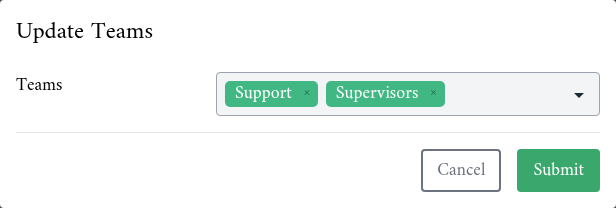
The change takes effect straight away. A team member who has Alaaqat open may need to reload the page to see their menu change.
Two changes are refused:
- Removing the owner from the super admin team. The message is The account owner cannot be removed from the account. Transfer the ownership first.
- Removing the last member of the super admin team. The message is The account must have at least one super admin. Add someone else to the super admin team first.
Disabling a team member
Disable a team member who should lose access for a while, for example during a long leave. In their row, click the person icon (Disable) and confirm.
- They can still log in to Alaaqat, and they keep any other accounts they belong to. But your account no longer opens for them. They see Your access to this account has been disabled by the account administrator.
- They stay in the list with the status Disabled, with their teams unchanged.
- The records they own, such as the contacts and deals assigned to them, stay assigned to them.
To give access back, click the same icon (Activation) and confirm.
Removing a team member
Remove a team member who has left the business. In their row, click the bin icon (Delete) and confirm.
- They lose access to your account at once. They are taken out of all its teams.
- If they had not accepted their invitation yet, the invitation is cancelled and its link stops working.
- Their Alaaqat login is not deleted. If they belong to other accounts, they keep using them.
- The place they used in your plan is free again.
The records they own stay in the account. Reassign their clients so that nobody waits for an answer: change the Owner of their contacts, and the owner of their deals and tickets. See Handing a conversation to someone else.
A team member with the Delete User permission can also remove themselves. This is how they leave your account.
The account owner
Every account has exactly one owner. At first it is the person who created the account. The owner has the Owner label in the list, and two powers nobody else has:
- Only the owner can delete the account; see Account Deletion and Data Retention.
- Only the owner can hand the account to someone else.
To protect the account, the owner can't be disabled or removed, and can't be taken out of the super admin team. If the owner is leaving the business, they must transfer the ownership first.
Transferring the ownership
The new owner must be an Active member of the super admin team. Add them to that team first if needed.
- As the owner, go to Settings > Account > General.
- In Transfer Ownership, click Transfer Ownership.
- In New owner, choose the team member.
- In Confirm your password, type your password.
- Click Transfer Ownership.
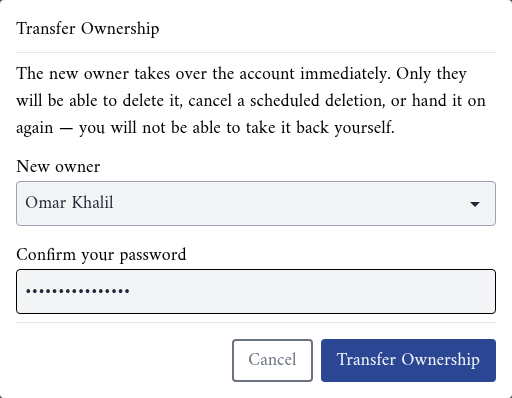
The new owner takes over at once. You stay in the super admin team, but you can't take the ownership back yourself: only the new owner can hand it on again. If nobody else is an active super admin, the dialog shows There is no other active super admin to hand the account to. Add one first.
{info} The dialog asks for your Alaaqat password. If you always log in with Google and never set a password, set one first: log out, click Forgot your password? on the login page, and follow the email.
Points to keep in mind
- One login per person. Don't share a login between people. Alaaqat records every message, change and deletion under the login that made it.
- Disable or remove a team member on their last day. Until then, they can still open the account.
- Two super admins are safer than one. If the only super admin is unavailable, nobody can invite people, change teams or manage the account's settings.
- What a team member sees depends on their teams. A member without View All Contacts only sees the clients they own or that belong to their teams; see Who sees which conversations.