- Introduction
- Requirements
- Creating a product
- The product properties
- The SKU as a unique key
- Using products in invoices
- Owner and team
- Points to keep in mind
Introduction
When prices live in a spreadsheet or in someone's memory, every quote and invoice starts with a search, and two agents can give the same client two different prices.
The products list is your catalogue in Alaaqat: each item or service you sell, with its code, price and cost, and whether it is available. Invoices take their lines from it, so the name and price on an invoice match the catalogue without being typed again. Products can also be linked to the contacts, companies and deals they concern.
This document explains how to add products, what each product property is for, and how products are used in invoices.
Requirements
| Requirement | Detail |
|---|---|
| Object | Products must be turned on. See Objects. |
| Permissions | View Products, View Team's Products or View User's Products to see products, and View Product to open any product. Create Products to add one, Edit Products to change one or to link it to other records, and Delete Products to delete one. Changing the product properties and their options needs Edit Custom Field. |
Creating a product
- Go to Commerce > Products and click New Product.
- Fill in Name. It is required.
- Fill in SKU, Price and Status.
- To fill in another property, such as Cost, Description or URL, choose it under Add Property. The form remembers the properties you add, in this browser, and the bin icon next to a field takes it off the form.
- Click Submit.
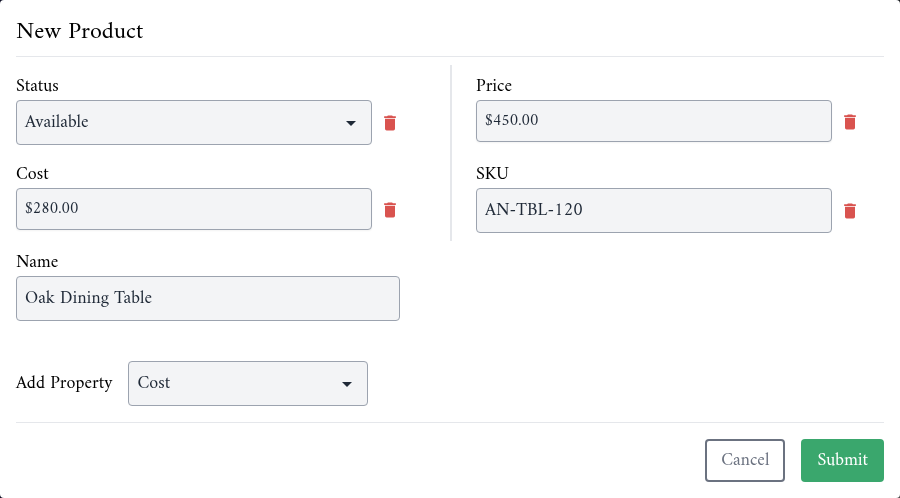
You can also create a product from another record, such as a contact or a deal: New Product in the record's Products card, in the Associations tab, opens the same form and links the product to the record. Link Products links a product that already exists.
The product properties
| Property | What it is for |
|---|---|
| Name | The name your team and your clients see. Required. |
| SKU | Your code for the product. A unique key: see below. |
| Price | The selling price, in your account's currency. Invoices copy it as the unit price. |
| Cost | What the product costs you. It never appears on an invoice. |
| Status | Available or Unavailable. |
| Image | A picture of the product. |
| URL | A link to the product, for example on your website. |
| Description | A longer description, for your team. |
| Owner and Team | Who is responsible for the product. See Owner and team. |
To see only the available or the unavailable products, pick a status in the All Statuses list above the products table.
To change a value, click the pencil next to it in the product's Details card, then click Save.
The SKU as a unique key
In a new account, SKU is a unique key: two products can't have the same SKU. If you type an SKU that another product already has, the form warns you, links to that product and keeps Submit disabled.
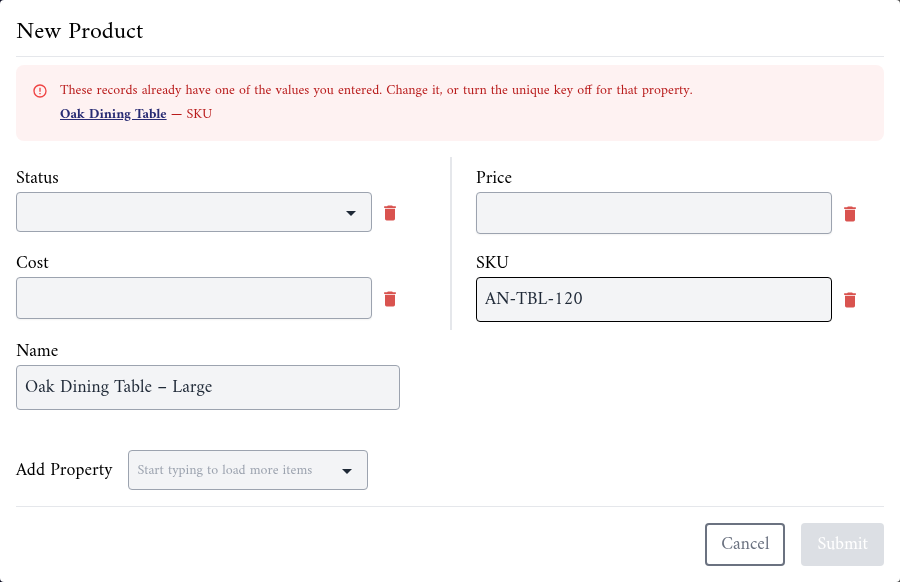
The warning usually means the product is already in your catalogue. Open it from the link instead of adding it twice. If you sell variants that really share a code, change the code of one of them, or turn the unique key off in Settings > Properties > Products. Unique keys work as they do for contacts; see Unique keys.
Imports use the SKU too: a row whose SKU matches an existing product updates that product or is skipped. See Import and Export.
Using products in invoices
When you create an invoice, Or import from products adds a product as a line item: the line takes the product's Name, and its Price as the unit price, with a quantity of 1. You can then change the line like any other. See Invoices.
- The products you import are also linked to the invoice, and appear in its Products card.
- The line is a copy. Changing a product's price later doesn't change the invoices that already have it, and changing a line doesn't change the product.
- Status is for your team. An Unavailable product can still be added to an invoice, so check the status before you import it.
Owner and team
Owner and Team decide who can see a product. A team member with View Products sees every product. Without it, View User's Products gives access to the products they own.
{warning} On products, Team is chosen from your team members, not from your teams. So View Team's Products doesn't give access to any product. Give the team members who work with your catalogue View Products, or make them the Owner of the products they look after.
Points to keep in mind
- Name is the only required property, but an invoice line imported from a product without a Price starts at 0.
- Cost is never shown to clients. It stays on the product page.
- Products can be imported and exported like the other lists. See Import and Export.