- Introduction
- Requirements
- How permissions work
- The super admin team
- Step 1: Create a team
- Step 2: Choose the permissions
- Step 3: Add team members to the team
- Seeing all records, the team's records, or your own
- Editing and deleting a team
- An example set-up
- Points to keep in mind
Introduction
A new sales agent doesn't need to export your whole contact list, and a support agent doesn't need to delete deals. When everyone can do everything, one wrong click can remove months of work, and the client list can leave the business in a single file.
In Alaaqat, what a team member can see and do is decided by teams. A team is a group of team members with a set of permissions, such as View All Contacts, Send Messages or Delete Deal. You give permissions to the team, never to one person, and every team member gets the permissions of all the teams they belong to.
Teams have a second use: a contact, deal or ticket can belong to a team. Combined with the right permissions, a team then sees only its own clients. This document explains both uses, and how to set up teams that match the way your business works.
Requirements
| Requirement | Details |
|---|---|
| Permissions | View All Teams to open Settings > Users > Teams. Create New Team, Edit Team Data and Delete Team to manage teams. Adding people to a team is done from the Users page and needs Edit User Data; see Users. Members of the super admin team can do all of this. |
How permissions work
- Permissions belong to teams. To change what one person can do, move them to another team, or add them to a second team.
- A team member gets everything their teams allow. Someone in Sales and in Supervisors gets the permissions of both. A permission can't be taken away by another team.
- Each permission unlocks one thing. Without View Conversations, the inbox is not in the menu. Without Delete Contact, deleting a contact is refused. When a team member asks why they can't do something, look for the permission that unlocks it.
- Changes take effect at once. A team member who has Alaaqat open may need to reload the page to see their menu change.
The super admin team
Every account starts with one team, called super admin. Its members can do everything in the account, whatever permissions are ticked. Being in the super admin team also means:
- receiving the account's important emails, such as a warning that the account is about to be deleted;
- being able to become the account owner; see The account owner.
The super admin team is protected:
- It can't be edited or deleted. The pencil and bin icons show in its row, but the change is refused.
- The account owner is always in it.
- It must always keep at least one member.
Keep the super admin team small: two or three people you trust with the whole account.
Step 1: Create a team
Go to Settings > Users > Teams. The page lists the account's teams, their permissions, and how many team members each one has.
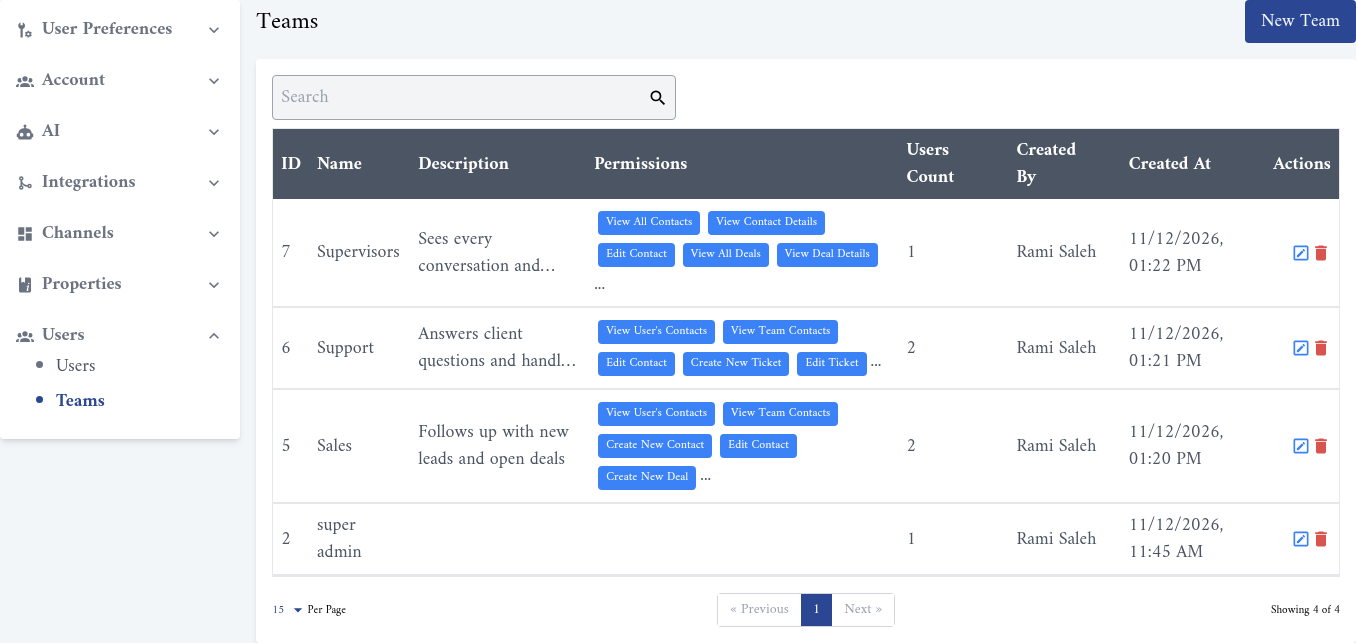
Click New Team. In the dialog, type a Name of at least 3 characters and, if you like, a Description that says what the team does.
Step 2: Choose the permissions
Under Permissions, the permissions are grouped by area. Click a group to open it, and tick the permissions the team needs. The box next to a group's name ticks or clears every permission in that group. You must tick at least one permission.
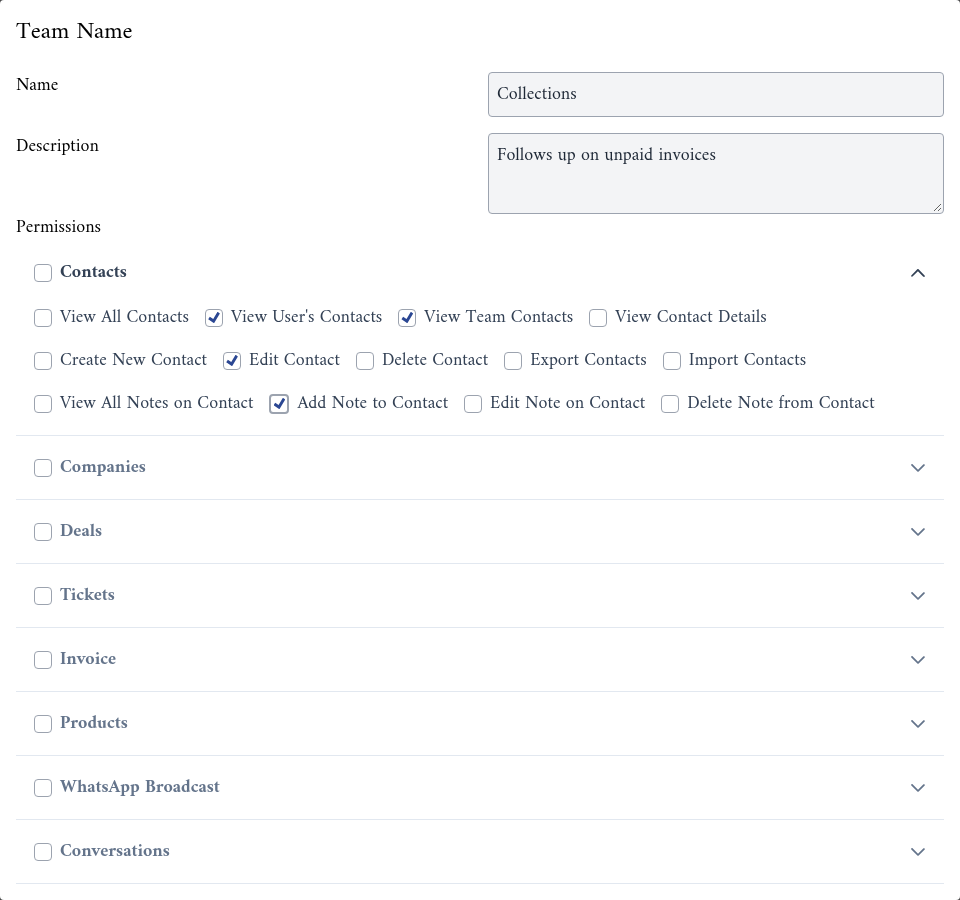
Click Submit at the bottom of the dialog.
The groups and their permissions:
| Group | Permissions |
|---|---|
| Contacts | View All Contacts, View User's Contacts, View Team Contacts, View Contact Details, Create New Contact, Edit Contact, Delete Contact, Export Contacts, Import Contacts, and the four note permissions (view, add, edit and delete notes). |
| Companies | View All Companies, View Team's Companies, View User's Companies, View Company Details, Create New Company, Edit Company Information, Delete Company, Export Companies, Import Companies, and the four note permissions. |
| Deals | View All Deals, View Deal Details, Create New Deal, Edit Deal, View Team's Deals, View User's Deals, Export Deals, Import Deals, Delete Deal, and the four note permissions. |
| Tickets | View All Tickets, View Ticket Details, Create New Ticket, Edit Ticket, View Team's Tickets, View User's Tickets, Export Tickets, Import Tickets, Delete Ticket, and the four note permissions. |
| Invoice | View Invoices, View User's Invoices, View Team's Invoices, View Invoice Details, Create Invoices, Edit Invoices, Delete Invoices, Export Invoices, Import Invoices, and the four note permissions. |
| Products | View Products, View User's Products, View Team's Products, View Product, Create Products, Edit Products, Delete Products, Export Products, Import Products, and the four note permissions. |
| WhatsApp Broadcast | View All Broadcast Messages, Create New Broadcast Message, View Broadcast Message Details, Send Broadcast Messages, Delete Broadcast Message, Edit Broadcast Message. |
| Conversations | View Conversations, Send Messages. |
| Canned Responses | View Canned Responses, Create New Canned Response, Edit Canned Response, Delete Canned Response. |
| Users | View All Users, Edit User Data, Invite New User, Delete User. |
| Teams | View All Teams, Create New Team, Edit Team Data, Delete Team. |
| Communication Channels | View Connected Channels, Sync Latest Messages from Channels, and connecting and disconnecting WhatsApp, Facebook and Instagram. |
| Custom Fields | Create, edit, delete and favorite custom fields; view, create, edit and delete field groups. |
| Account Settings | Manage Account Settings, Manage Billing and Subscriptions. |
| Webhooks | View Webhooks, Create New Webhook, Edit Webhook, Delete Webhook. |
| API Keys | View API Usage History, View API Keys, Create New API Key, Revoke API Key. |
| Workflows | View Workflows, Create New Workflow, Edit Workflow, Delete Workflow. |
| Reports | View Reports. |
| Objects | Objects Management. |
The guides for each feature name the permissions it needs, in their Requirements section.
Step 3: Add team members to the team
A new team has no members. Add people from Settings > Users > Users:
- A new team member: choose the team when you invite them; see Invite a team member.
- An existing team member: click the pencil icon in their row and add the team; see Changing a team member's teams.
The Users Count column on the Teams page shows how many team members each team has.
Seeing all records, the team's records, or your own
Contacts, companies, deals, tickets, invoices and products each have three "view" permissions that decide which records a team member sees in the list. Take contacts as an example:
| Permission | The team member sees |
|---|---|
| View All Contacts | Every contact in the account. |
| View Team Contacts | The contacts whose Communication Team is one of their teams. |
| View User's Contacts | The contacts whose Owner is them. |
A fourth permission, View Contact Details, lets them open any contact, even one they don't see in their list.
The other objects work the same way, with their own fields: a deal has a Deal Owner and a Team, and a ticket has a Ticket Owner and a Team. See Contacts, Deals and Tickets.
The contact permissions also decide which conversations a team member sees in the inbox; see Who sees which conversations.
{warning} Give View Team Contacts and View User's Contacts together. A team member who holds one without View All Contacts sees both their team's records and their own in the list, but can only open the records that the permission they hold allows. The other records appear in the list and then refuse to open.
Editing and deleting a team
- Edit a team with the pencil icon in its row. You can change its name, description and permissions. The change applies at once to every member of the team.
- Delete a team with the bin icon in its row. A team that still has members can't be deleted: move its members to other teams first.
An example set-up
A shop with a sales team, a support team and two supervisors could use these teams:
| Team | Members | Key permissions |
|---|---|---|
| super admin | The owner and one manager | Everything. |
| Supervisors | The two shift supervisors | View All Contacts, View Contact Details, Edit Contact, View All Deals, View All Tickets, View Conversations, Send Messages, View Reports. |
| Sales | The sales agents | View Team Contacts, View User's Contacts, Create New Contact, Edit Contact, View Team's Deals, View User's Deals, Create New Deal, Edit Deal, View Conversations, Send Messages, View Canned Responses. |
| Support | The support agents | View Team Contacts, View User's Contacts, Edit Contact, View Team's Tickets, View User's Tickets, Create New Ticket, Edit Ticket, View Conversations, Send Messages, View Canned Responses. |
With this set-up:
- New clients have no owner and no team yet, so only the supervisors see them. A supervisor sets the owner or the Communication Team, or an Auto Assignment workflow does it.
- Sales agents see only the clients of the Sales team and their own, and support agents only those of Support.
- Nobody but the super admin team can export contacts, delete records, connect channels or change billing.
Points to keep in mind
- Start small. Give a new team the permissions it needs today. Adding a permission later takes a minute. Taking back a contact list that was exported takes much longer.
- Export and delete are the risky permissions. Export Contacts sends the whole contact list out of Alaaqat. The delete permissions remove records for everyone.
- Teams on records are the same teams. The teams you create here are the ones you choose in a contact's Communication Team, or a deal's or ticket's Team. Keep their names clear, such as Sales Riyadh or Support, so that the right team is easy to pick.
- Check the super admin team from time to time. Everyone in it can invite people, remove people and change every setting.