- Introduction
- Requirements
- How links work
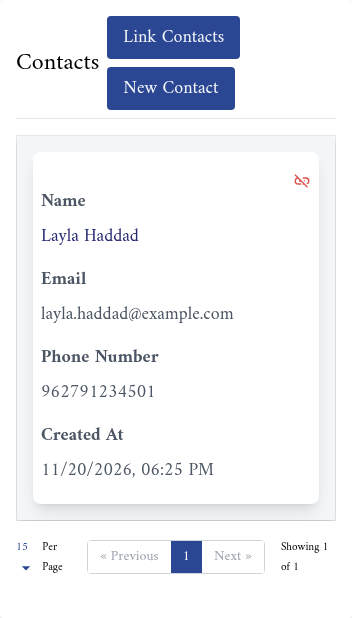
- What each card shows
- Linking records that already exist
- Creating a linked record
- Removing a link
- Points to keep in mind
Introduction
A deal on its own says little: who is the client, which company do they buy for, and did they open a complaint last week? When records stand alone, an agent has to search three lists to answer, and usually doesn't. The salesperson calls about a renewal without knowing the client's delivery is late.
In Alaaqat, any record can be linked to records of the other objects: a deal to the contact who negotiates it and to that contact's company, a ticket to the deal it is about, an invoice to the client it is billed to. Open any of them and the others are one click away.
This document explains how links work, how to link records that already exist, how to create a record that is linked from the start, and how to remove a link.
Requirements
| Requirement | Detail |
|---|---|
| Objects | Both objects must be turned on. See Objects. |
| Linking and unlinking | The edit permission of the record whose page you are on, for example Edit Deal to link contacts from a deal's page. |
| Seeing a card | A permission to see the other object's records, for example View All Contacts, View Team Contacts or View User's Contacts for the Contacts card. |
| Creating a linked record | The other object's create permission, for example Create New Contact for New Contact. |
How links work
- Any object links to the other five. A contact can be linked to companies, deals, tickets, products and invoices, and so on for every object. A record can't be linked to another record of its own object, such as a deal to a deal.
- Links go both ways. Link a contact from a deal's page and the deal appears on the contact's page too. Removing the link removes it from both.
- A record can have many links. A deal can have several contacts, and a contact several deals.
- Links aren't passed on. When a deal is linked to a contact and to a ticket, the contact and the ticket are not linked to each other. Link them yourself if you need it.
- Linking copies no data. Each record keeps its own properties. Only the count properties change, such as Contacts Count on a deal, and the change appears in both records' activity history.
What each card shows
On a record's page, the Associations tab has a card for each of the other objects, with the records linked to this one. A card is hidden when its object is turned off, or when you have no permission to see that object.
| Card | Columns |
|---|---|
| Contacts | Name, Email, Phone Number, Created At |
| Companies | Name, Number of Employees, Phone Number, Created At |
| Deals | Name, Amount, Stage, Created At |
| Tickets | Name, Category, Created At |
| Products | Name, SKU, Created At |
| Invoices | Title, Created At |
Click a name to open that record. A card shows only the linked records that your permissions let you see: a team member with View User's Deals, for example, sees only their own deals in the Deals card.
Linking records that already exist
Use this when both records are already in Alaaqat, such as a client's contact and the deal you just created for them. The steps link contacts to a deal; every card works the same way.
Step 1: Find the card on the record page
Open the deal, and in the Associations tab find the Contacts card. Click Link Contacts.
Step 2: Choose the records
Click the Contacts field. It lists your contacts; type part of a name to find the one you need. Pick as many as you want: each one is added to the field, and the × next to it takes it out again.
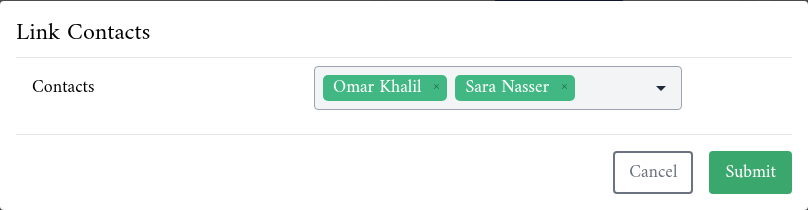
The list also offers records that are already linked. Picking one again does no harm: the link isn't doubled.
Step 3: Submit
Click Submit. "Operation completed successfully." appears, and the records are added to the card. They are linked on their own pages too.
Creating a linked record
When the record doesn't exist yet, create it from the card instead of from its list: it is linked from the start, and you can't forget to link it afterwards.
In the card, click the create button, such as New Contact, New Deal or New Ticket. It opens the same form as the button on the object's list. Fill it in and submit it, and the new record appears in the card.
The forms themselves are explained with each object: see Contacts, Companies, Deals, Tickets, Products and Invoices.
Removing a link
Each record in a card has a broken-link icon in its top corner. Click it, then click Confirm in "Are you sure?".
The link is removed from both records. The record itself is not deleted: it stays in its list, with its notes, files and other links. To delete a record, see Bulk Edit and Delete.
Points to keep in mind
- Link a deal or a ticket to the contact it is about. A deal that is linked to nobody shows up in no client's page, and the agent who answers that client won't see it.
- Deleting a record removes its links. It disappears from the cards of every record it was linked to.
- Merging contacts moves the removed contact's links to deals, tickets and companies to the kept contact, but not its links to products and invoices. See Merging two contacts.
- An integration can link and unlink records through the API. See Associations in the API reference.