- Introduction
- Requirements
- What your team sees in the inbox
- The ad conditions
- Step 1: Find the ad's ID
- Step 2: Build the workflow
- Points to keep in mind
- Final workflow
Introduction
A client who taps the message button on one of your Meta ads has just seen your offer and is ready to talk about it. That moment does not last. If the reply comes hours later, or opens with "How can we help you?", the client has to explain again what they saw, and many don't bother. You also lose track of which ad brought which client, and so of which ads are worth their budget.
Alaaqat keeps the ad with the conversation. The agent sees, in the chat, which ad the client came from. A workflow can use the same information to answer at once with the details of that offer, and to give the client to the team that sells it.
This document shows what the inbox shows for an ad lead, and how to route those leads with the ad conditions of a workflow.
Requirements
| Requirement | Detail |
|---|---|
| Ads | A Meta ad whose button opens a chat with you on WhatsApp, Messenger or Instagram. You create and run the ad in Meta, not in Alaaqat. |
| Channels | The WhatsApp number, Facebook page or Instagram account the ad sends clients to, connected to Alaaqat. |
| Menu | Workflow > New. |
| Permission | Create New Workflow or Edit Workflow. |
| Plan | Your plan limits how many workflows you can have and how many steps each can hold. See the plans on the pricing page. |
| Event | Message Received only. |
What your team sees in the inbox
When the client's message comes from an ad, a grey block above the message shows the ad:
- Ad Title: the ad's headline. When Meta sends a link to the ad, the title opens it.
- Ad ID: the ID Meta gives the ad.
- The ad's image or video, when Meta sends one.
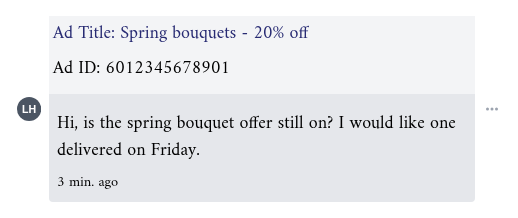
The block stays in the conversation's history, so anyone who opens the chat later can see where the client came from.
The ad conditions
The Conditions tab of a Message Received workflow has an Ads group with three conditions.
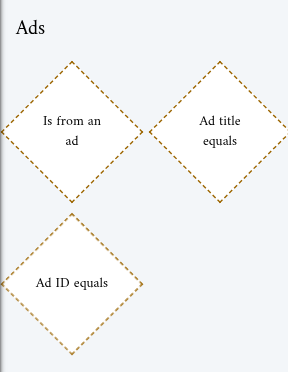
| Condition | True when | Value |
|---|---|---|
| Is from an ad | The message came from an ad, whichever ad it is. | None |
| Ad title equals | The ad's headline is exactly the value. Capital letters do not count. | Text |
| Ad ID equals | The ad's ID is exactly the value. | Text |
Use Is from an ad to treat every ad lead the same way, for example to give all of them to your sales team. Use Ad ID equals to treat one ad's leads differently from another's.
Prefer Ad ID equals to Ad title equals. The ID stays the same for the life of the ad, while a headline can be edited in Meta, or shared by several ads. When the headline changes, Ad title equals stops matching without any warning.
Step 1: Find the ad's ID
The surest way to get the ID is to copy it from the inbox, because that is exactly the value the workflow compares:
- Send yourself a message from the ad, from your own phone, or wait for the first client who does.
- Open the conversation, and copy the number after Ad ID in the grey block above the message.
You can also copy the ID from the ad in Meta's Ads Manager.
Step 2: Build the workflow
Create a workflow with the following pieces:
| Event | Message Received | The workflow starts when the client's message arrives. |
| Condition | Ad ID equals | The value is the ad's ID from step 1. |
| Action | Auto Assignment | Gives the client to a member of the team that sells this offer, and notifies them. |
| Action | Send Canned Response | Answers at once with the details of the offer, for example its price and how to order. |
From the Conditions tab, add Ad ID equals from the Ads group, and paste the ID into the box under it. Connect its True exit to Auto Assignment, and Auto Assignment to Send Canned Response.
For several ads, connect the False exit of the first Ad ID equals to a second Ad ID equals, and so on. The last False exit is every message that came from none of those ads: leave it empty, or continue it with your usual workflow.
To record where the client came from on the contact, add an Update Contact action on the True path, and set a property of your own, for example a "Campaign" property with the name of the campaign. See Properties.
Points to keep in mind
- Only the message sent from the ad carries the ad. Meta attaches the ad to the message the client sends when they tap the ad, not to the messages after it. For every later message, the ad conditions are false. Put everything the ad should cause on that first message's path, and record what you need to keep on the contact.
- Each ad has its own ID. A copy of an ad, made in Meta, gets a new ID, so add a condition for each ad you want to match, or use Is from an ad.
- On WhatsApp, a post can count as an ad. A client who comes from a Facebook or Instagram post with a WhatsApp button, rather than from an ad, is also from an ad, and the Ad ID is then the post's ID.
- The window is open. The client's message opens the messaging window, so the canned response can be sent at once. See Messaging window.
- Auto Assignment replaces the owner. A client who already has an owner gets a new one. To keep existing owners, put a Contact Filter condition with Owner doesn't exist before it. See Auto assignment.
- Other workflows still run. Your general auto-reply starts for this message too. Make sure the ad lead does not receive two greetings: for example, start the general workflow with Is from an ad, and continue it only on its False exit.
Final workflow
The finished workflow reads:
Message Received → Ad ID equals {the ad's ID} → True → Auto Assignment (sales team) → Send Canned
Response (offer details)
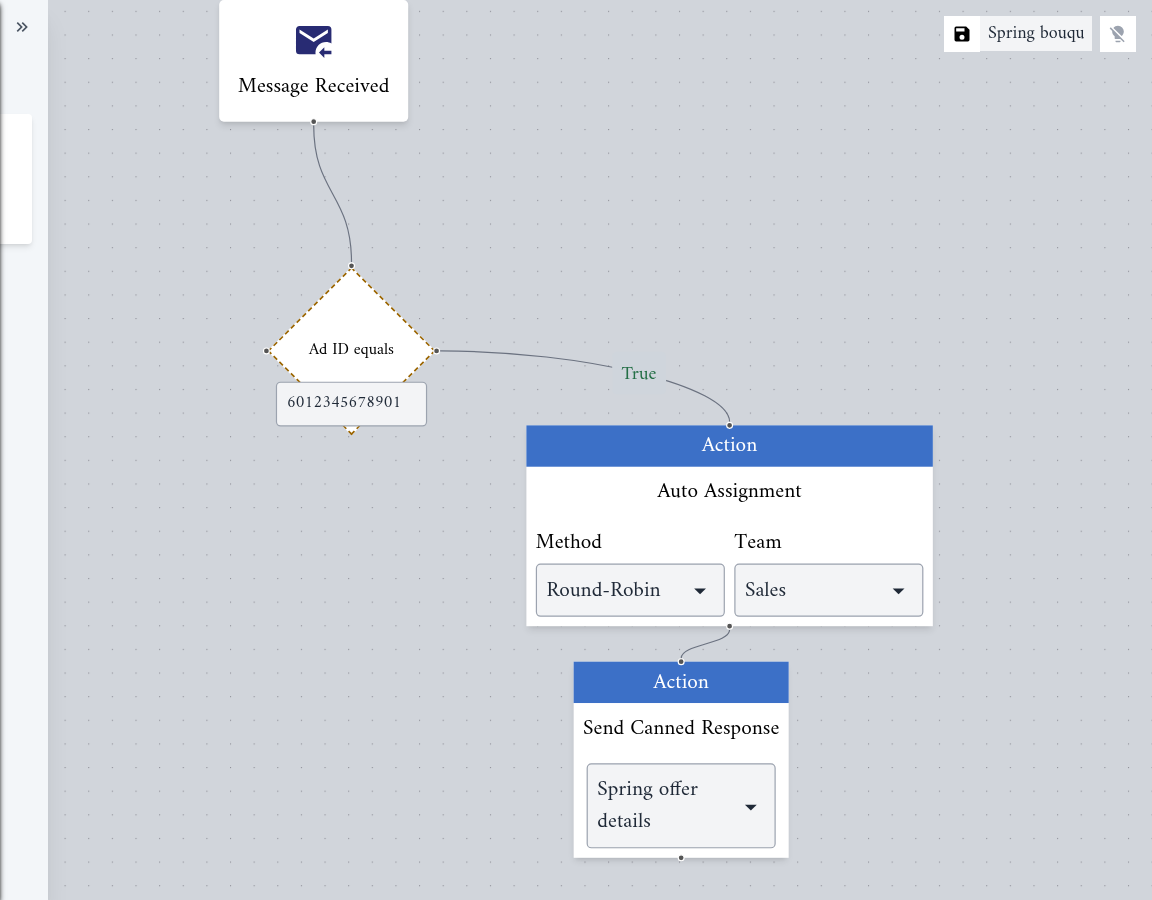
From then on, every client who writes from that ad gets the offer at once, and lands with the right team.