- Introduction
- Requirements
- Creating an invoice
- How the total is calculated
- Invoice statuses
- Changing an invoice
- Downloading the invoice as a PDF
- Owner and team
- Points to keep in mind
Introduction
A sale agreed in a chat still has to be billed. When the bill is made in another tool, someone types the client's details and the prices again, mistakes creep in, and the agent talking to the client can't see whether they have paid.
An invoice in Alaaqat is built from line items, can take its lines and prices straight from your products, and calculates its own total with discounts, taxes and fees. It is linked to the client's contact and company, so whoever opens the client sees what was billed and where the invoice stands. When it is ready, you download it as a PDF and send it to the client.
This document explains how to create an invoice, how its total is calculated, how to track its status, and what the PDF contains.
Requirements
| Requirement | Detail |
|---|---|
| Object | Invoices must be turned on. See Objects. |
| Permissions | View Invoices, Invoice Team's Invoices or View User's Invoices to see invoices, and View Invoice Details to open any invoice. Create Invoices to add one, Edit Invoices to change one or to link it to other records, and Delete Invoices to delete one. Importing lines from products needs permission to see products. Changing the invoice properties and their options needs Edit Custom Field. |
Creating an invoice
The best place to create an invoice is the client's contact page: open the contact, find the Invoices card in the Associations tab and click New Invoice. The invoice is then linked to the client from the start, and the client's details appear on the PDF. You can also go to Commerce > Invoices and click New Invoice; the form is the same.
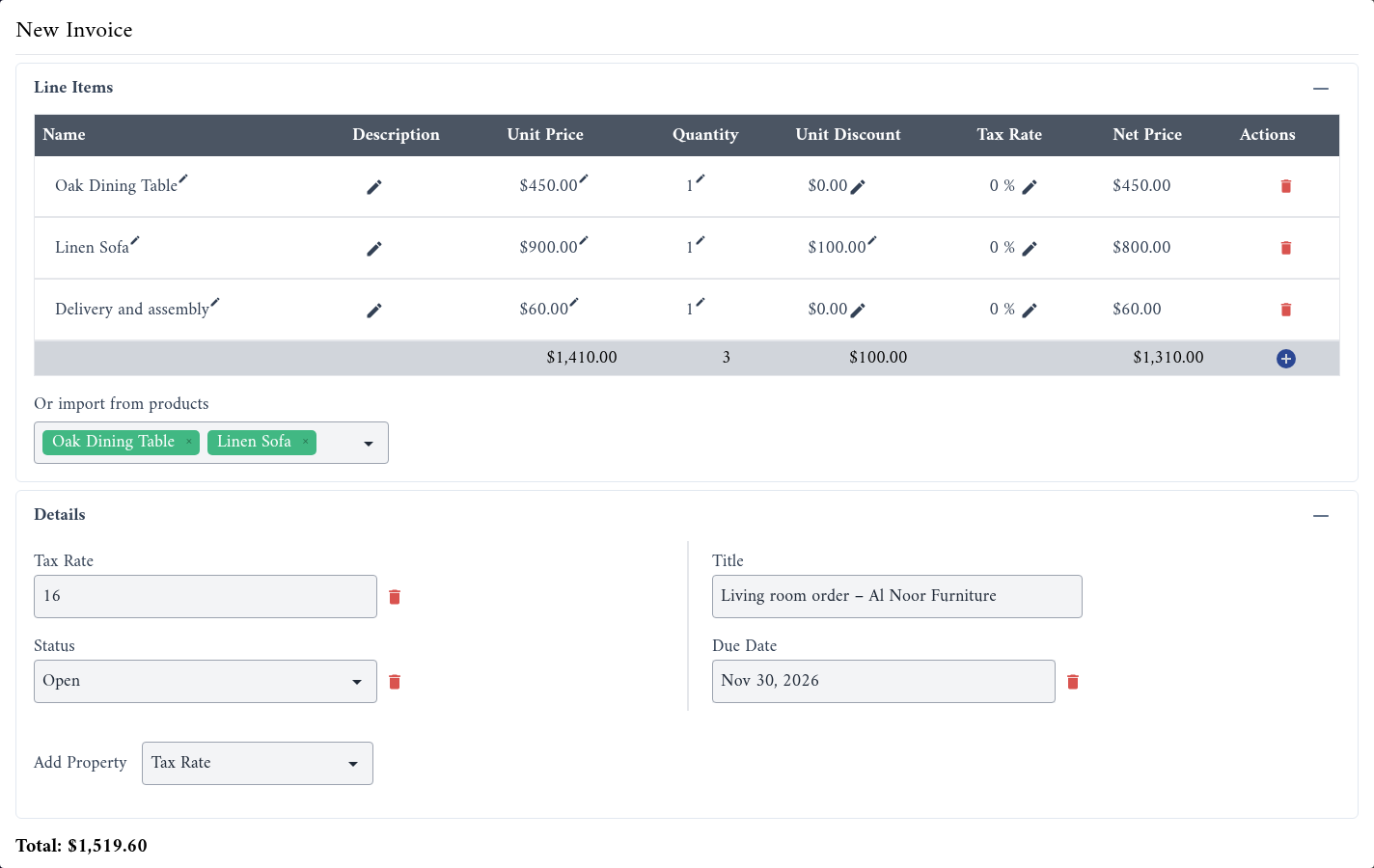
Add the line items
The Line Items panel holds the lines of the invoice. An invoice needs at least one line, and every line needs a name.
- To add a product, pick it under Or import from products. A line is added with the product's name and price, and the product is linked to the invoice. You can pick several products.
- To add a line by hand, click the plus icon at the end of the table. Use it for anything that isn't in your catalogue, such as delivery.
- To change a value, click it, type the new value and press Enter.
- To remove a line, click its bin icon.
Each line has these fields:
| Field | What it holds |
|---|---|
| Name | What is billed. Required, up to 100 characters. |
| Description | More detail about the line, up to 1,024 characters. |
| Unit Price | The price of one unit. |
| Quantity | How many units. A whole number. |
| Unit Discount | An amount taken off each unit, not a percentage. |
| Tax Rate | A percentage added to this line only, from 0 to 100. |
| Net Price | Calculated for you: the unit price minus the unit discount, times the quantity, plus the line's tax. |
Fill in the details
- In the Details panel, fill in Title. It is required, and it is the invoice's name in lists and on the PDF.
- Choose the Status, usually Draft or Open, and the Due Date.
- To add discounts, taxes, fees, a currency or comments for the client, choose the property under Add Property: Discount Rate, Fixed Discount, Tax Rate, Fixed Tax, Fees Rate, Fixed Fees, Currency or Comments. The form remembers the properties you add, in this browser.
- Check the Total under the panels, then click Submit.
Alaaqat gives the invoice the next number in your account: INV-1001, then INV-1002, and so on. The number appears in the Invoice Number column of the invoices list, and it can't be changed.
How the total is calculated
Alaaqat calculates the total, shown as Amount on the invoice, in this order:
- It adds up the Net Price of every line.
- It takes off Discount Rate (a percentage), then Fixed Discount (an amount).
- It adds Tax Rate (a percentage), then Fixed Tax (an amount).
- It adds Fees Rate (a percentage), then Fixed Fees (an amount).
So the invoice tax is calculated on the discounted amount, and the fees on the amount after tax. In the example above, the three lines come to $1,310.00 after the sofa's $100.00 discount, and a Tax Rate of 16 brings the total to $1,519.60.
{warning} A line's Tax Rate and the invoice's Tax Rate both apply. If you set a tax on the lines and on the invoice, the client is taxed twice. Use one or the other.
Amounts are shown in the invoice's Currency. When you leave it empty, your account's currency is used.
Invoice statuses
| Status | When to use it |
|---|---|
| Draft | You are still preparing the invoice. |
| Open | You sent the invoice and are waiting for payment. |
| paid | The client paid in full. |
| Partially Paid | The client paid part of the amount. |
| Voided | The invoice was cancelled and isn't owed any more. |
To see the invoices of one status, pick it in the All Statuses list above the invoices table.
Alaaqat doesn't send invoices or collect payments, so no status changes by itself. Update it as the invoice moves on. The only status the PDF shows is paid: a paid invoice carries a Paid stamp.
Changing an invoice
Open the invoice from the invoices list by clicking its number.
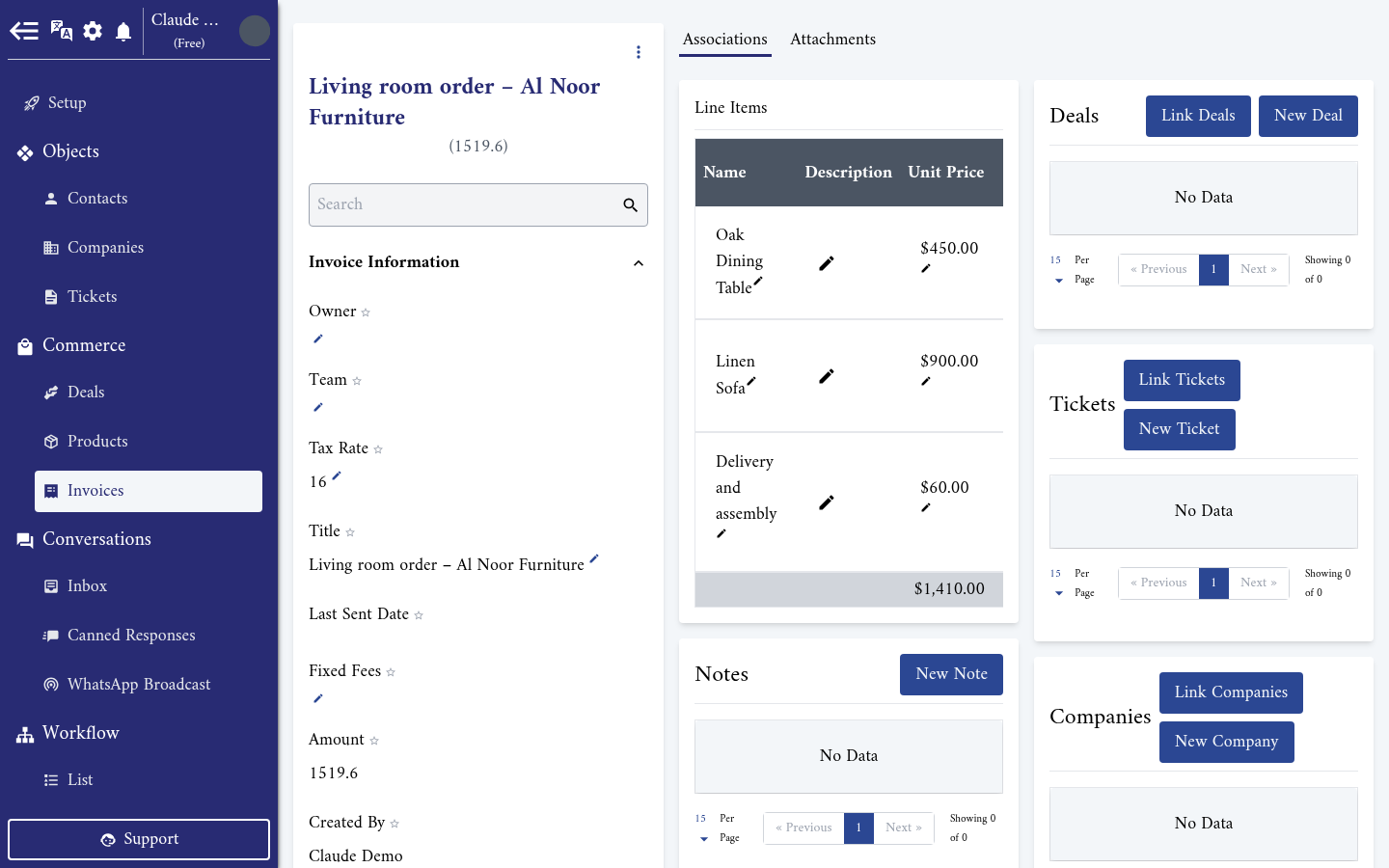
- The details, such as Status, Due Date or Tax Rate, are in the Details card on the left. Click the pencil next to a value, then click Save at the bottom of the card.
- The lines are in the Line Items card of the Associations tab. Change, add and remove lines as in the form; a Save button appears in the card's header as soon as something changed. Click it to keep your changes.
The Amount is calculated again every time you save. Lines can be imported from products only when you create the invoice; to add a product to an existing invoice, add a line by hand.
The other cards of the Associations tab link the invoice to the client's contact, company and deal, as on any record.
Downloading the invoice as a PDF
On the invoice page, click the three dots at the top of the Details card, then Download. The PDF opens in a new tab, named after the invoice's title, ready to save or print.
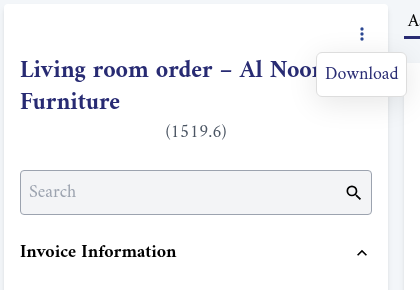
The PDF contains:
- The Title, the invoice number, the date the invoice was created and, if you set one, the Due Date.
- Bill To: the name, street address and email of the contact linked to the invoice. If several contacts are linked, only one of them appears, so link only the contact you are billing.
- Company Info: your account's name, address and logo.
- The lines. The description, discount and tax columns appear only when at least one line uses them.
- The rates and fixed amounts you set, and the Total.
- The Comments, when you wrote some.
- A Paid stamp when the status is paid.
The PDF is in the language you use Alaaqat in. Download it again after any change: a PDF you already sent doesn't update.
Owner and team
Owner and Team decide who can see an invoice. A team member with View Invoices sees every invoice. Without it, View User's Invoices gives access to the invoices they own.
{warning} On invoices, Team is chosen from your team members, not from your teams. So Invoice Team's Invoices doesn't give access to any invoice. Give the team members who handle billing View Invoices, or make them the Owner of the invoices they look after.
Points to keep in mind
- Alaaqat doesn't email the invoice to the client and doesn't take payments. Download the PDF and send it through the channel you use with the client.
- Description is for your team and doesn't appear on the PDF. Write what the client should read in Comments.
- Deleting a line or an invoice can't be undone. To cancel an invoice you already sent, set its status to Voided instead of deleting it, so it stays on record.
- Invoices can be exported but not imported. See Import and Export.
- An integration can follow invoices as they are created, updated and deleted through webhooks. See Webhooks.